Understanding Referral States: Active, Responded, and Delete
Last updated: June 9, 2026
Referral states help your team keep the exacare ai Screener organized while preserving the referral history you need for follow-up, reporting, and admissions tracking. Use these states to understand which referrals still need attention, which ones your team has already acted on, and which ones can be removed from your active working view.
When to use this article
Use this guide when you want to:
Understand what each referral state means
Clean up your Screener without losing important referral history
Decide whether to archive or delete a referral
Understand how referral actions may affect reporting
Referral state overview
State or action | What it means | When to use it |
|---|---|---|
Active | The referral is still part of your working queue. | Use this for referrals that still need review, follow-up, a decision, or an admission status update. |
Responded | Your team has taken action on the referral, such as marking it Referral Received, Need More Info, Accept, or Decline. | Use this to track that your team has responded or recorded a decision. |
Delete | The referral should be removed rather than retained as part of the referral record. | Use Delete only when the referral was created in error or should not remain in exacare ai. |
Important notes before changing a referral state
Deleting should be used carefully. Deleting referrals just to reach “inbox zero” can remove information your team may need later for reporting, audit history, duplicate review, or support troubleshooting.
If a referral has already been reviewed, responded to, or tied to an admission workflow, archive it instead of deleting it unless your organization has a specific reason to remove it.
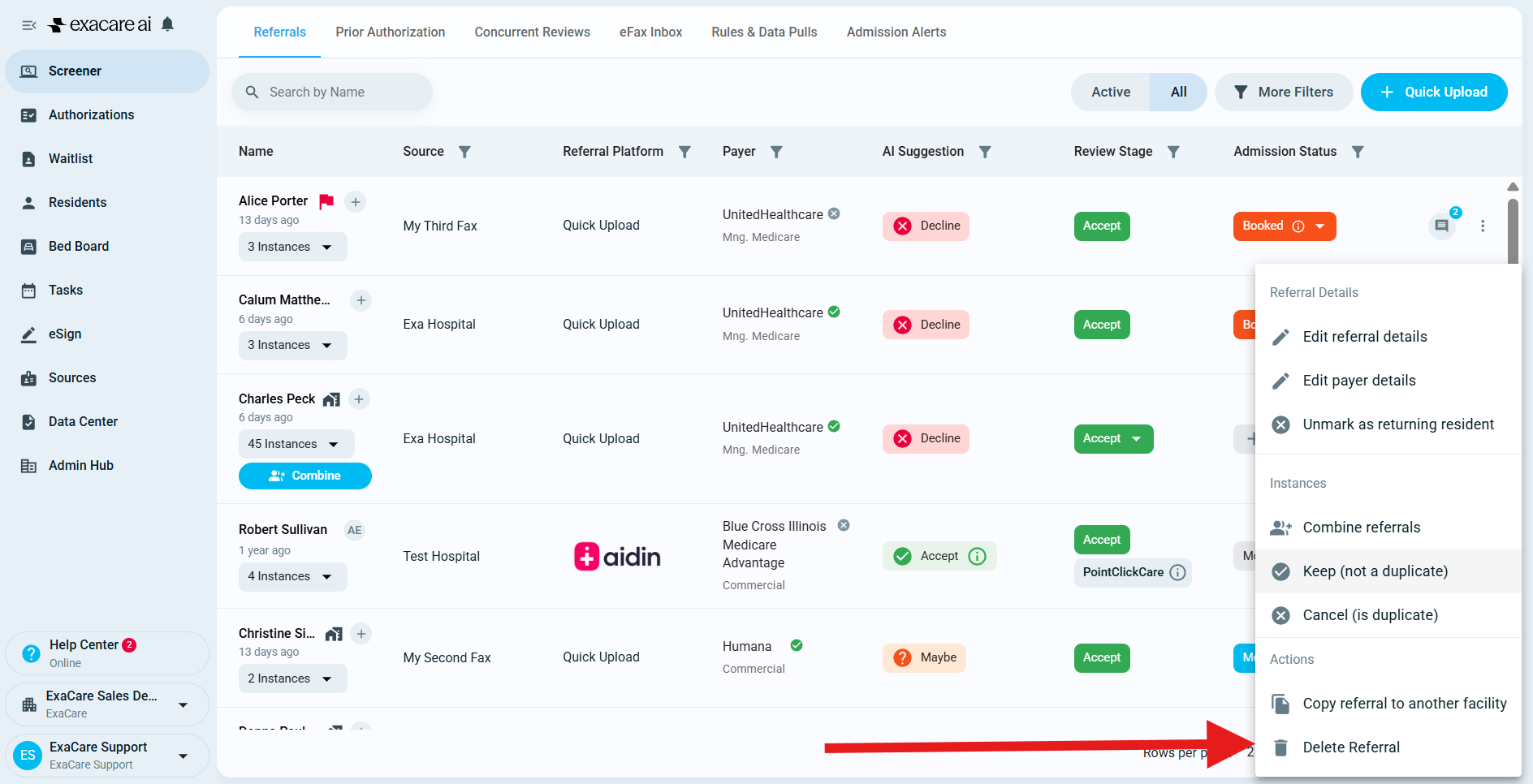
How to manage a referral state
Open the Screener.
Find the referral you want to update.
Review the referral details, documents, decision history, and admission status before making changes.
If the referral still needs action, keep it Active.
If your team has responded, make sure the correct response or decision is recorded.
If the referral no longer needs to appear in your active workflow, choose Archive.
If the referral was created by mistake or should not remain in exacare ai, choose Delete only after confirming it should be removed.
Use filters such as Active, All, or Archived to check where the referral appears after the update.
Expected result
After you update the referral state:
Active referrals remain visible in your working queue.
Responded referrals show that your team has already taken action.
Archived referrals are removed from the active view but can still be found when using broader filters or archived views.
Deleted referrals are removed from the normal referral workflow.
Common questions and troubleshooting
I want to clean up my Screener. Should I delete old referrals?
In most cases, no. Use Archive instead. Archiving helps keep your active queue focused without removing referral history that may be useful later.
A referral was marked Need More Info, but the patient went elsewhere. Should I decline it?
If the referral was lost before your team reached an accept or decline decision, leave the Need More Info response in place and mark the referral as Lost when that option applies. This keeps your reporting more accurate and shows what actually happened in the workflow.
Will marking a referral Lost affect response time reporting?
Marking a referral Lost can stop the relevant workflow timing once the referral is no longer moving toward a final decision. Referrals that were lost before an accept or decline decision may not be included in final decision timing metrics.
I cannot find a referral I was working on.
Try these checks:
Clear search terms or filters.
Switch from Active to All.
Check whether the referral was archived.
Confirm you are viewing the correct facility.
If the referral may have been deleted or is still missing, contact exacare ai support.
I have duplicate referrals for the same person. Should I delete one?
Do not delete a duplicate unless you are sure it should not remain in the system. If the referrals are eligible, use Combine instead.
The Combine option is only available when referrals meet the required criteria, such as being in the same facility, active, created through supported sources like Quick Upload, Manual Copy, or eFax, and not having an Admission Status. If Combine is not available, contact support for help reviewing the referral records.