Overview of eSign
Last updated: June 23, 2026
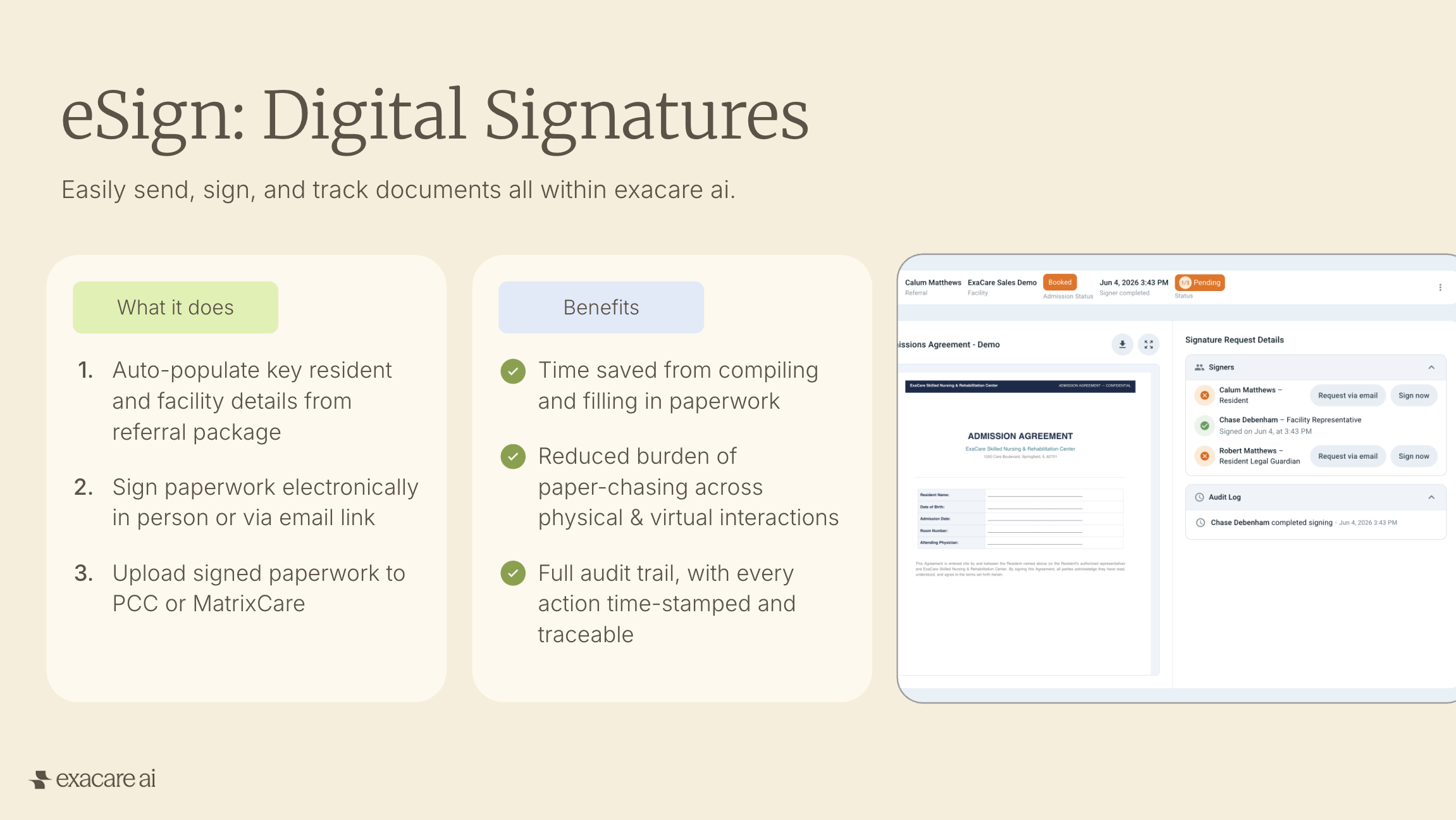
eSign is exacare's digital signature feature for admissions documents. Use eSign to prepare reusable document templates, send signing requests, track completion, and retrieve signed PDFs all within the exacare platform.
What you can do with eSign
Use eSign for admissions paperwork and other documents that require signatures. Common examples include admission agreements, state agreements, arbitration agreements, financial disclosures, consent forms, and advance directive forms.
With eSign, your team can:
Pre-fill resident information from the referral facesheet
Send signing requests by email or complete by signing in-person
Track signing status from the eSign grid
Download the completed PDF and audit trail
Easily push completed documents to PCC or MatrixCare
How eSign works
The eSign workflow has four main steps:
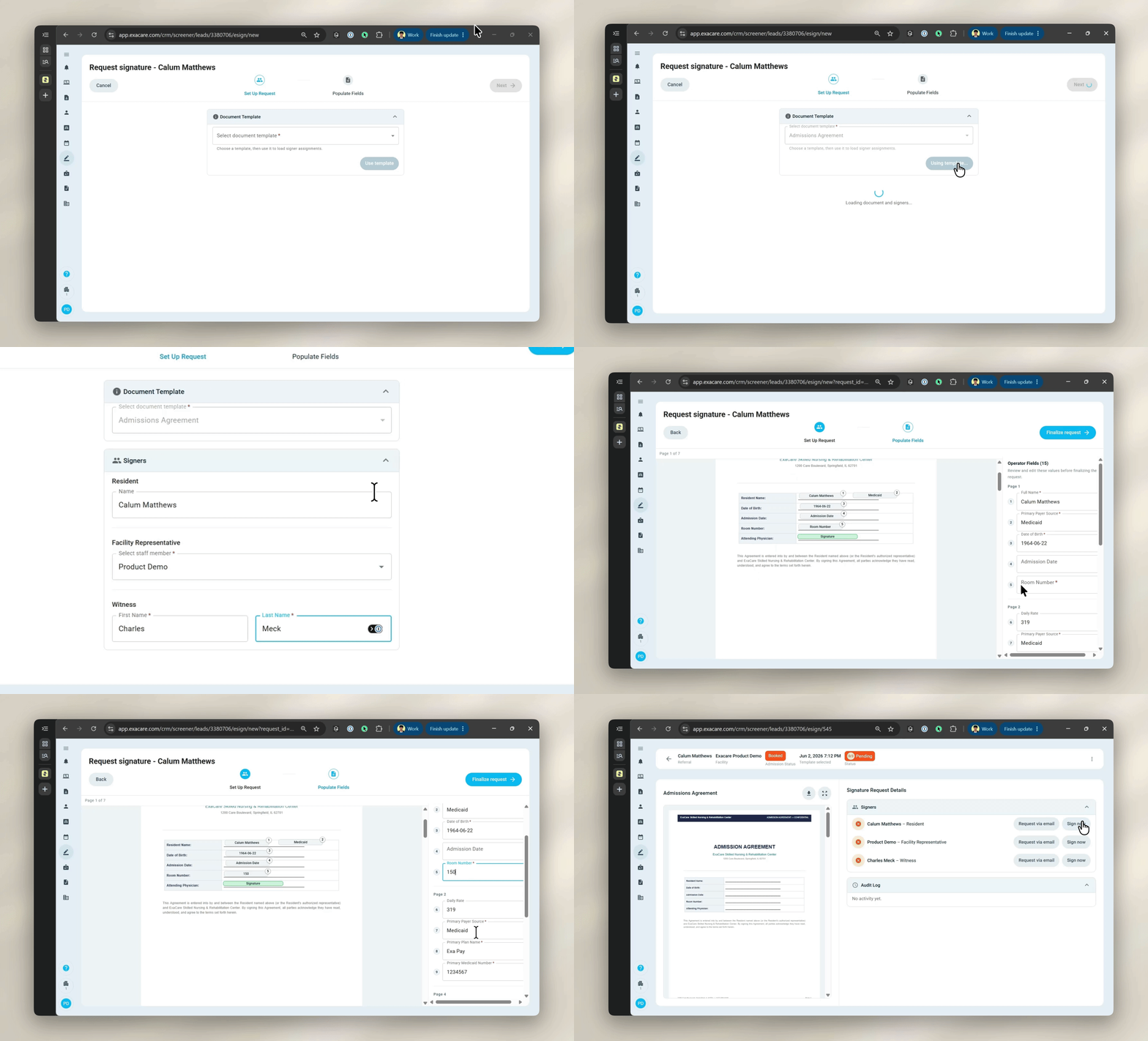
Create a template. An admin or superadmin uploads a PDF, places fields on the document, and assigns signer roles. Some fields can pre-fill from the resident's facesheet, while others are completed by the signer.

Send a signing request. A team member selects the template, confirms signer details, reviews pre-filled information, and chooses whether to share the request by email or complete signing in-person.
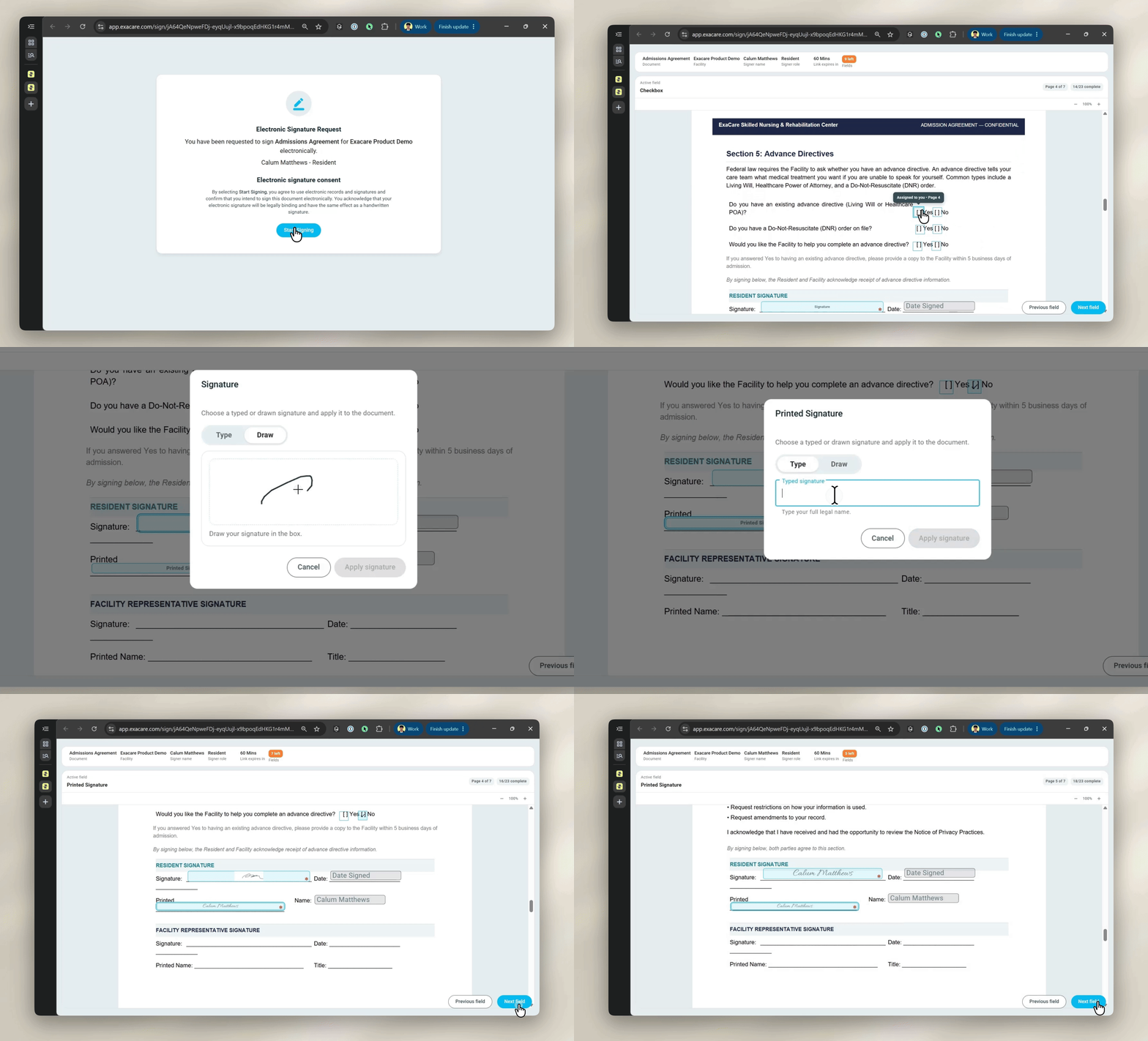
The signer completes the document. The signer opens the secure email link or signs in-person on the operator's device, then completes the required fields.
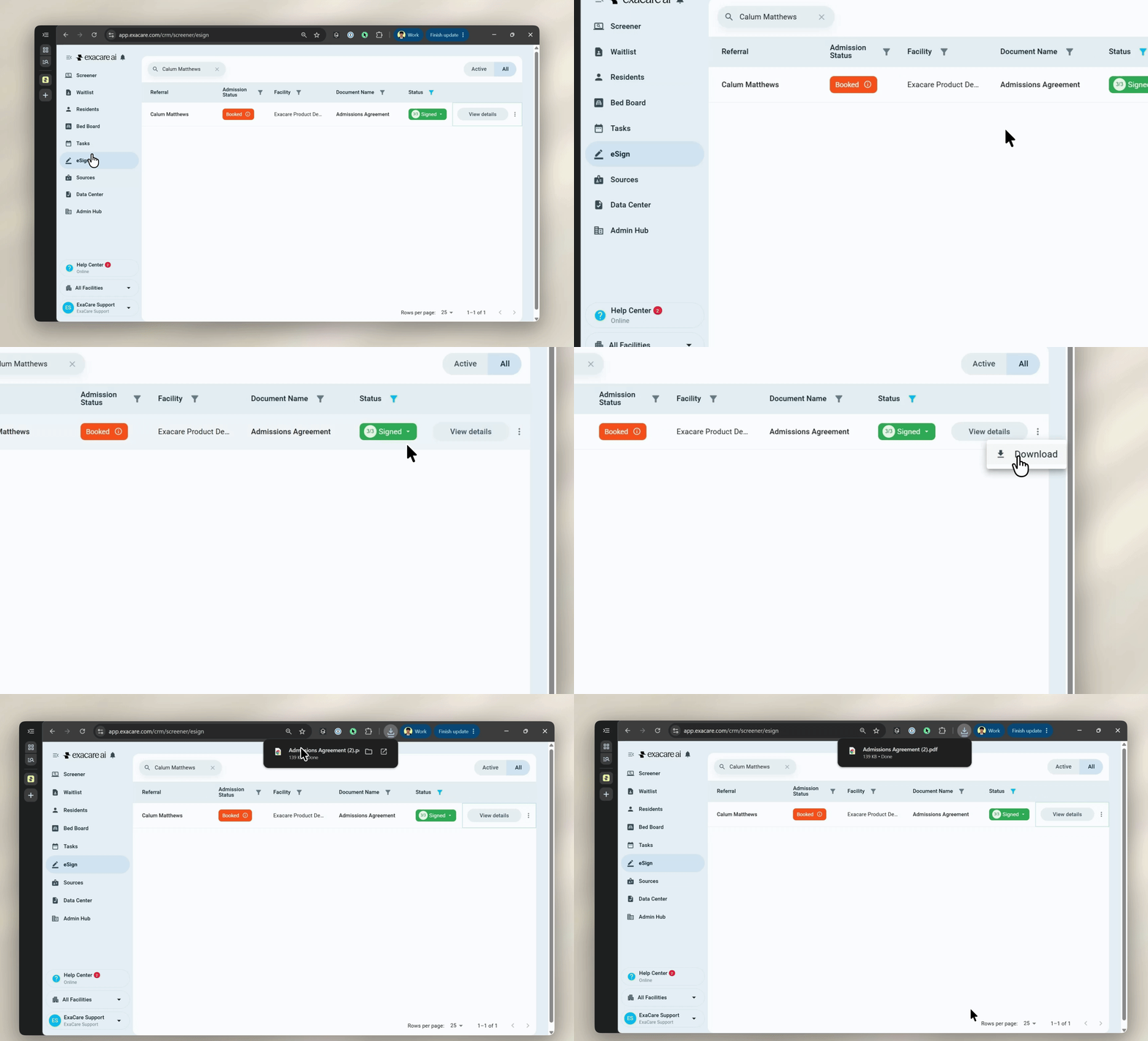
Track and retrieve the document. The eSign grid shows the request status. Once complete, the signed PDF and audit trail are available to download or push to the EHR.
Ways to start a request
There are two common ways to start a signing request.
From booking or move-in
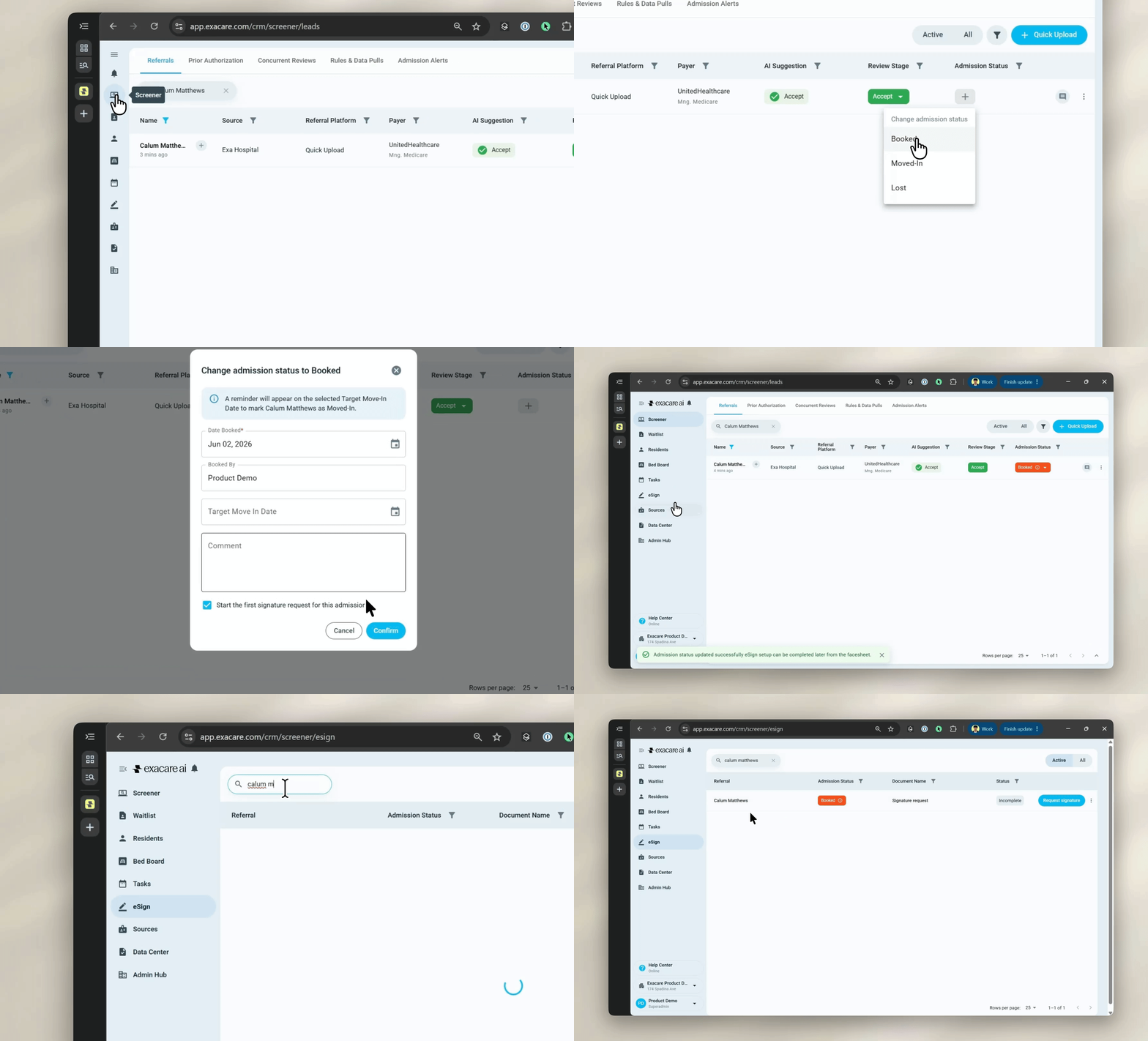
When a referral is changed to Booked or Moved-In, use the eSign checkbox to create the first signing request for that admission. For readmissions or cases where paperwork is already on file, uncheck the box.
From the referral facesheet
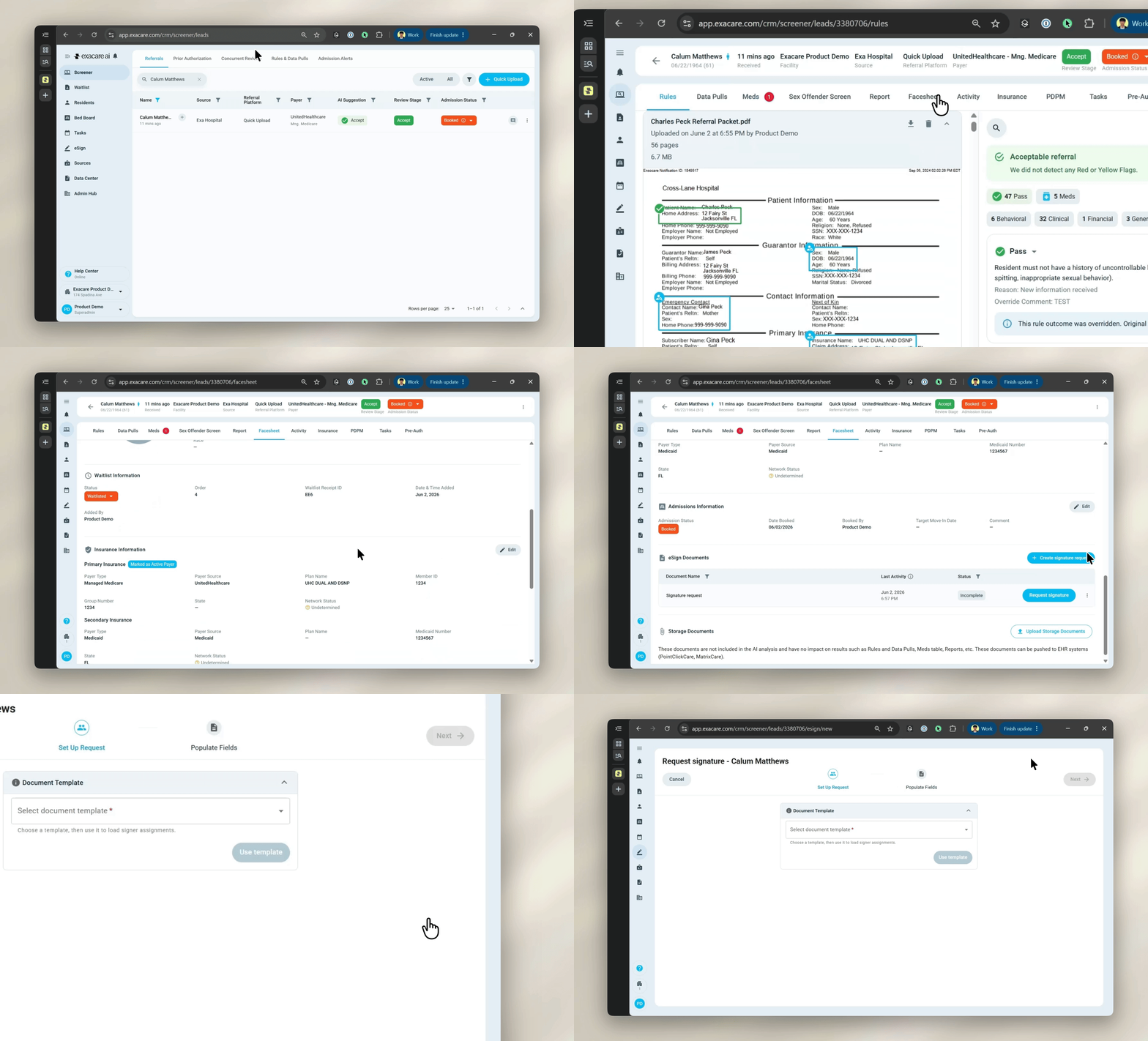
Open the referral facesheet, scroll to the bottom and use Request signature under eSign Documents. This is useful for ad-hoc forms, re-signed documents, or requests created outside the booking flow.
Ways to send or sign
You can complete a signing request by email or in-person.
Send by email
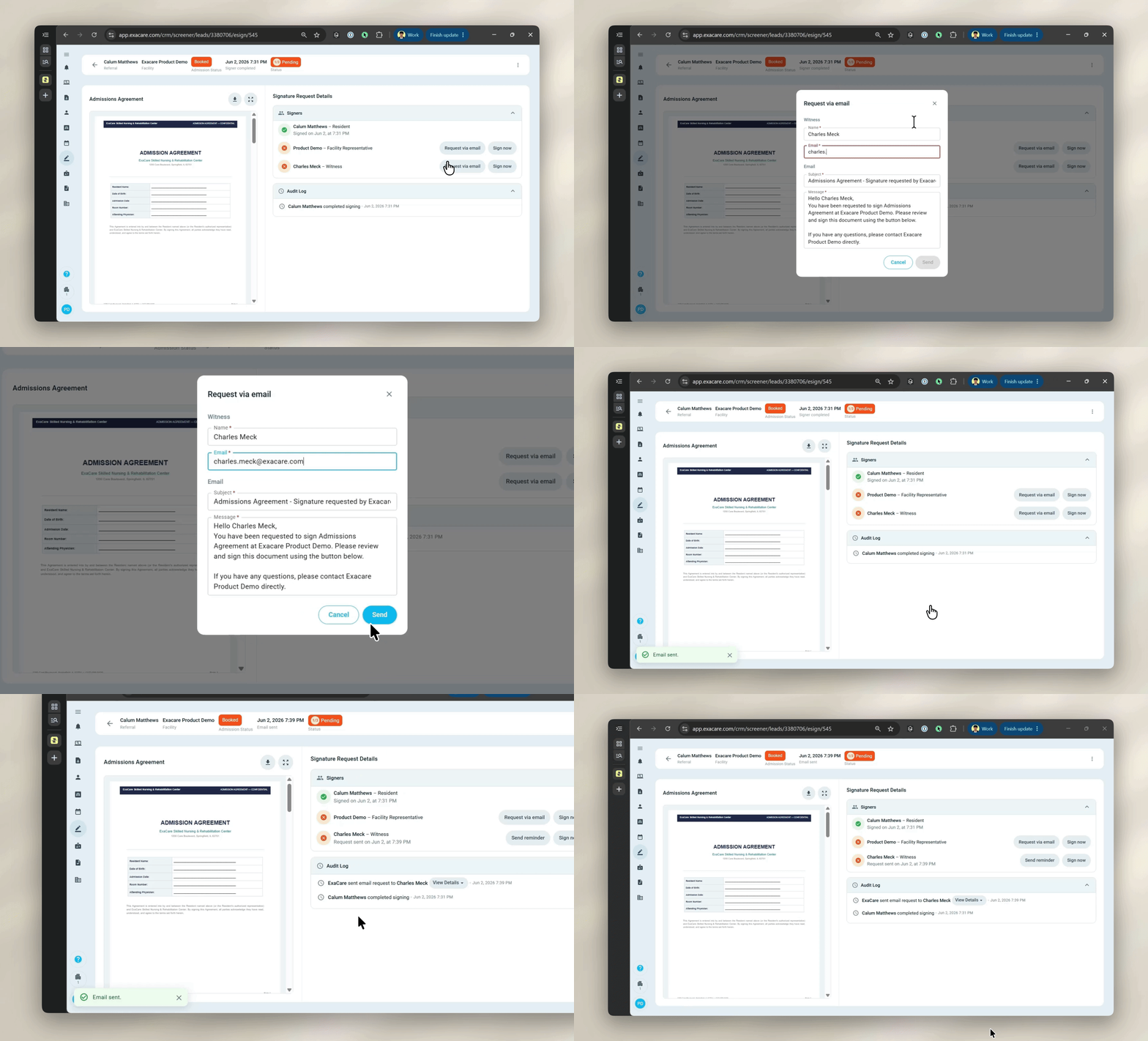
Send the signer a secure link by email. Before sending, review the signer's details and edit the email subject or message if needed. If the signer does not receive the email, send a reminder from the request details page or the eSign grid. All email requests will expire within 7 days of sending.
Sign in-person
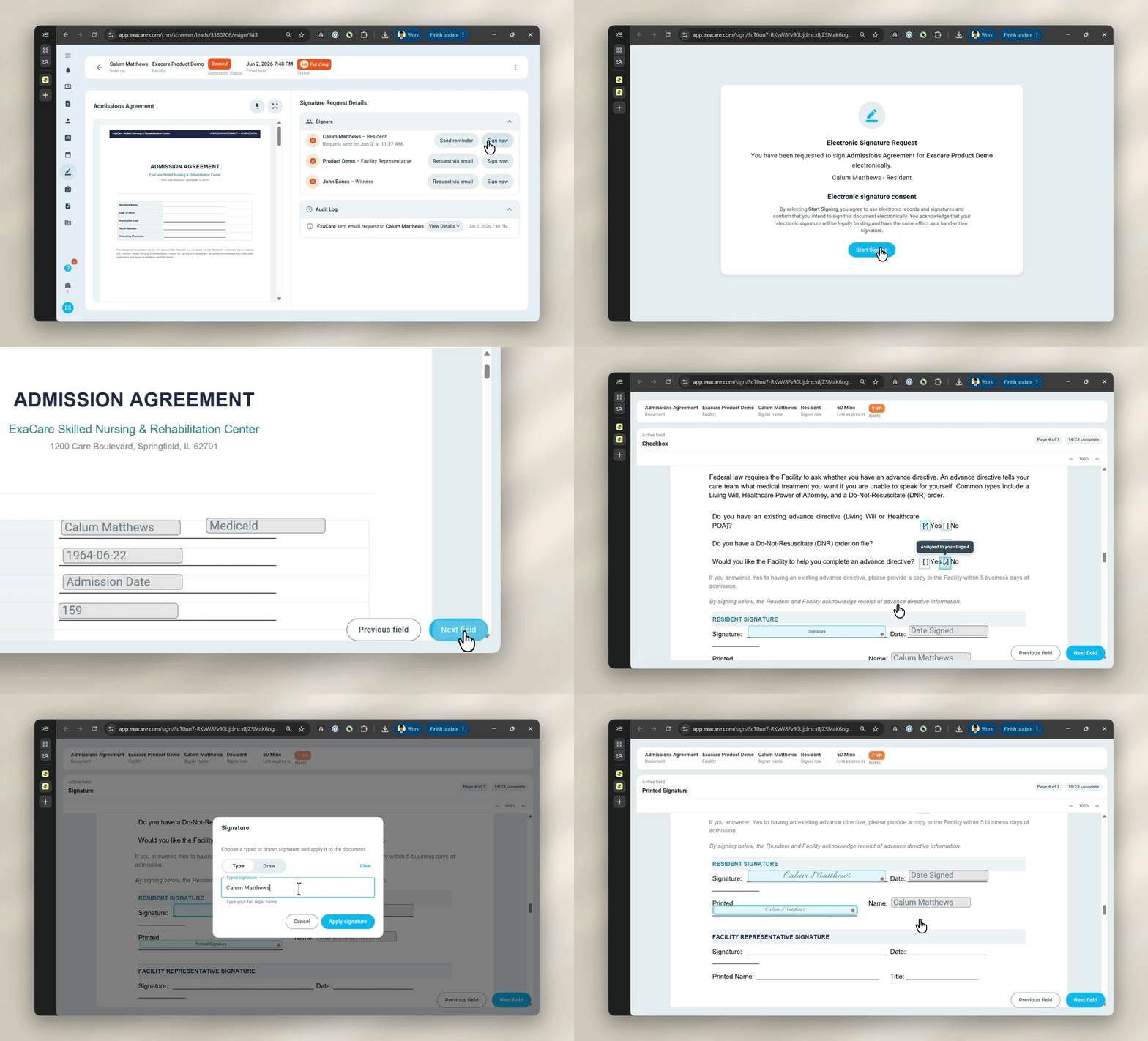
Use Sign now when the signer is with you and can complete the document on the operator's device.
The signing link stays active for one hour before a new link must be regenerated.
Tracking requests
Use the eSign grid to monitor the progress of signing requests across your facility (or across an "All Facilities" view). From the grid, you can review request status, filter requests, send reminders, cancel requests, view details, and download completed documents.
Document statuses:
Incomplete: a draft request has been created (when a referral was Booked or Moved-In), but it has not been finalized
Pending: the request has been finalized, but at least one signer has not completed it yet
Completed: the document is fully signed and available to download
Cancelled: the request was cancelled before completion
Completed documents and audit trail
When a signing request is complete, exacare generates a final PDF that includes the signed document and an audit trail. The audit trail records details such as the signer's name, email, timestamp, and IP address, and is appended to the end of the final PDF.
Completed documents can be downloaded from exacare. If your facility uses PCC or MatrixCare and EHR integration is configured, completed PDFs and audit trails can be pushed from the eSign grid using the one-click "Push to EHR" feature or from the referral's "Push to EHR" tab. Automatic EHR push is coming soon.
Where to go next
Setting up Templates: create and publish reusable signing templates.
Sending and Managing Signing Requests: send requests, track status, manage reminders and cancellations, and retrieve completed documents.
Frequently Asked Questions: review common questions about emails, signers, templates, EHR upload, and completed documents.