Notification Preferences
Last updated: June 11, 2026
Please refer to the training video below for a Notification Preferences Overview:
There are two ways to access your notification preferences: through your Profile settings or through the Admin Hub. Both methods provide the same notification configuration options.
Find your Notification Preferences settings page using either method:
Click on your profile icon (1) (bottom of the left-hand navigation menu) and then select Profile settings (2).
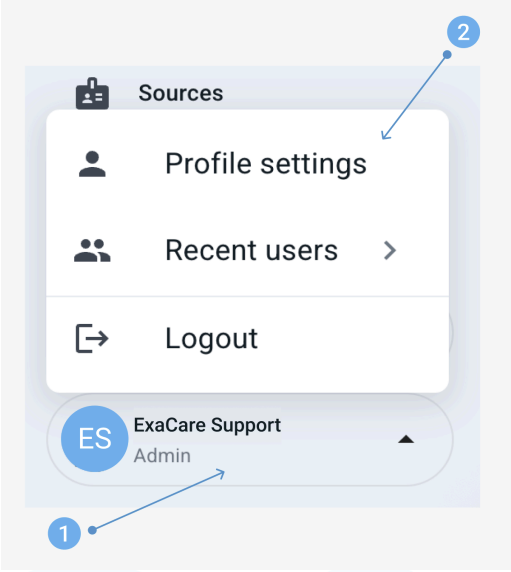
b. Click Notification Preferences in the top right corner.

Alternative Method: Access via Admin Hub
Open Admin Hub from the left-hand navigation menu.
Go to Staff Overview.
Open your profile from the staff list.
Click Notification Preferences.
Exacare AI Notification Preferences Types
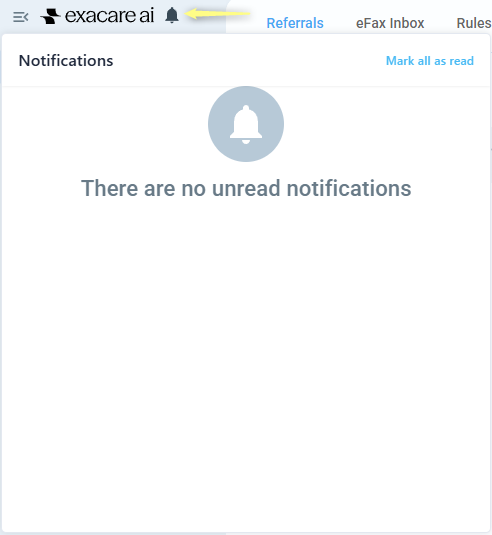
Bell – notifications received in-app. To view them, click on the Notifications icon at the top right corner of the left-hand navigation menu.
Email – notifications sent to the email address associated with your account.
SMS – text message notifications require a phone number to be added to your account.
To receive SMS notifications, add your phone number:
A. Click on your profile icon (1) (bottom of the left-hand navigation menu), and then select Profile settings (2)
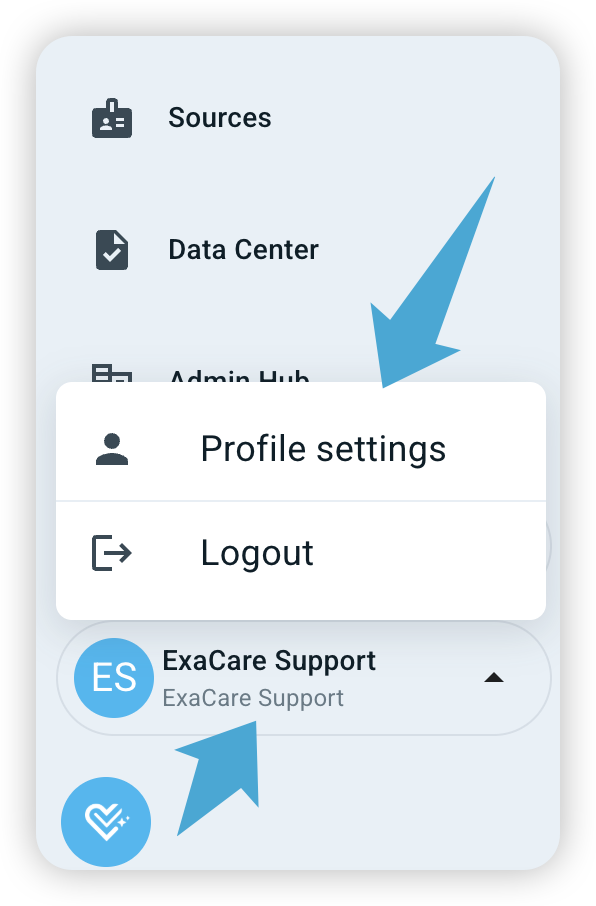
B. Enter your phone number in the Phone Number field.
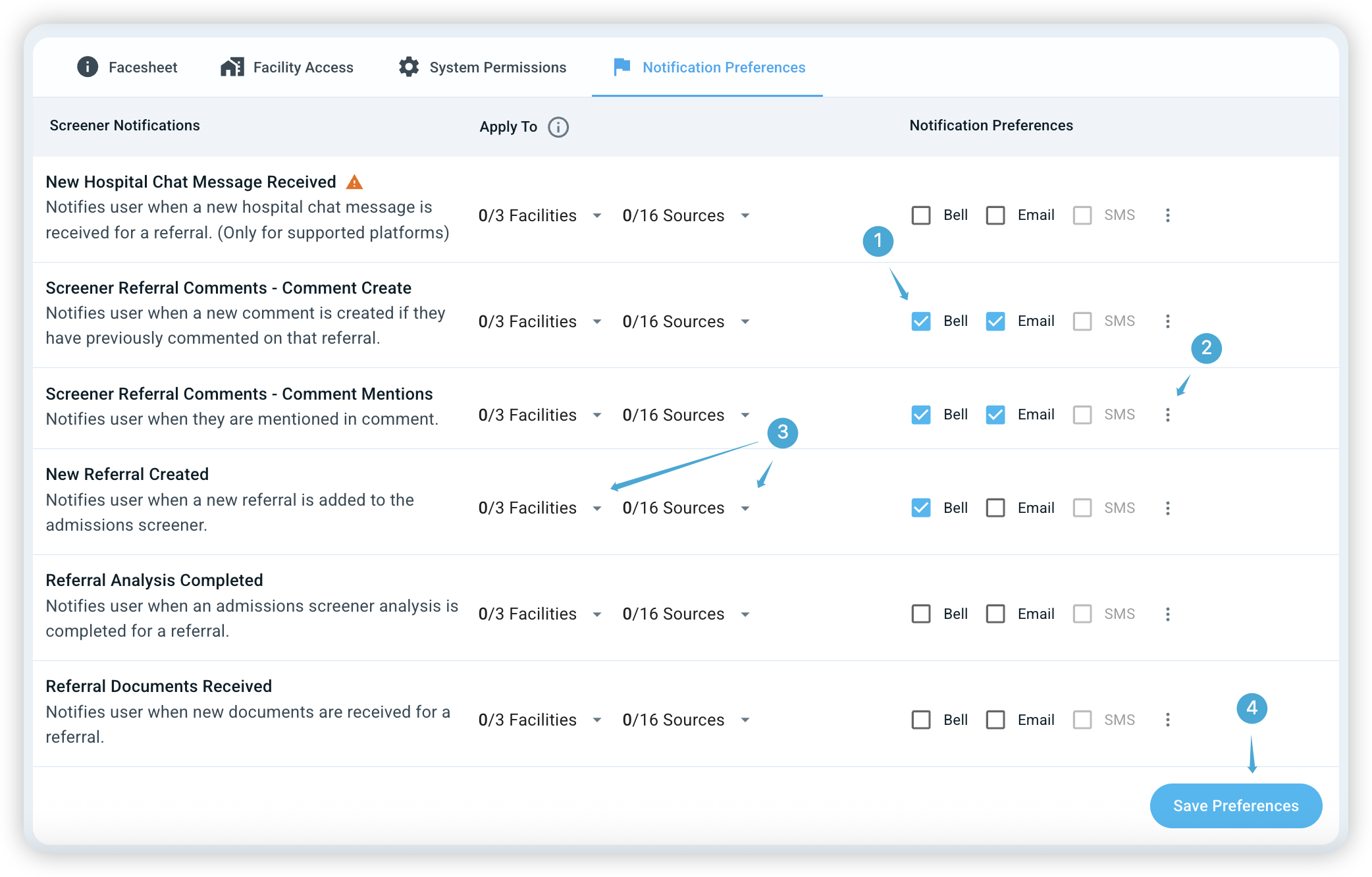
In Notification Preferences, for each notification type, you can select one or more delivery methods (if you would like this notification type at all) (1).
You can also enable delivery scopes to receive notifications only for specific facilities and/or sources. Follow these steps:
Click the actions button (2) next to the delivery method options.
Click Enable Delivery Scopes.
Select one or both delivery scope options (Facility and/or Source).
In the Apply To column, use the dropdowns (3) to select the relevant facilities or sources for each notification type. You will now receive notifications only for the facilities and sources you selected.
If no delivery scopes are enabled, you will continue to receive notifications (for those you have enabled) from all facilities and sources by default.
Recommended Notification Settings
We recommend turning on at least App and Email notifications for the first two rows related to Screener Referral Comments.
Ensure to click Save Preferences (4) at the bottom right corner of the page to save your changes to your notification preferences.