System Permissions
Last updated: June 22, 2026
Please refer to the training video below for a Systems Permissions Overview.
Click Admin Hub on the left-hand navigation menu.
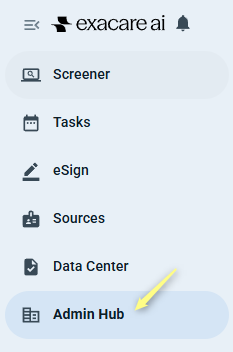
2. Click Staff Overview in the Admin Hub page.
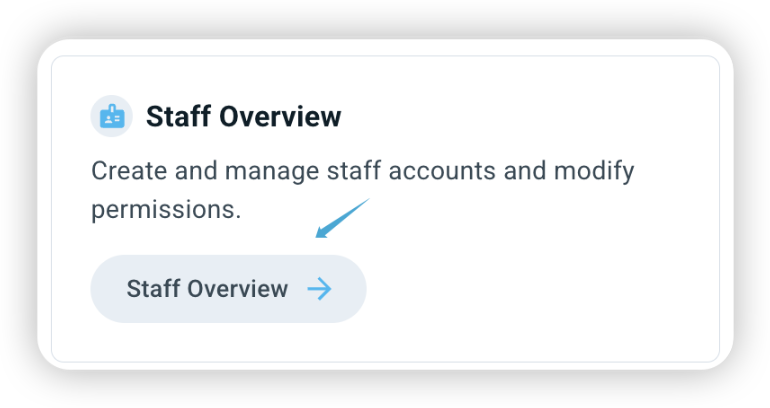
3. Click on the user's name, found in the list on the Staff Overview page.

4. Select the System Permissions tab

5. Review the toggles on the right-hand side of the page:
Grey – no access

Blue – access

Faded – access cannot be changed by you (i.e., based on your user role)

Toggle on or off system permissions as needed.
Please review this article on the exacare ai User Roles to understand access based on your role