How to Handle Non-Referral Documents and Spam Filtering
Last updated: June 9, 2026
Faxes sent to your exacare ai eFax line may include referrals, updates to existing referrals, non-referral documents, and spam. The eFax Inbox helps your team review every received fax while keeping unwanted documents from creating extra noise in the Screener.
When to use this
Use this article if your team receives faxes in exacare ai and wants to:
Review faxes that did not create a referral
Keep spam or non-referral documents out of the Screener
Create a referral from a fax that was filtered by mistake
Combine a fax with an existing referral
Understand why a fax appears in the eFax Inbox instead of the Screener
Important notes
The eFax Inbox is available for facilities with eFax integration enabled.
Faxes received through an exacare ai eFax line remain visible in the eFax Inbox, even if they do not create a referral.
Spam and non-referral filtering depends on your organization-wide settings.
If you cannot change these settings, contact your Superadmin or organization administrator.
How exacare ai classifies incoming faxes
When a fax arrives, exacare ai reviews it and may classify it as one of the following:
Classification | What it means |
|---|---|
Referral | The fax appears to be a new referral and may create a referral in the Screener. |
Non-referral document | The fax appears to be related paperwork, such as an invoice or other document that is not a new referral. |
Suspected spam | The fax appears to be spam or irrelevant content. |
Error | The fax transmission may not have completed correctly. |
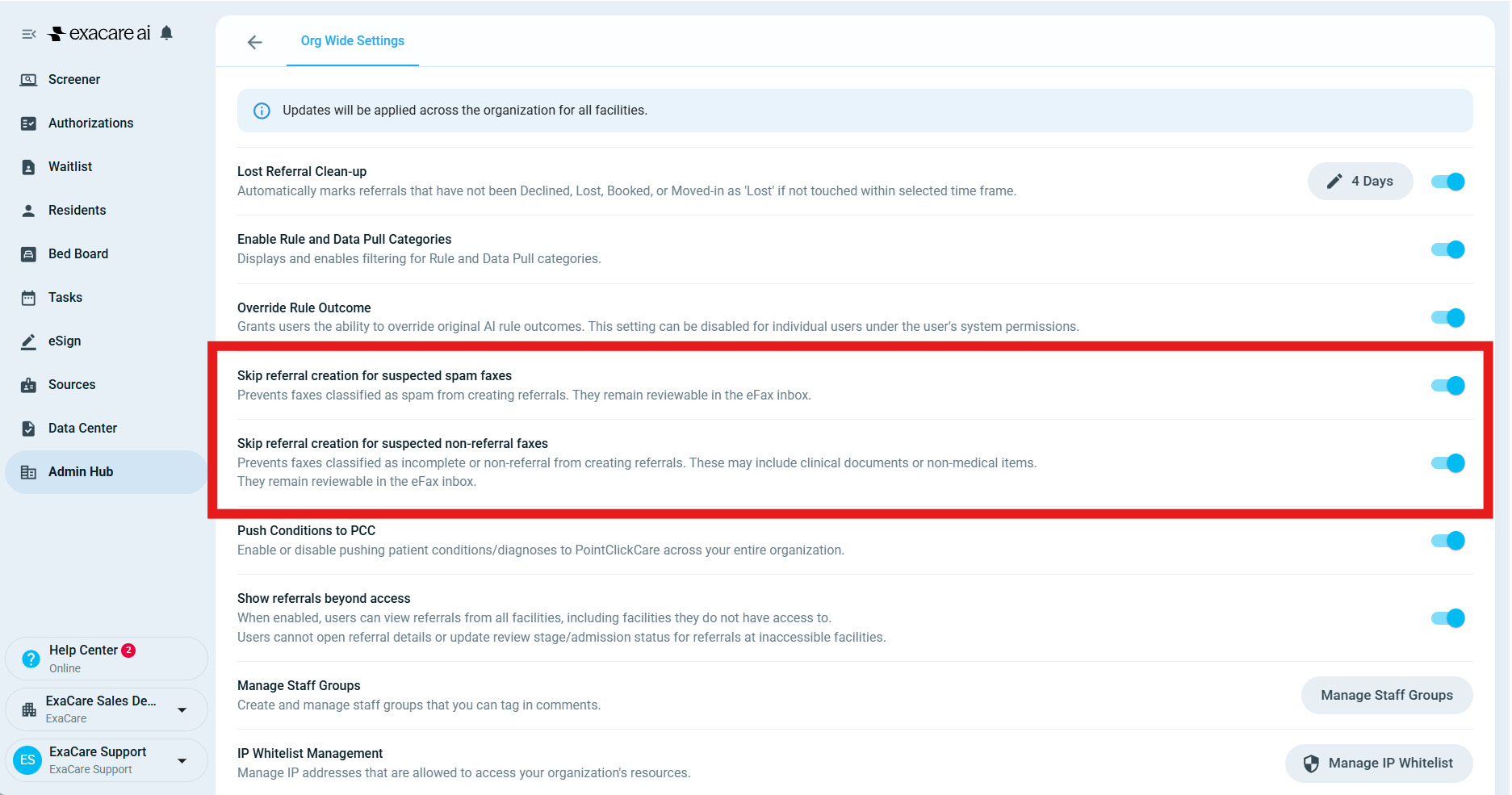
Turn on spam and non-referral filtering
If spam or non-referral documents are creating unwanted referrals in the Screener, ask your Superadmin or organization administrator to review your organization-wide eFax settings.
Go to your organization-wide settings.
Find the eFax or Screener filtering settings.
Turn on filtering for suspected spam.
Turn on filtering for non-referral documents.
Save your changes.
After these settings are turned on, suspected spam and non-referral faxes should be routed to the eFax Inbox instead of automatically creating referral noise in the Screener.
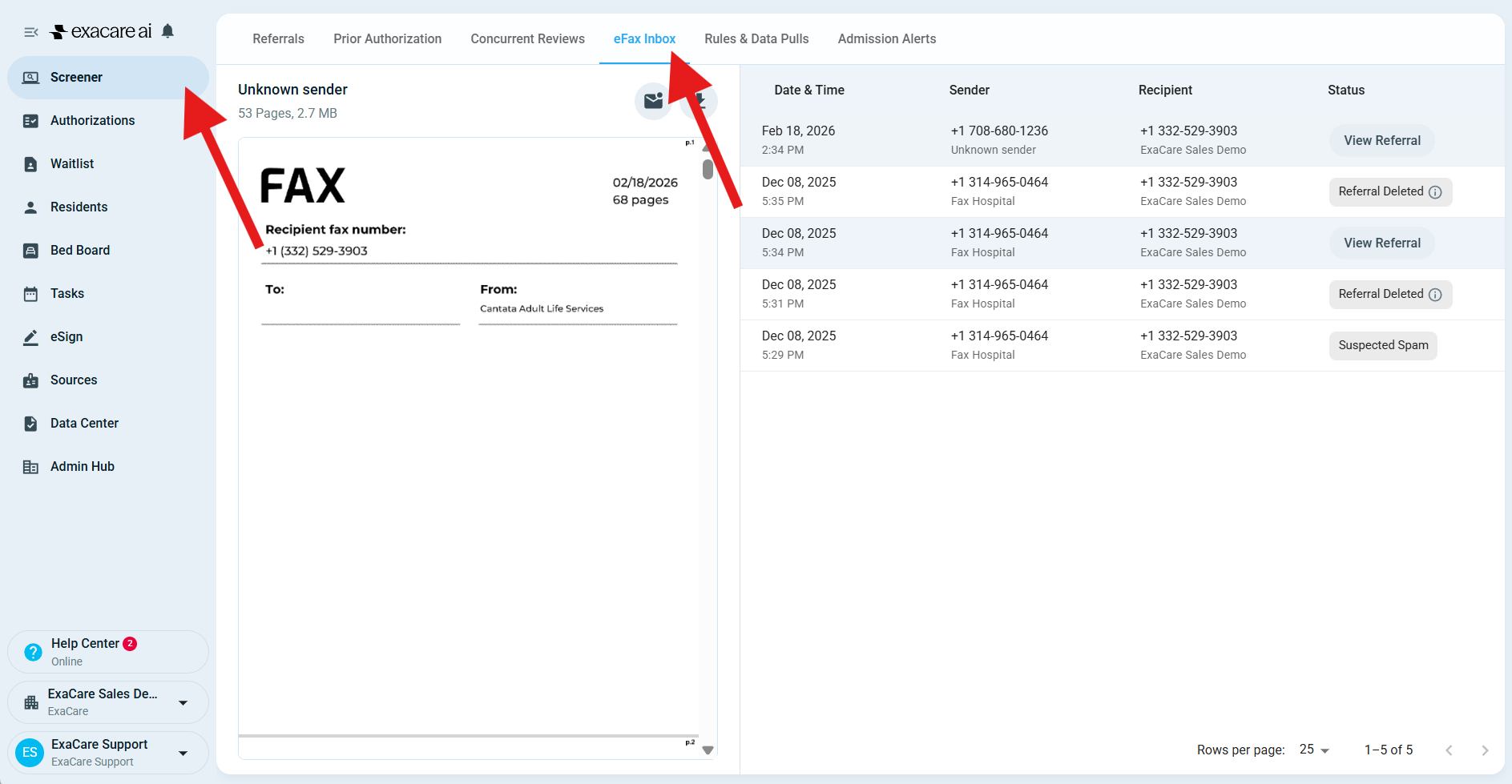
Review filtered faxes in the eFax Inbox
Open the eFax Inbox.
Select the facility or use the All Facilities view, if available.
Review the fax classification, sender, recipient, timestamp, and page count.
Open the fax preview to confirm what the document contains.
Choose the next action:
Download the fax if you need to handle it outside exacare ai.
Mark it as read once your team has reviewed it.
Create a new referral if the fax was filtered but should be a referral.
Combine it with an existing referral if it is an update or supporting document.
Create a referral from a filtered fax
If a fax was marked as spam or non-referral but is actually a referral:
Open the eFax Inbox.
Find and open the fax.
Confirm that the fax contains referral information.
Select the option to create a new referral from the fax.
Review the referral details after it is created.
The fax will remain available in the eFax Inbox, and the new referral can be reviewed in the Screener.
Combine a fax with an existing referral
If the fax is an update for a referral that already exists:
Open the eFax Inbox.
Find and open the fax.
Select the option to combine it with an existing referral.
Choose the matching referral.
Confirm the action.
Use this for documents such as updated clinical notes, discharge summaries, clarifications, or other supporting information for an existing referral.
Expected result
Once filtering is set up, your team should see fewer unwanted referrals in the Screener. Full referrals can still be reviewed as referrals, while suspected spam and non-referral documents remain available in the eFax Inbox for review, download, or manual action.
Troubleshooting
A fax was marked as spam or non-referral, but it is a real referral
Open the fax in the eFax Inbox and create a new referral from it. If this happens often, contact exacare ai support so the team can review the pattern.
A fax is an update to an existing referral
Use the option to combine the fax with the existing referral. This keeps the supporting document connected to the correct referral instead of creating a duplicate.
Users are asking to delete unwanted referrals from the Screener
If unwanted referrals are being created from spam or non-referral faxes, ask a Superadmin or organization administrator to turn on spam and non-referral filtering. This helps prevent those faxes from creating referrals in the first place.
A fax shows an error
An error usually means the fax transmission did not complete correctly. Contact the sender and ask them to resend the fax.
You do not see the eFax Inbox
The eFax Inbox appears for facilities that have eFax integration enabled. If you expected to see it but do not, contact your Superadmin or exacare ai support.
Related actions
Review your organization-wide eFax filtering settings.
Train admissions staff to check the eFax Inbox for filtered documents.
Contact exacare ai support if faxes are repeatedly classified incorrectly or expected faxes are missing.