4. Submit a Pre-Authorization
Last updated: July 16, 2026
This guide explains how to run a Managed Care Agent (MCA) analysis and submit a pre-authorization request to a payer using exacare.
Step 1: Access the Pre-Auth Tab
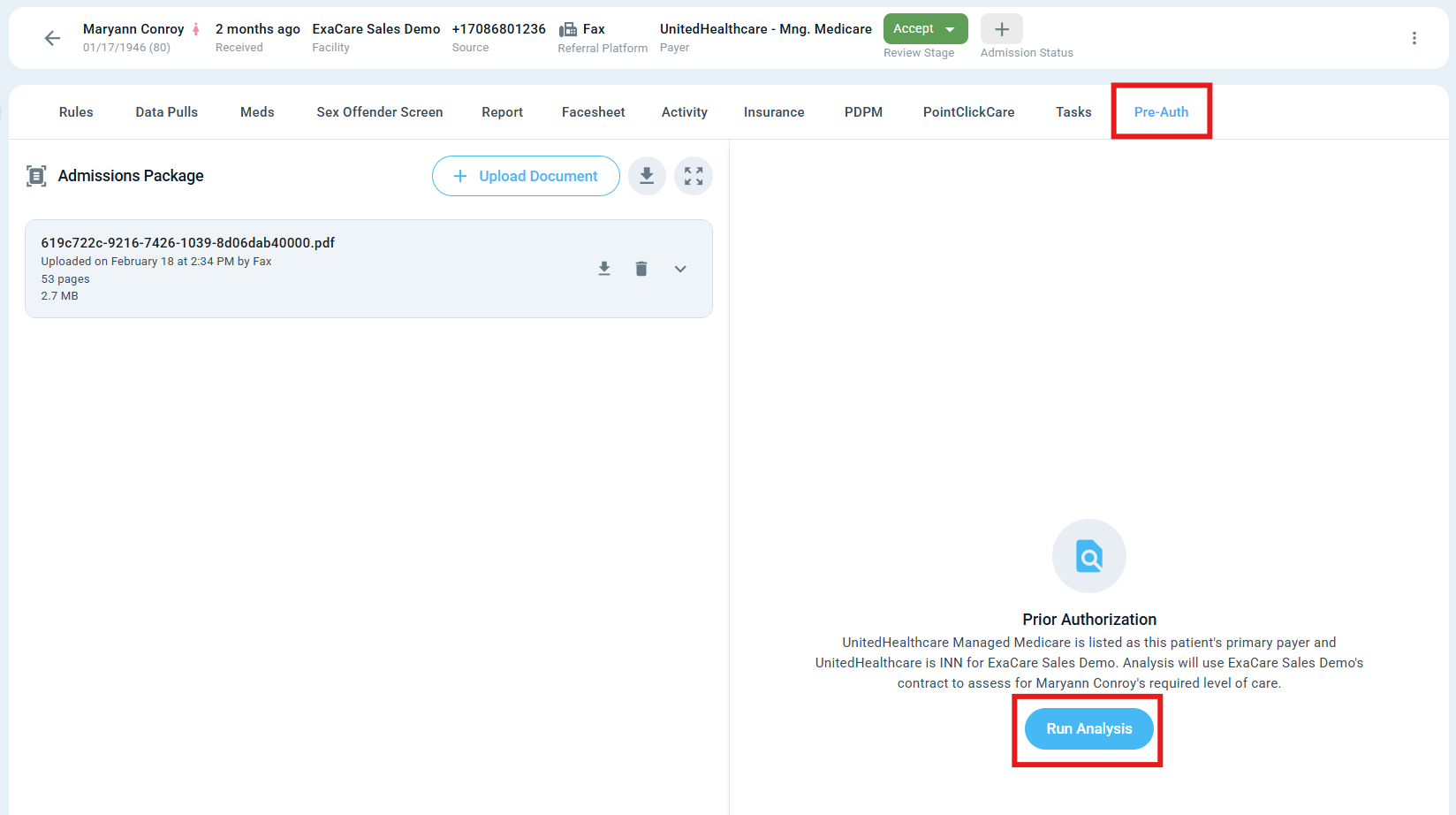
a. Open a referral from the screener tab.
b. Select the Pre-Auth tab.
Step 2: Run Analysis
a. Click Run Analysis.
Note: If resident is OON, you can still run an auth, however the output is based on the CMS Chapter 8 Guidelines
Exacare ai will:
Analyze all referral documents
Cross-reference the payer contract
Determine the appropriate level of care
Step 3: Review the Analysis Report
After the analysis completes, review the generated report:
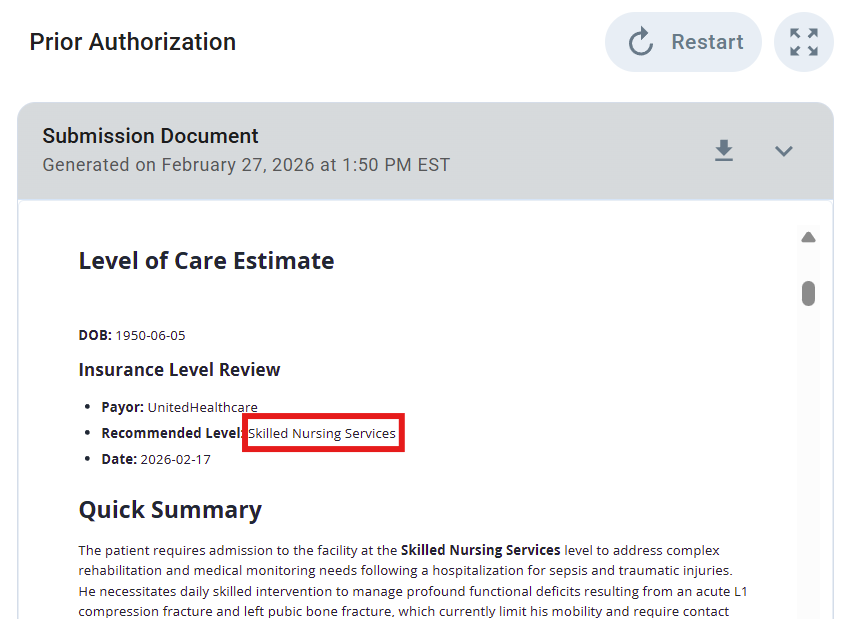
a. Level Assessment
Includes justification with in-line citations based on clinical criteria extracted from the referral package.
b. Document Extraction
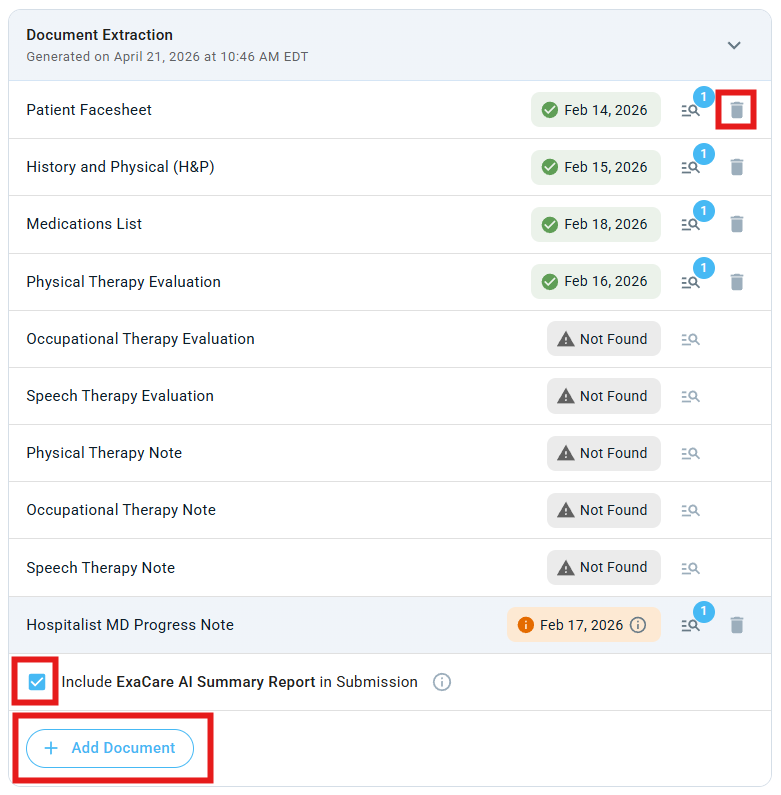
Review all extracted documents and address any alerts.
Scroll to visually locate alerts, and hover over each tooltip for additional context and explanation.
Orange = Outdated information (over 48 hours old)
Grey = Document not found
Add documents as needed.
Remove any unnecessary documents using the delete icon.
Choose whether to include the AI summary report in the submission.
Step 5: Select Submission Method
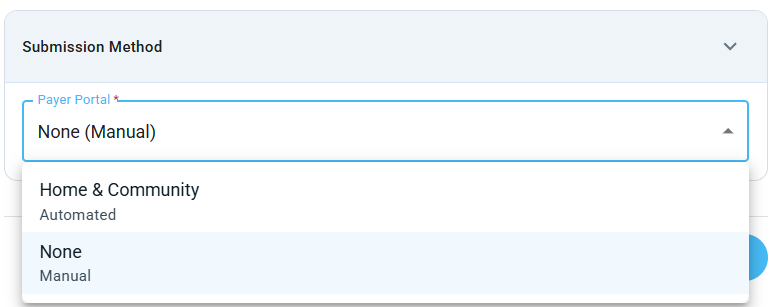
Automatic Submission: Select an integrated payer portal for automated submission via exacare, then click Review Submission. You will then be met with a page which mirrors the fields you would be filling in on traditional portals like Availity and NaviHealth.
Make sure to select the correct payer portal, you will receive an error if the patient does not exist in the selected portal
Manual Submission: Select None (Manual), then select Review package
Hospital-Initiated Submissions: When a hospital submits an authorization on your behalf, it may request a lower level of care than the resident’s clinical needs indicate in order to get patients through the door faster. Exacare helps you track hospital-initiated authorizations, identify opportunities for higher reimbursement levels, and provides the analysis and workflows needed to communicate those requests to case managers.
The Pre-Auth tab does not support direct communication with case managers. You will need to contact them through your usual communication method. However, exacare will provide the supporting rationale for requesting a higher level of reimbursement and centralize tracking of any reimbursement uplift.
Step 6: Submit to the Payer
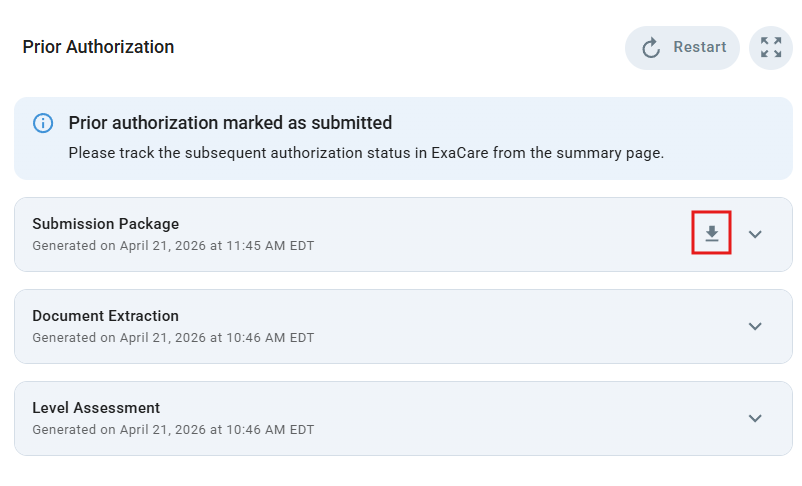
a. Review the submission details and submission document
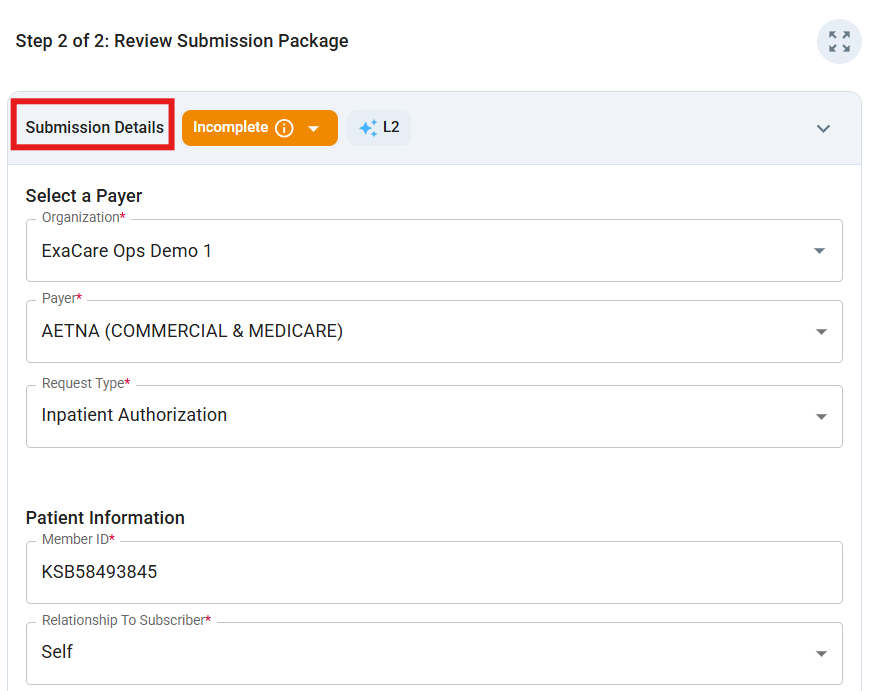
b. Submit to Payer
For Automatic Submission: Select Submit Pre-authorization
For Manual Submission: Download the submission document, submit the document outside of exacare are required (e.g., fax) and then return to exacare and select Mark as Submitted