Editing the Bed Board
Last updated: June 11, 2026
General Bed Board Structure
The Bed Board in exacare is organized into:
Units
Rooms
Beds
Bed Features
Each of these can be edited or configured to match the structure and layout of your facility. However, the permission to edit the Bed Board is only given users who are either an Administrator or Superadmin. Please refer to the training video below for a tutorial on Editing your Bed Board in exacare.
Accessing Bed Board Editing
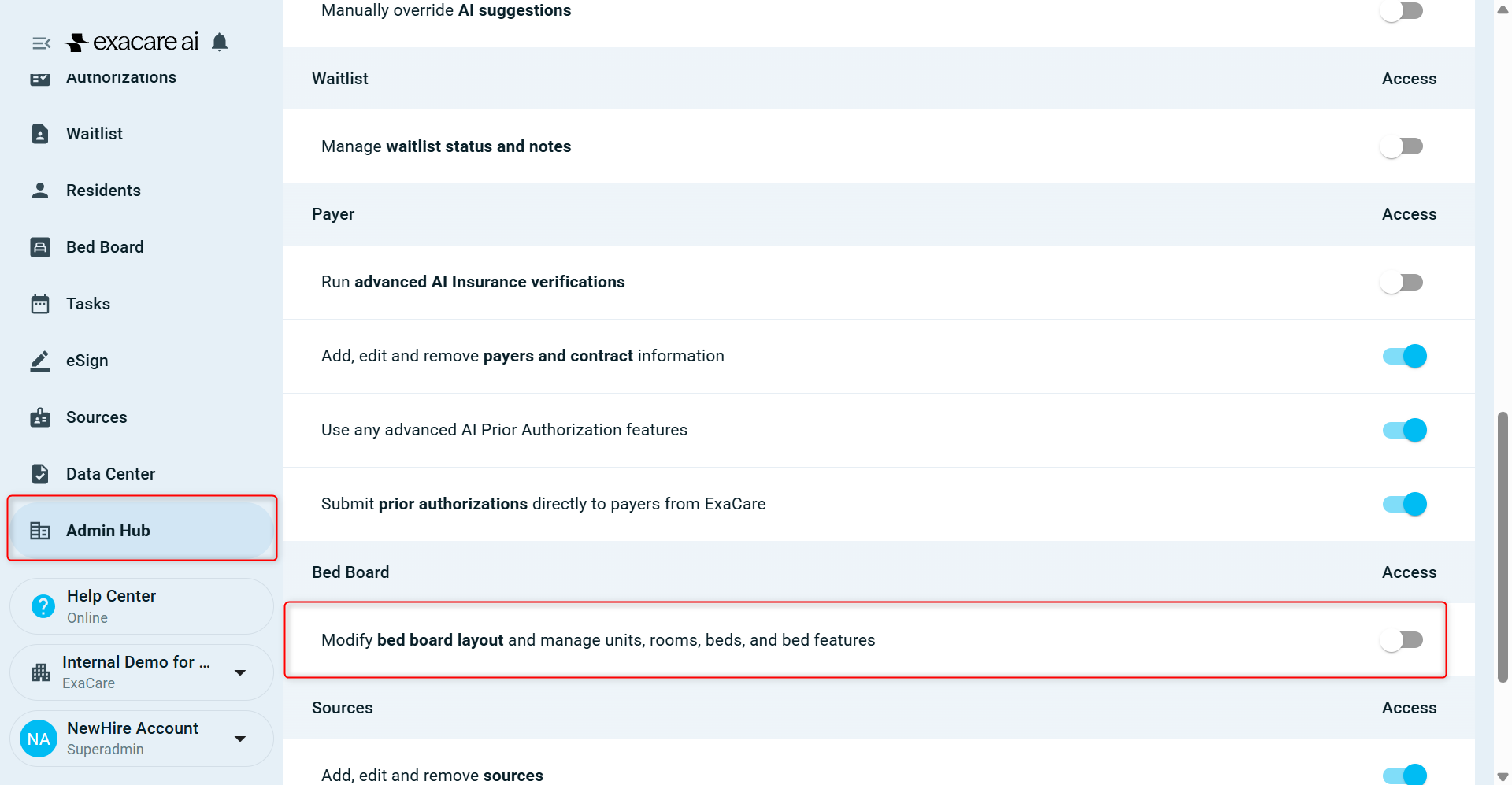
Only select users have the ability to edit the Bed Board. You can check if your permissions are enabled by going to your profile and selecting System Permissions:
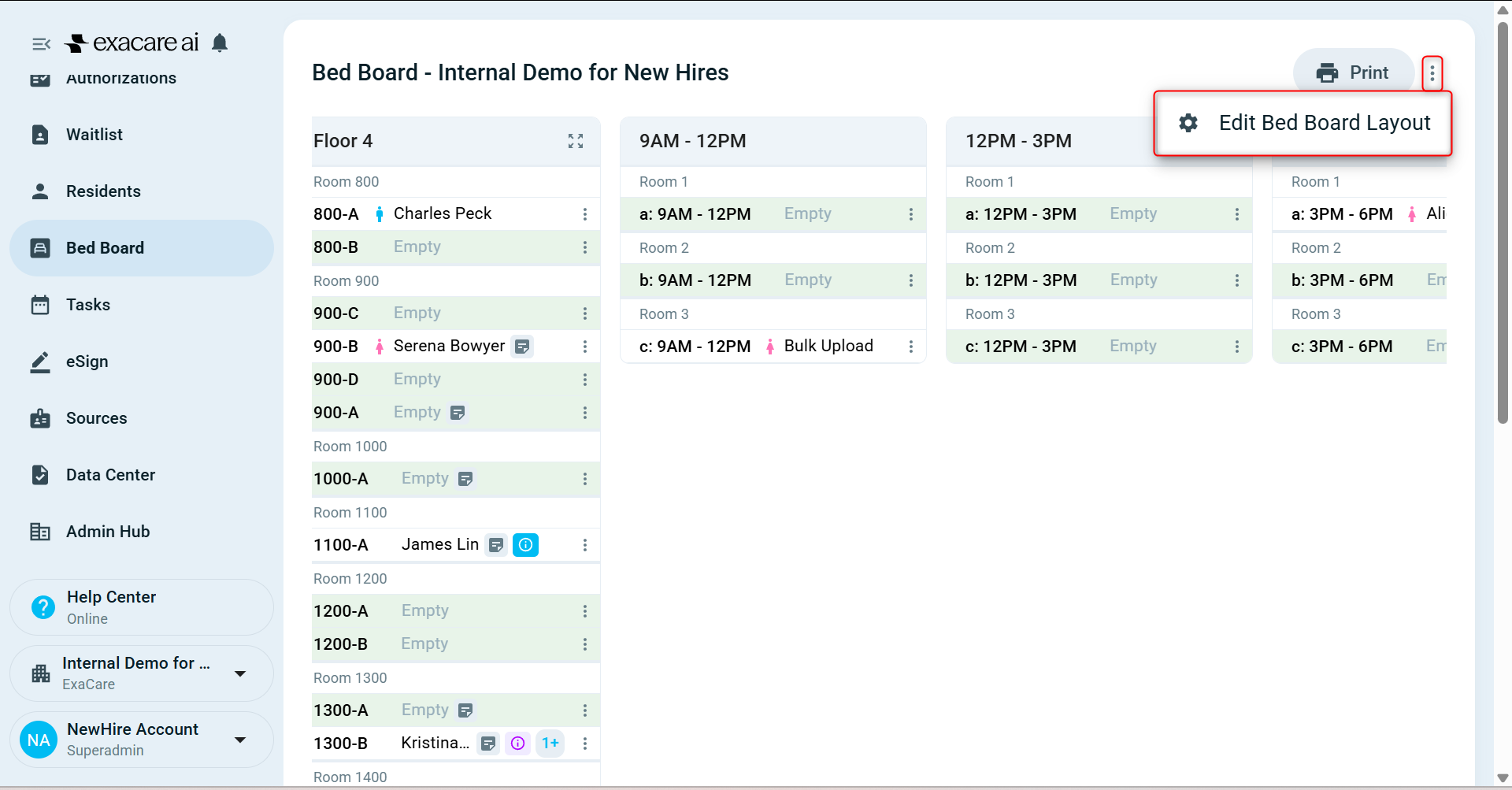
To edit the Bed Board, select Edit Bed Board Layout in the triple dot drop down menu next to Print on the Bed Board tab:
Adding/Renaming/Deleting Units
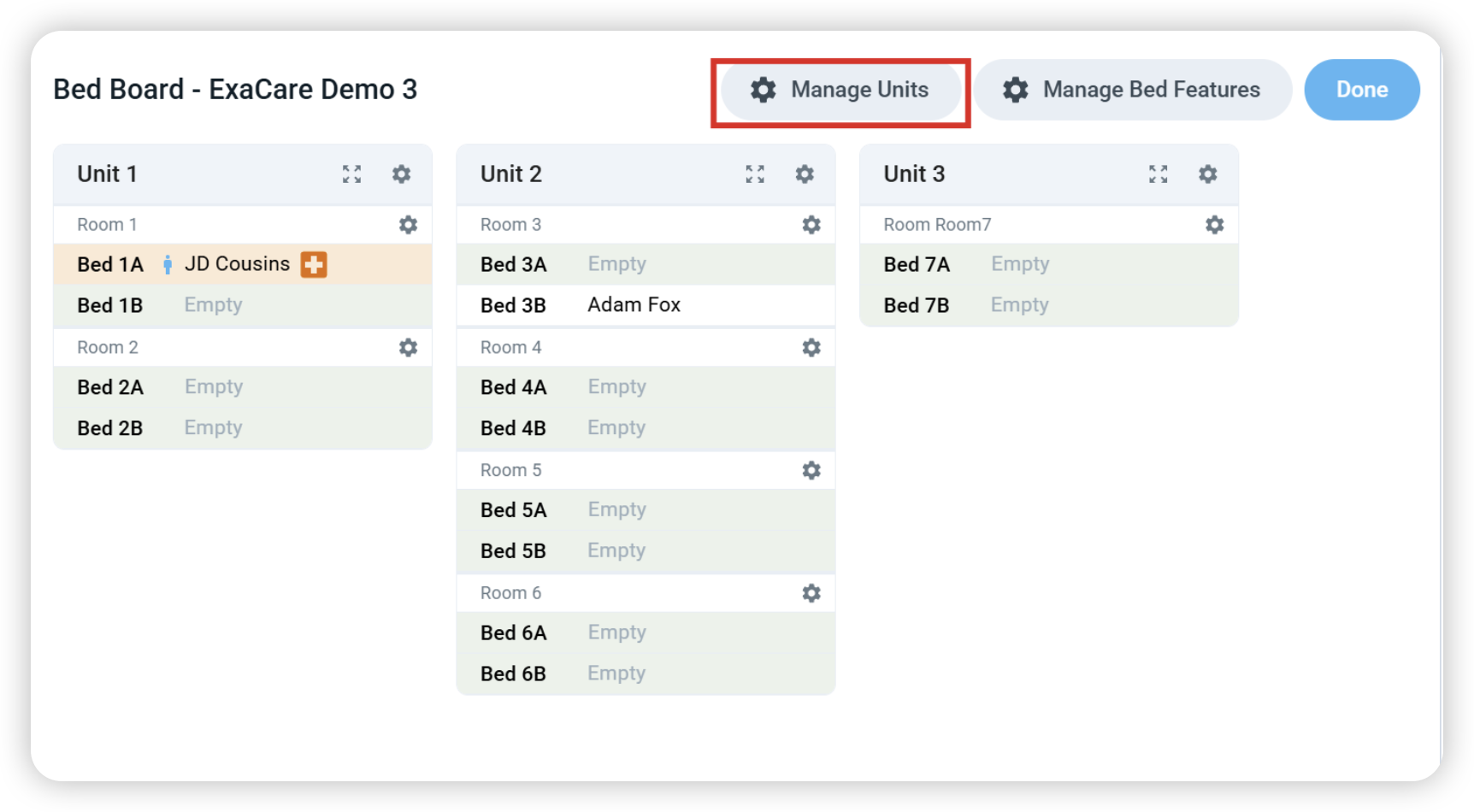
To edit the Units in Bed Board, select Manage Units:
Select + Add unit to create a new unit in your facility. You will also have the option to name this unit or delete existing units by selecting the delete icon:
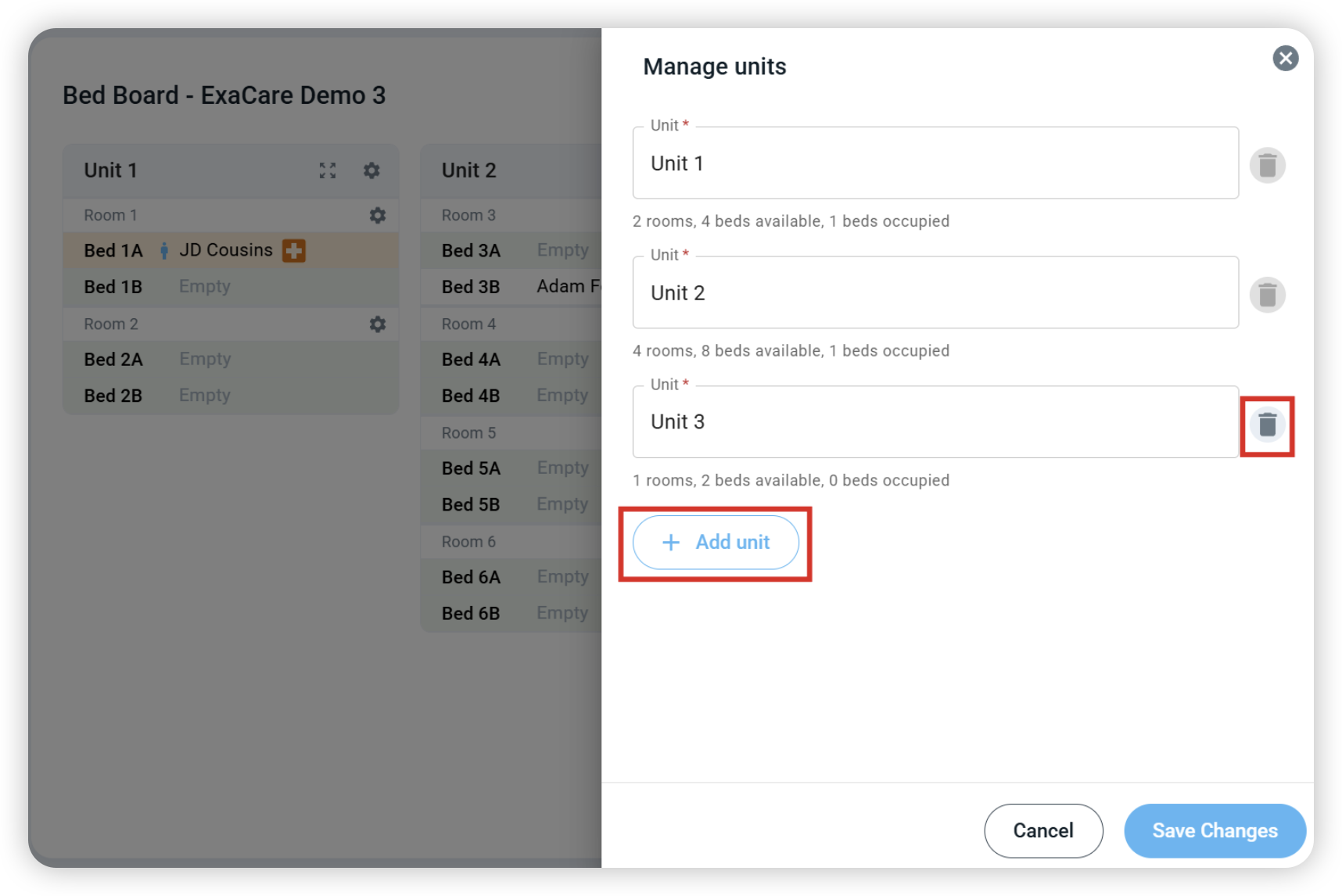
Select Save Changes and Done to finish editing.
Adding/Renaming/Deleting Bed Features
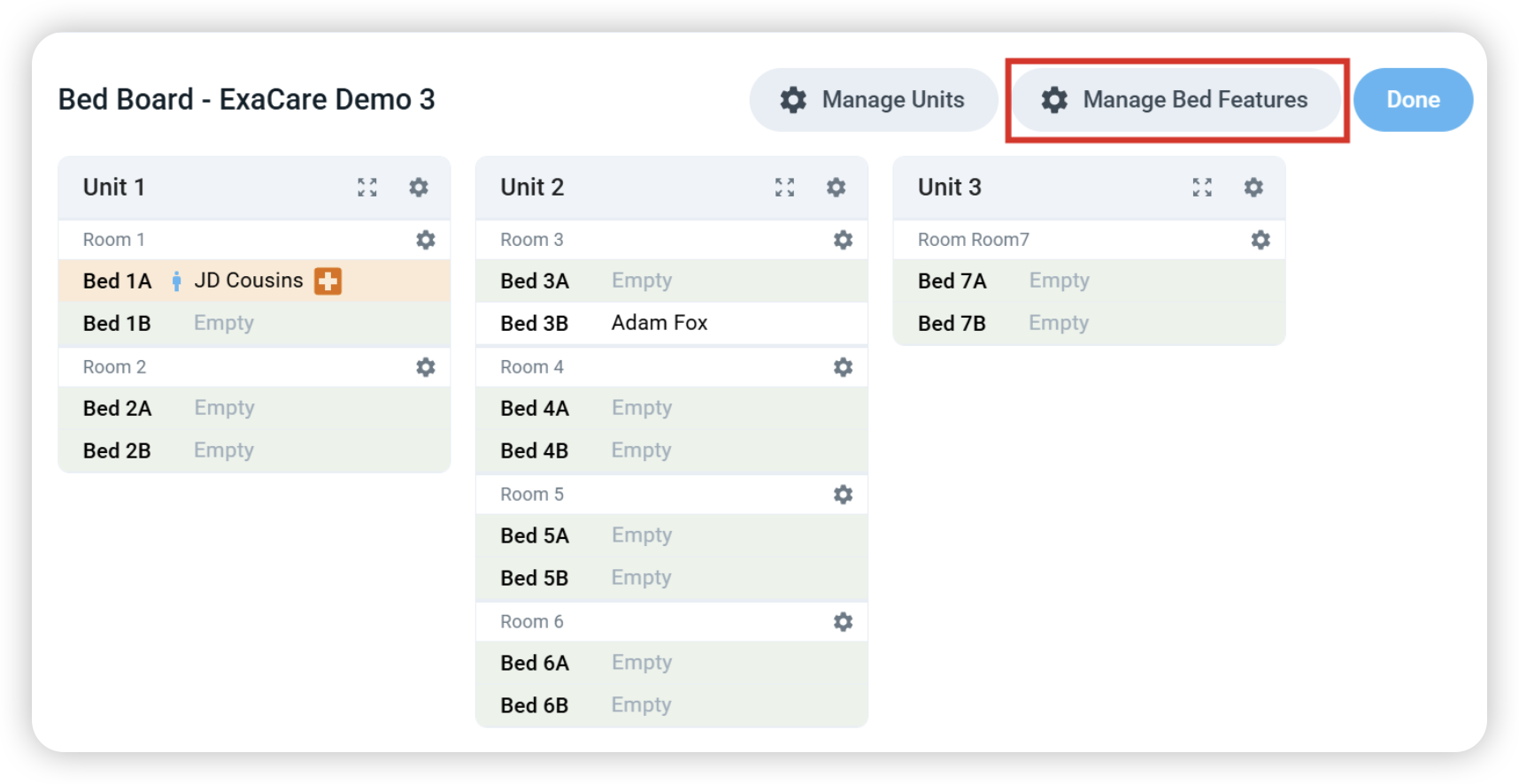
To edit the Bed Features in your Bed Board, select Manage Bed Features:
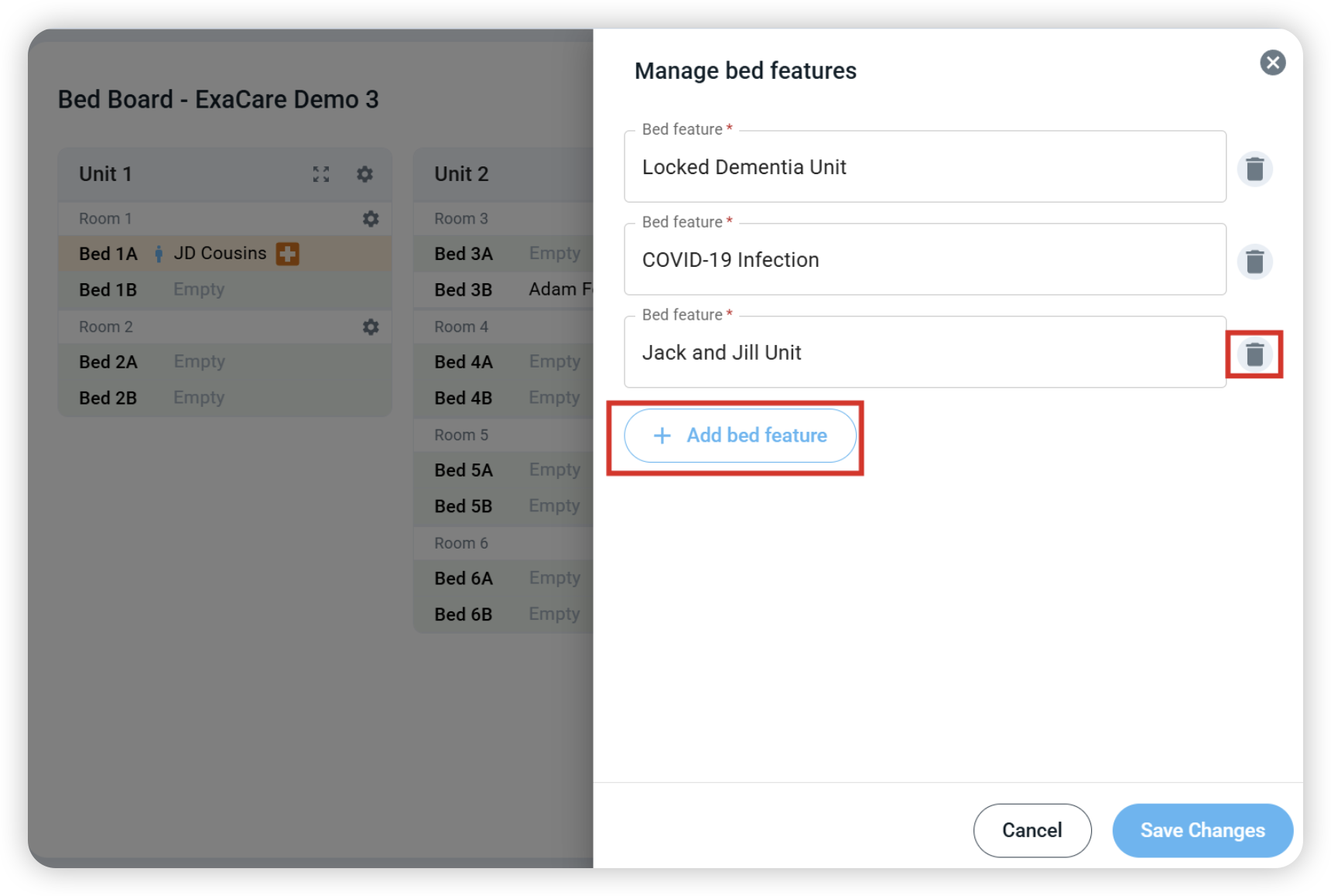
Select + Add bed feature to create a new bed feature. You will also have the option to name this bed feature or delete existing bed features by selecting the delete icon:
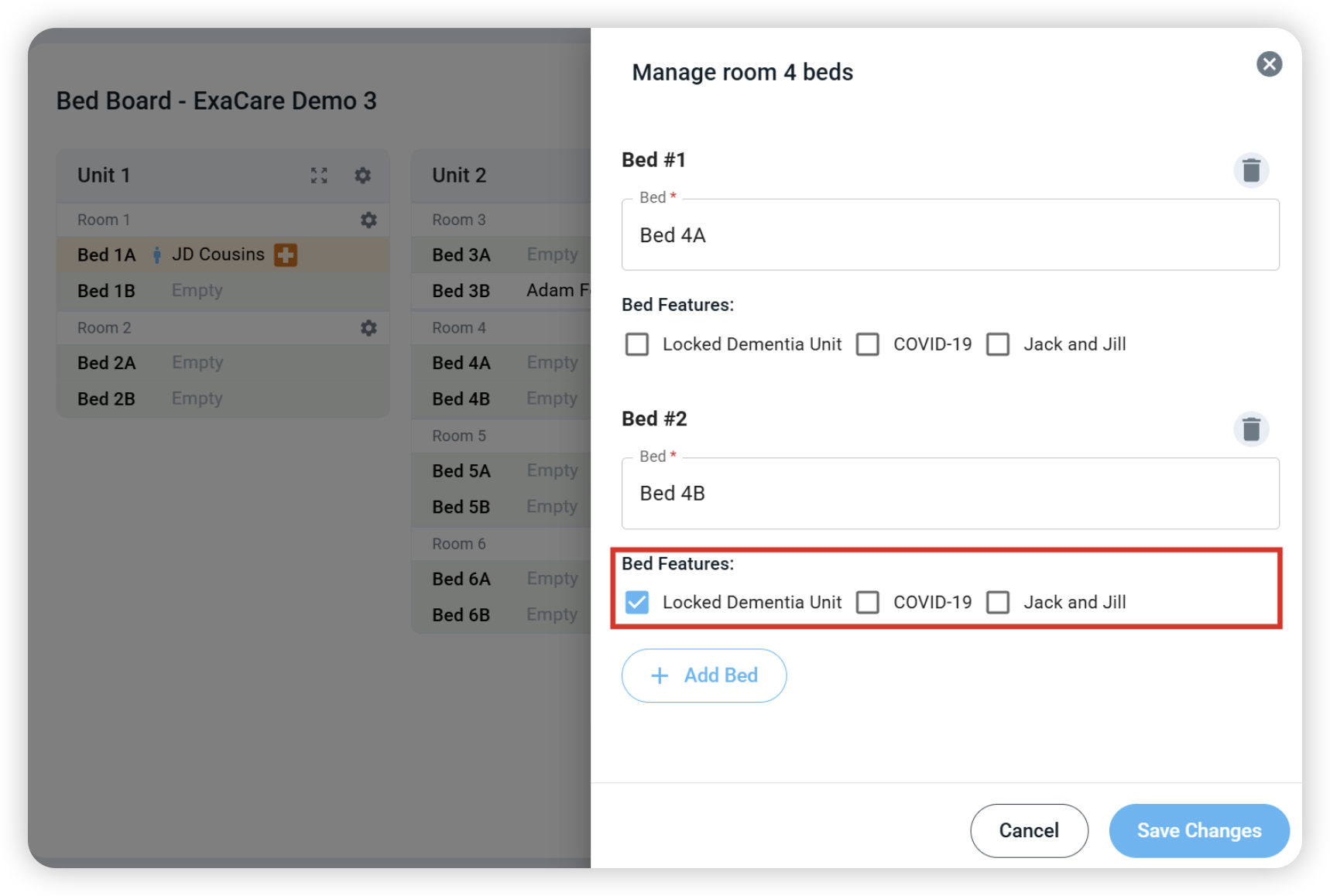
Select Save Changes to finish editing. These bed features can now be used to label beds in your facility's Bed Board:
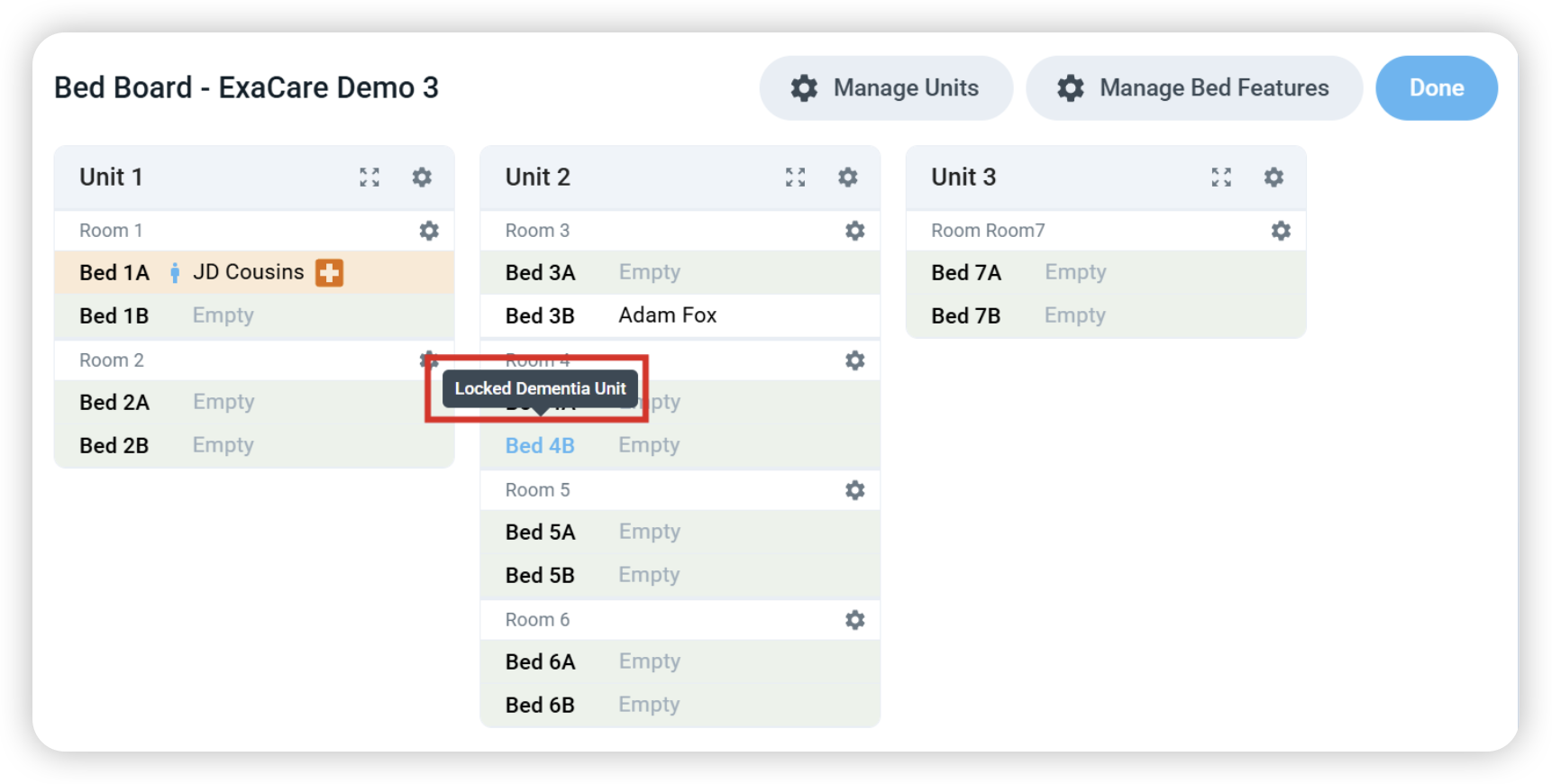
When you hover over a bed with an assigned feature, the feature will be displayed:
Select Save Changes and Done to finish editing.
Adding/Renaming/Deleting Rooms
To edit the Rooms in your Bed Board, select the gear icon next to a Unit:
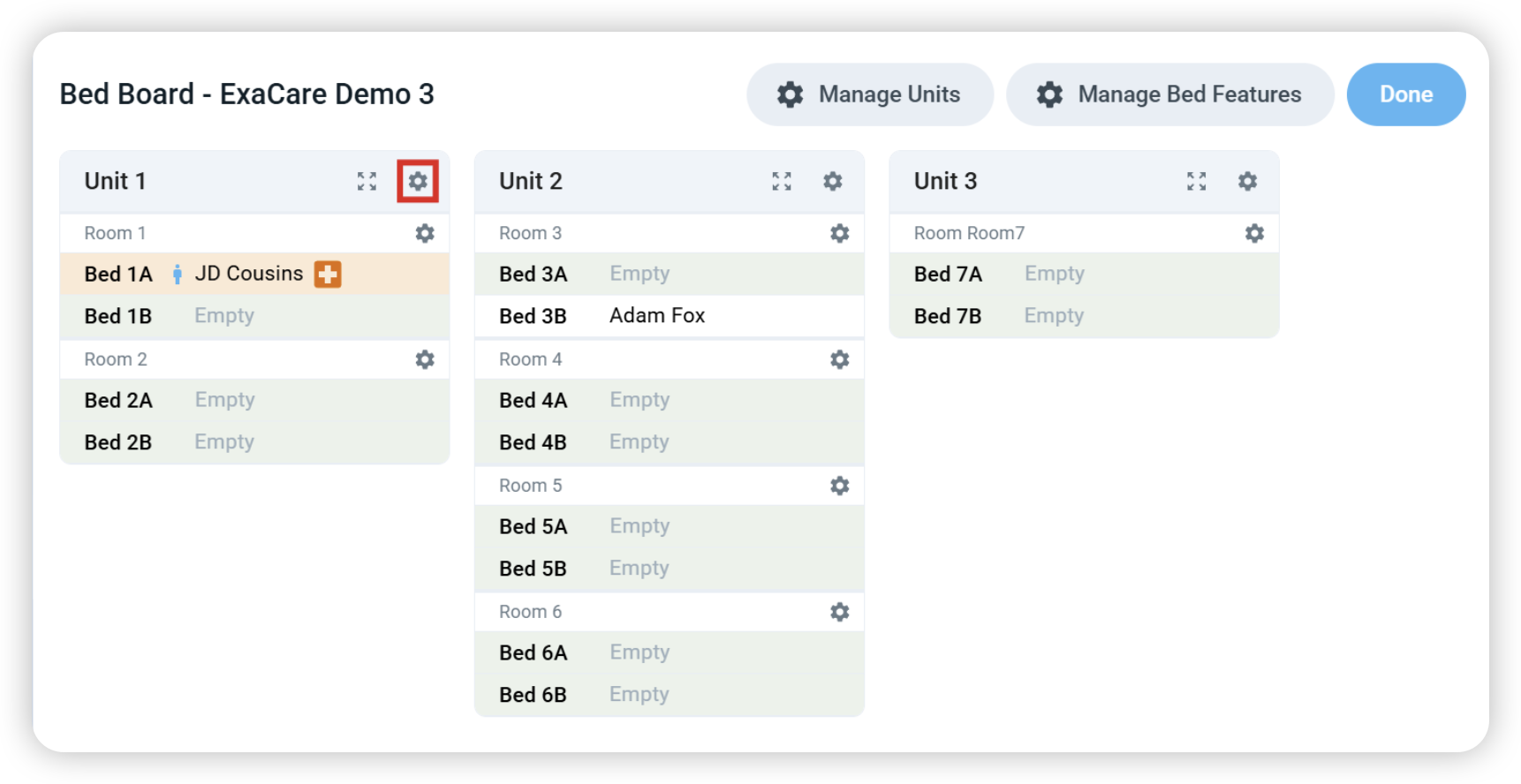
Select + Add Room to create a new room in your unit. You will also have the option to name this room or delete existing rooms by selecting the delete icon:
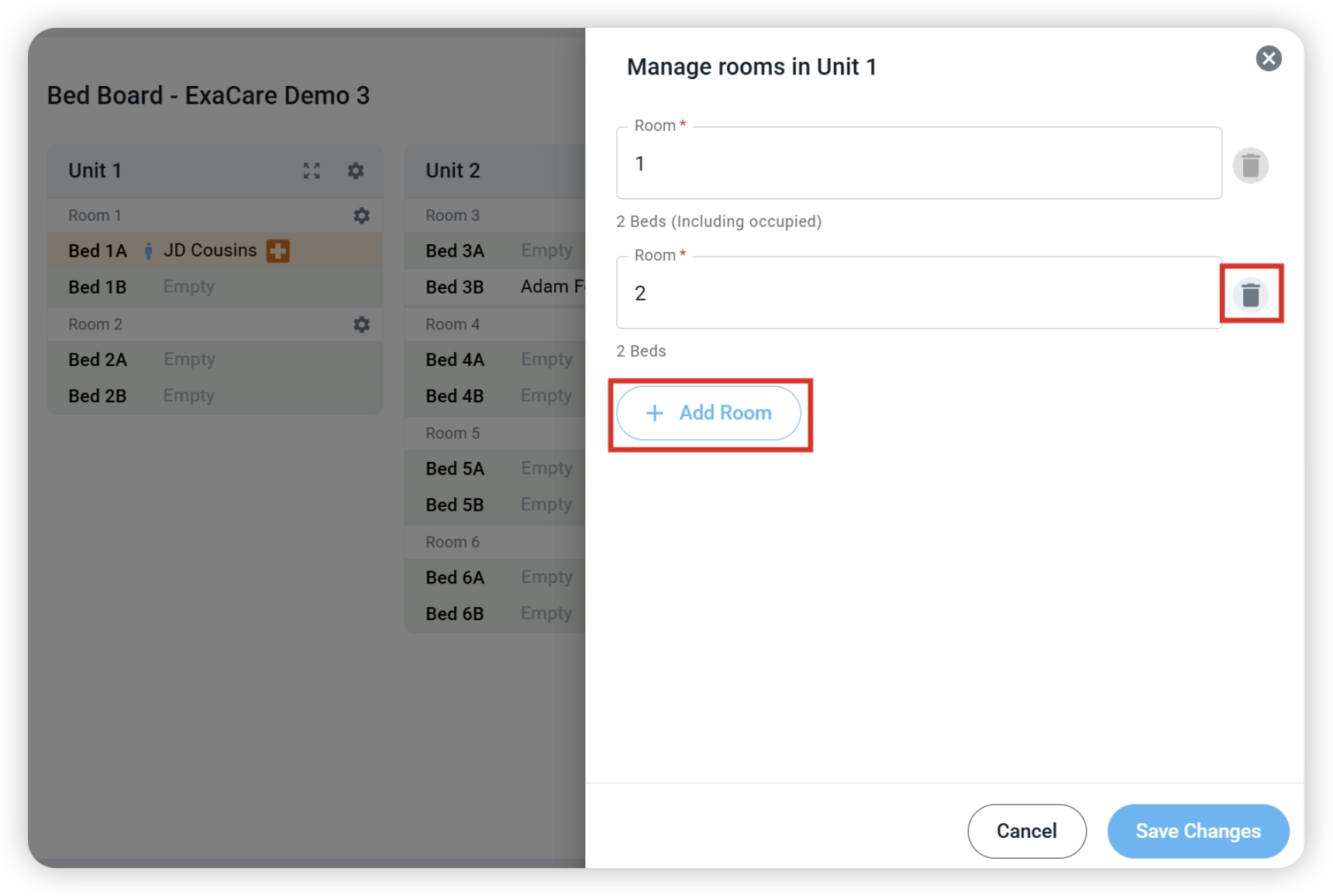
Select Save Changes and Done to finish editing.
Adding/Renaming/Deleting Beds
To edit the Beds in your Bed Board, select the gear icon next to a Room:
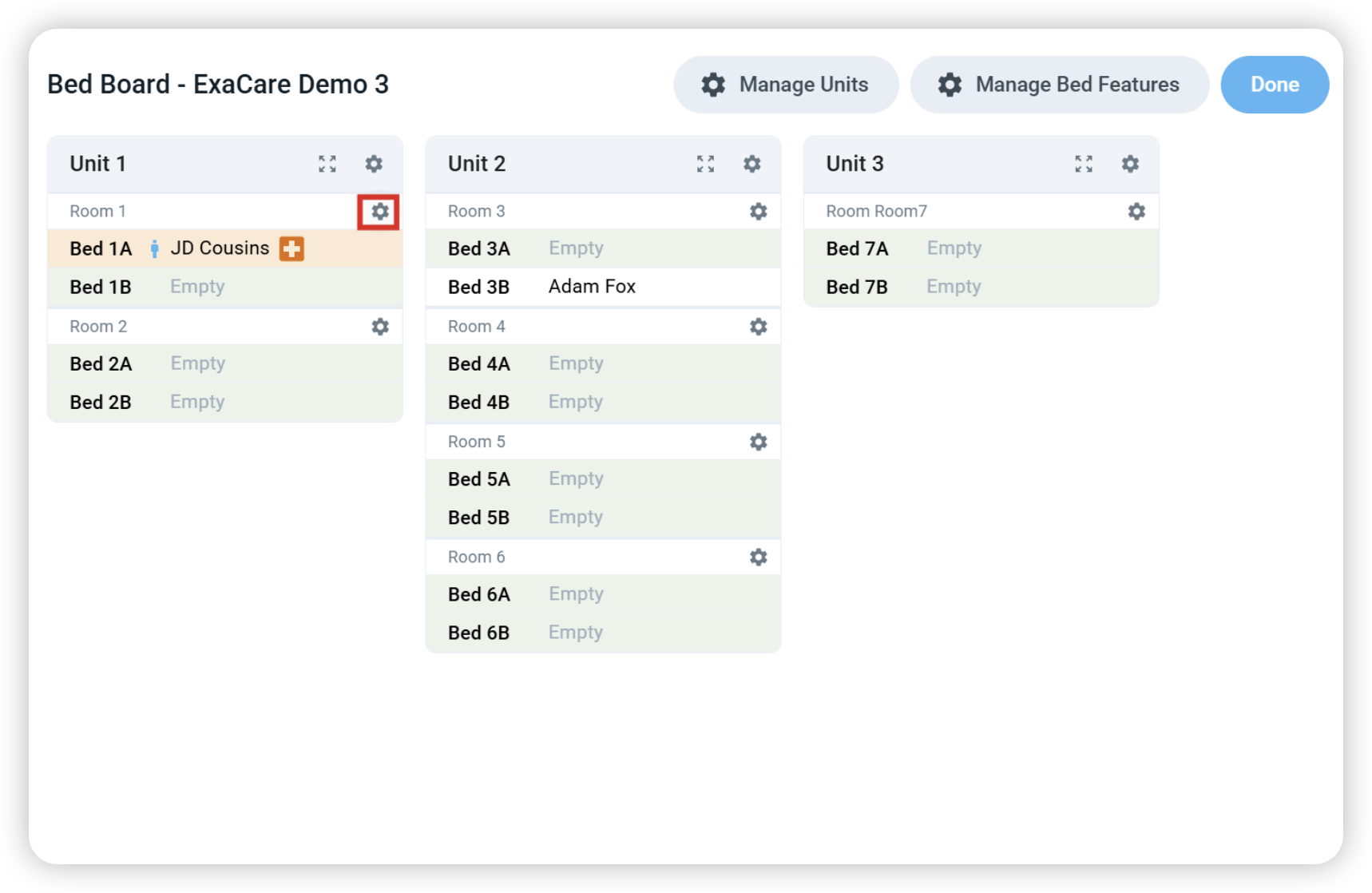
Select + Add Bed to create a new bed in the room. You can name the bed or delete existing beds using the delete icon.
To add features to this bed, simply check the boxes below. The features you select will be linked to the new bed you’re creating:
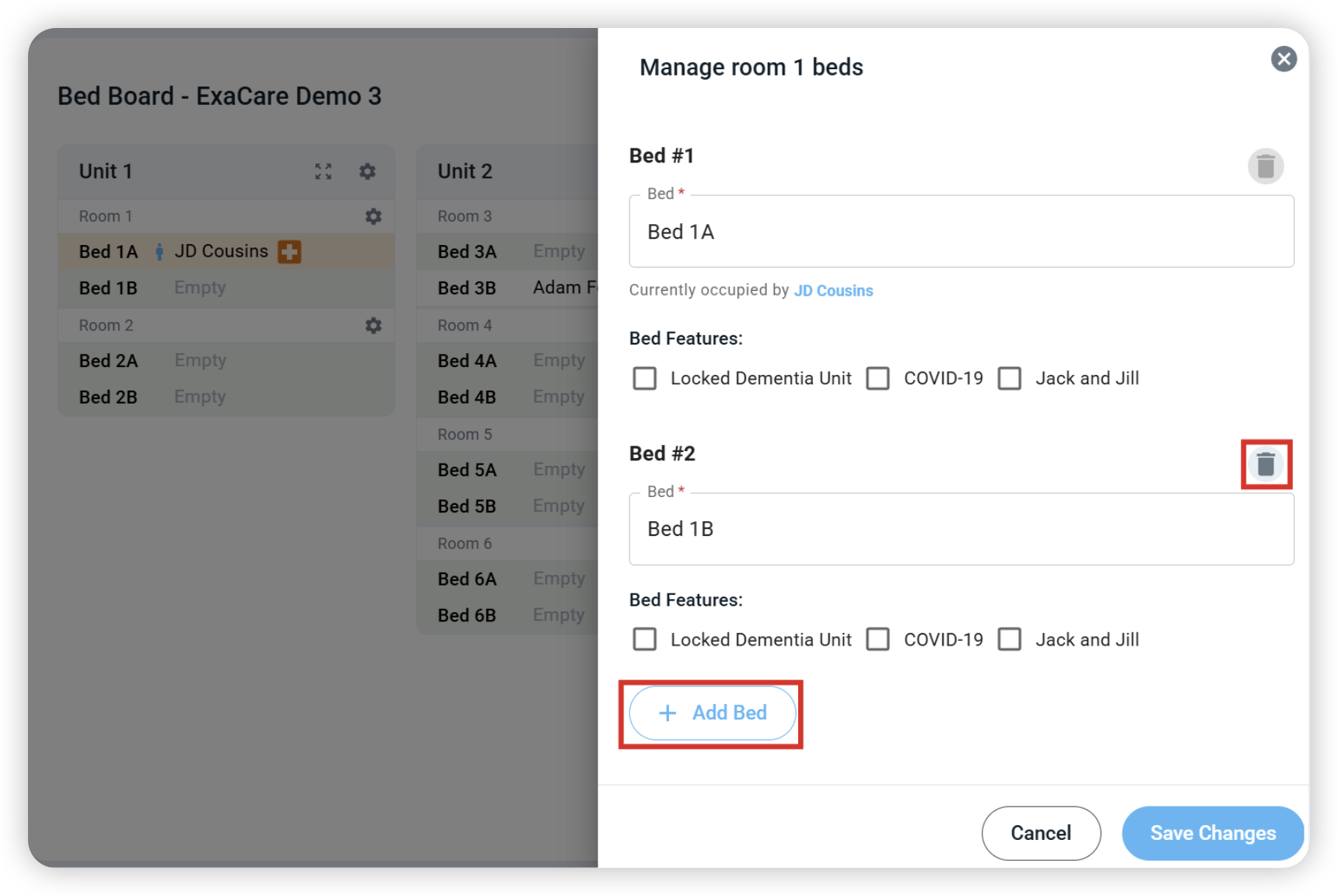
Select Save Changes and Done to finish editing.