Bed Board: Common Issues and Solutions
Last updated: June 9, 2026
Use this guide when the Bed Board in exacare ai does not look the way you expect, a resident is missing, a bed looks incorrectly occupied, or a move-in, move-out, hospitalization, LOA, or readmission workflow is unclear.
When to use this guide
This article is for facility and admissions users who help keep Bed Board occupancy accurate in exacare ai.
Use it when you need to:
Find why a resident is not showing on the Bed Board
Assign, change, or swap a bed
Understand why a bed is still occupied
Handle a resident who is hospitalized or on leave
Readmit or return a resident to the facility
Know when to contact exacare ai support
Before you begin
Bed Board accuracy depends on users keeping resident statuses and bed assignments up to date in exacare ai.
Before troubleshooting, confirm:
You are viewing the correct facility.
The resident’s admission status is correct.
The resident is assigned to the correct bed, if they have moved in.
Any recent discharge, hospitalization, LOA, or bed change has been entered in exacare ai.
Your facility is using Bed Board for this workflow.
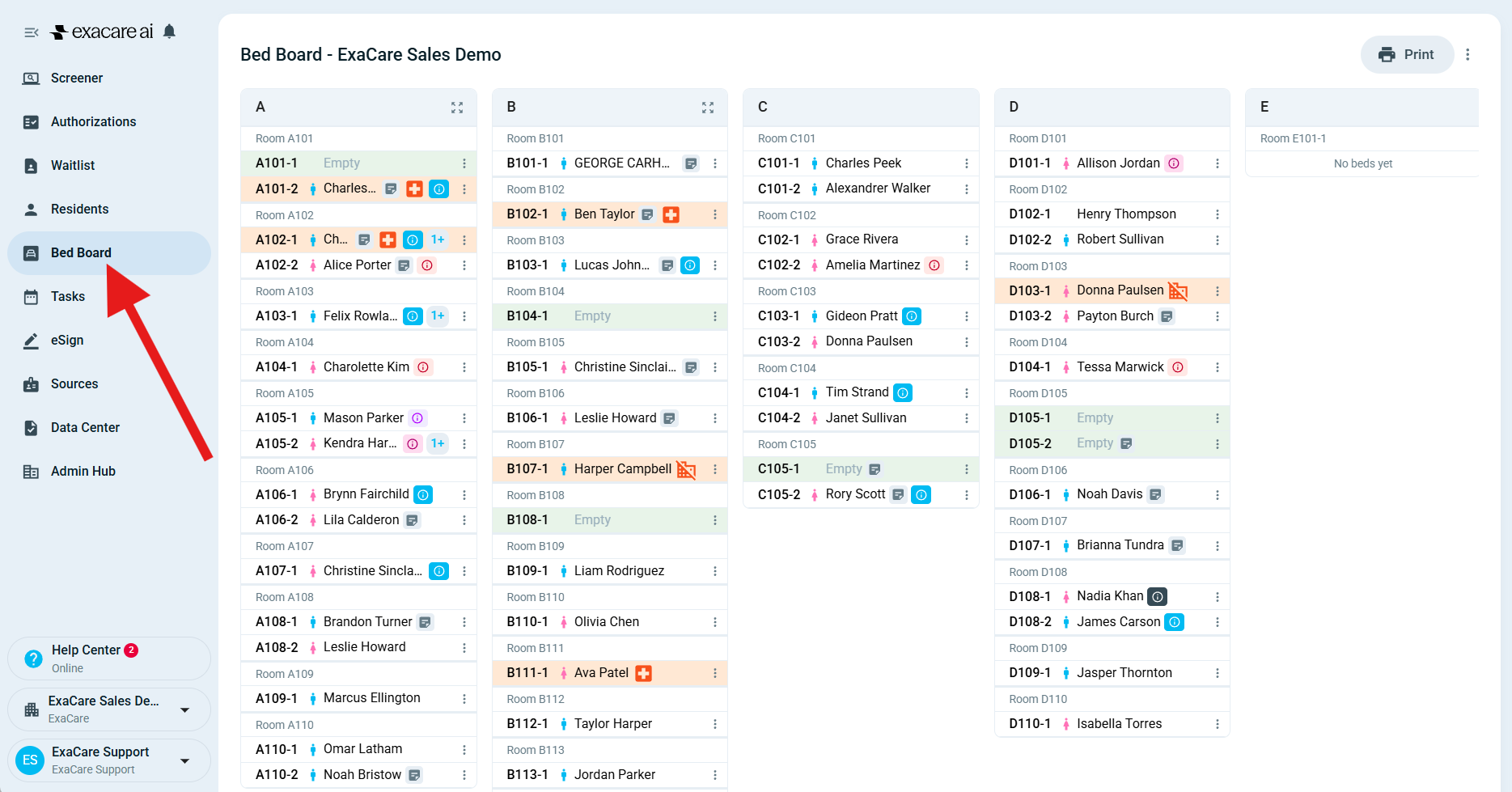
Common issues and solutions
Issue | Why it may happen | What to do |
|---|---|---|
A resident is not showing on the Bed Board | The resident may still be | Open the resident, update the admission status to |
A resident is showing in the Residents tab but not in a bed | The resident may be moved in without a bed assignment, or the bed assignment was removed during a correction. | Open the resident and assign them to an available bed. If no correct bed is available, check whether the bed is occupied by another resident first. |
A bed looks occupied, but the resident is no longer at the facility | The resident may not have been moved out in exacare ai. | Open the resident and update the status to |
A hospitalized or LOA resident is still holding a bed | This may be expected. If a facility is holding the bed for a resident who is temporarily away, the bed can remain unavailable. | Keep the resident in the correct temporary status while the bed is being held. If the resident will not return, update the resident to |
You cannot assign a resident to a bed | The bed may already be occupied or held for another resident. | Choose an available bed, move out the current resident if they are no longer occupying it, or use the swap workflow if two current residents are switching beds. |
Two residents need to switch beds | A direct move may not be the right action if both residents are already occupying beds. | From the Bed Board action menu, choose the swap bed option, select the other resident, and confirm the swap. |
A moved-in referral cannot be deleted or canceled | Moved-in residents cannot usually be deleted or canceled directly because they are part of Bed Board occupancy. | If the move-in was a mistake, first revert the move-in when that option is available. Then delete or cancel the referral if appropriate. |
The revert option is disabled | The previous bed may no longer be available, or the resident may not have a previous bed stored. | Do not force the old status. Use the correct current workflow, such as moving in a new referral or contacting exacare ai support for help. |
A resident is returning from the hospital | Hospital returns may need to be tracked as a readmission instead of simply reverting the old status. | Use |
A resident is returning from LOA | An LOA return is usually a return to the same stay, not a new admission. | Use |
The Bed Board structure is outdated or does not match the facility’s current rooms or beds | The facility layout may have changed, or the Bed Board may need a refresh from source occupancy data. | Contact exacare ai support. Include the facility name and a short description of what is incorrect. |
Step-by-step: check a missing or incorrect resident
Open the correct facility in exacare ai.
Go to the Residents tab.
Search for the resident by name.
Check the resident’s admission status.
If the resident has arrived, update the status to
Moved-In.Assign the resident to the correct available bed.
Go back to the Bed Board and confirm the resident appears in the correct location.
Step-by-step: fix a bed that looks incorrectly occupied
Open the bed on the Bed Board.
Confirm which resident is currently assigned to the bed.
Open that resident’s record.
If the resident has discharged, update the status to
Moved-Out.If the resident is temporarily away, confirm whether they should be
HospitalizedorLOA.If two residents switched rooms, use the swap bed workflow instead of moving each resident separately.
Return to the Bed Board and confirm the bed now shows the right status.
Expected result
After the issue is corrected:
Current residents appear on the Bed Board in the correct beds.
Booked residents remain outside the Bed Board until they are moved in.
Discharged residents no longer occupy beds.
Hospitalized or LOA residents only hold beds when that matches the facility’s workflow.
Readmissions and LOA returns are tracked with the correct action when available.
When to contact support
Contact exacare ai support if:
The Bed Board is still incorrect after updating the resident status.
A bed or resident appears stuck.
The facility layout, rooms, or beds are outdated.
A revert option is disabled and you are not sure which workflow to use.
You need help refreshing the Bed Board to match current source occupancy data.
When you contact support, include:
Facility name
Resident name, if applicable
Bed or room number
What you expected to happen
What you see instead