Tasks
Last updated: June 11, 2026
Managing Tasks and Deadlines
The Tasks tab in the Screener tool is your digital to-do list for every referral. It ensures that critical steps in the referral process never fall through the cracks.
Viewing Your Tasks
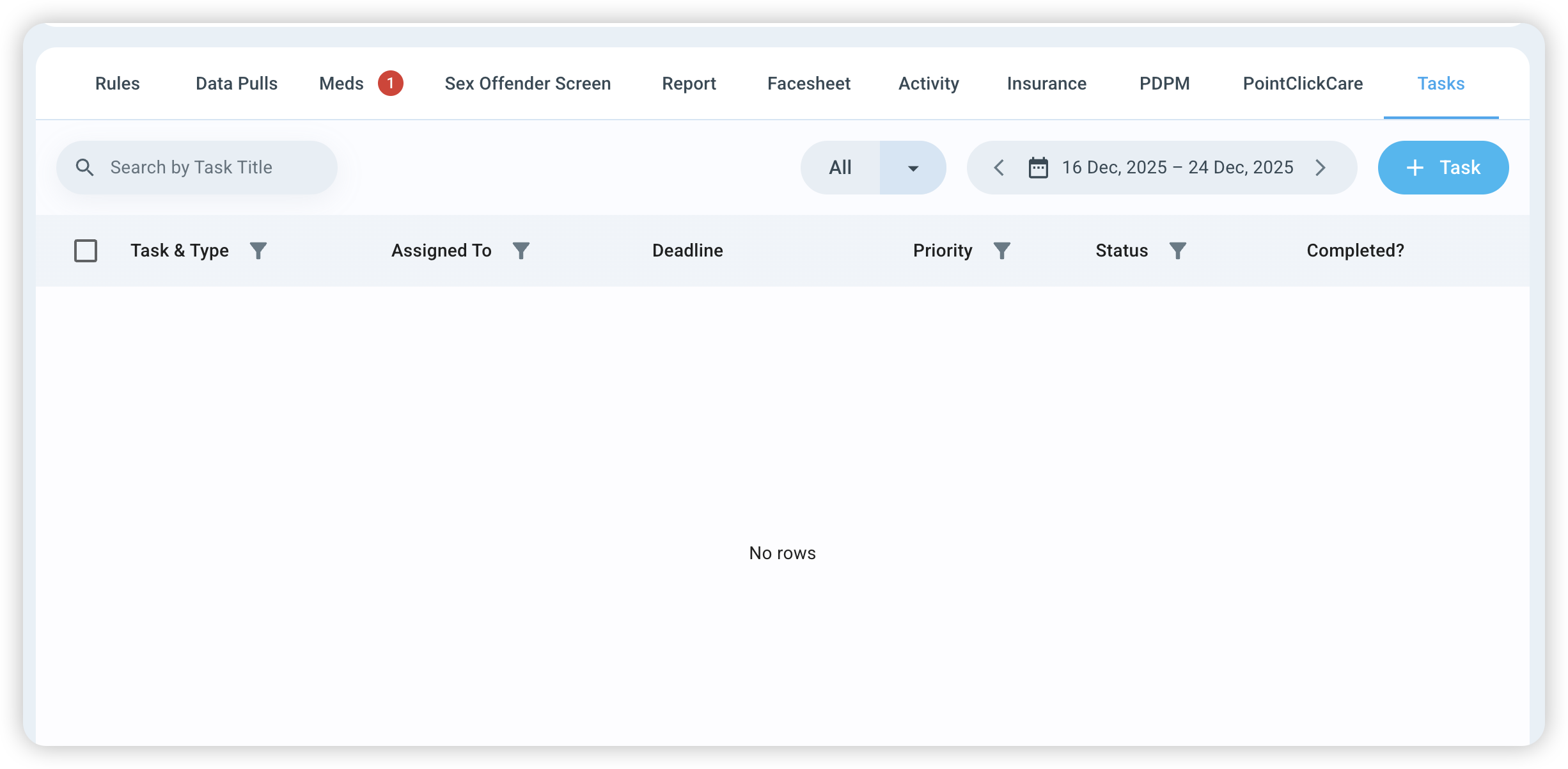
Click the Screener tool in your navigation bar to view all of your referrals.
Select the Patient Referral you want to review.
Select the Tasks tab.
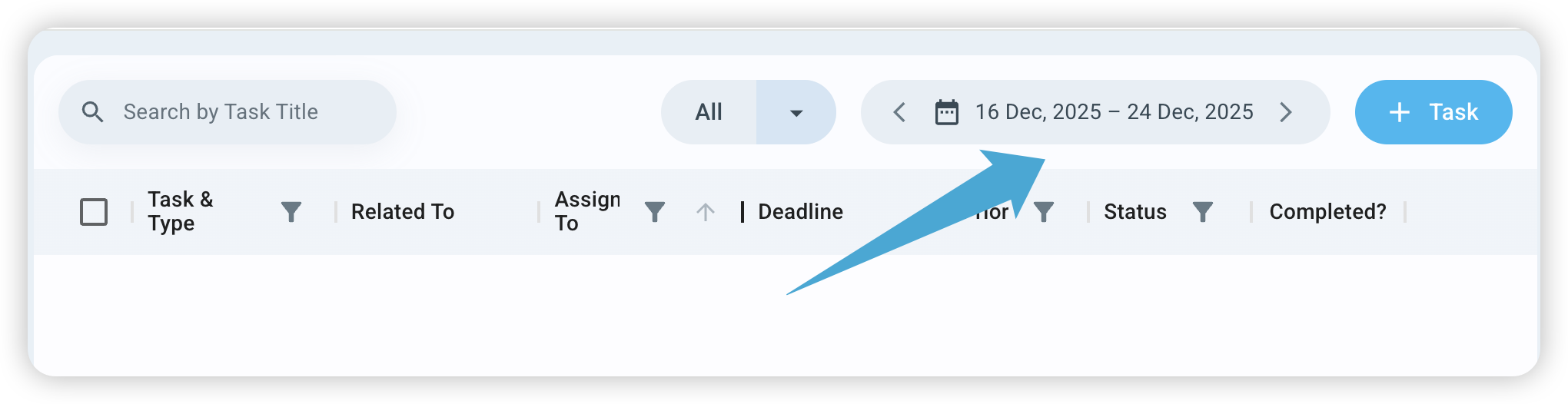
You will see a table with all tasks related to that referral for the selected date range:
Task Type: What kind of work it is (e.g., In-person meeting).
Assigned To: Which team member is responsible.
Deadline & Priority: When it’s due and how urgent it is.
Status: A checkbox to mark the task as "Done."
How to Create a New Task
You can create a task related to a referral, a source, or a source contact.
Click the Create Task button in the top right.
Select the referral/resident related to the task.
Create a task name and description (Optional).
Set the Details:
Type & Priority: Select the category and urgency level.
Assignee: Choose yourself or a teammate from the dropdown menu.

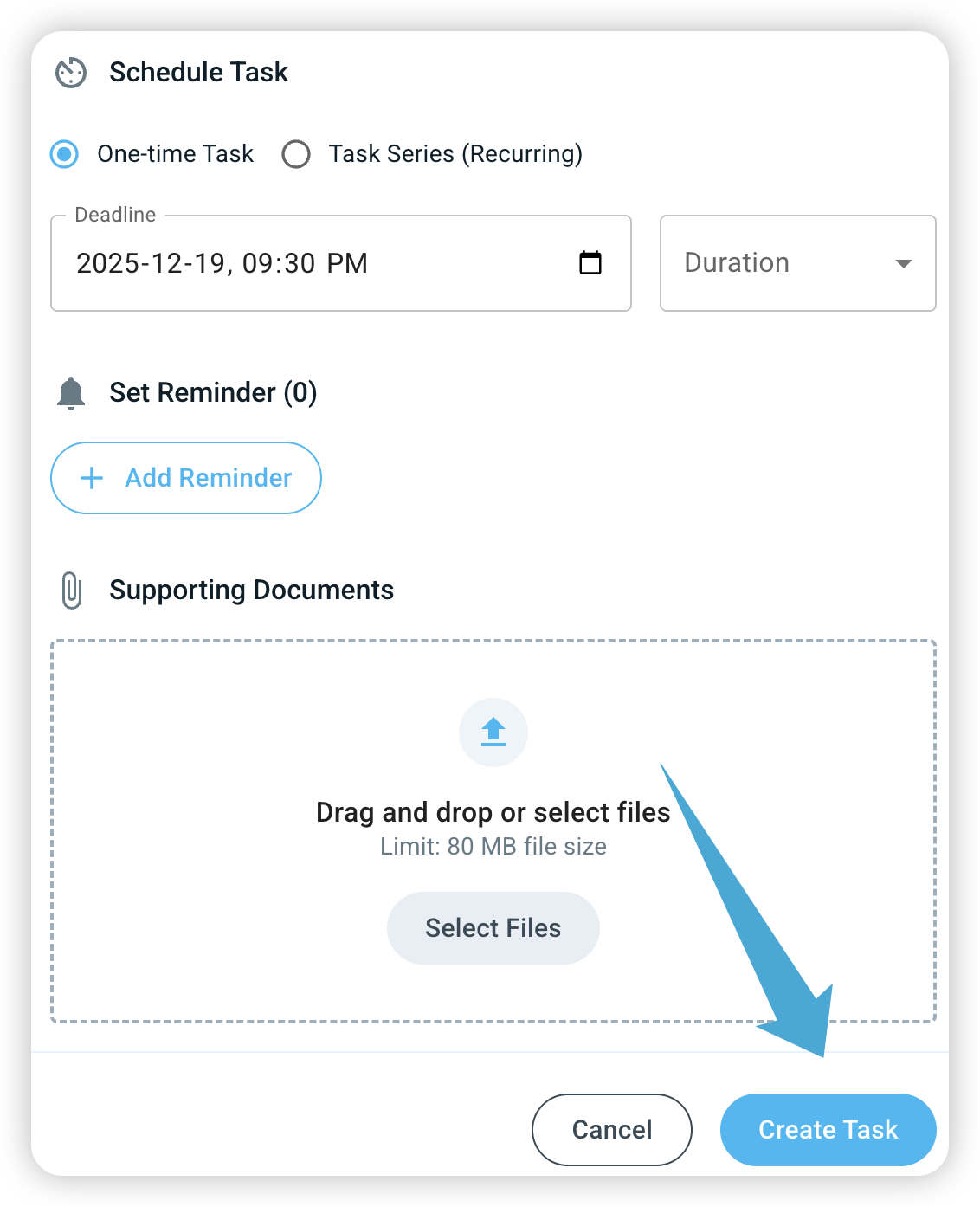
Choose the Frequency of the task:
One-Time Task: Simply pick a due date and time.
Task Series: Use this for recurring work (e.g., every Monday, Wednesday, and Friday).
Set a Reminder: Choose how many minutes before the deadline you or your teammate should be notified.
Click Create Task.
Managing Tasks Facility-Wide
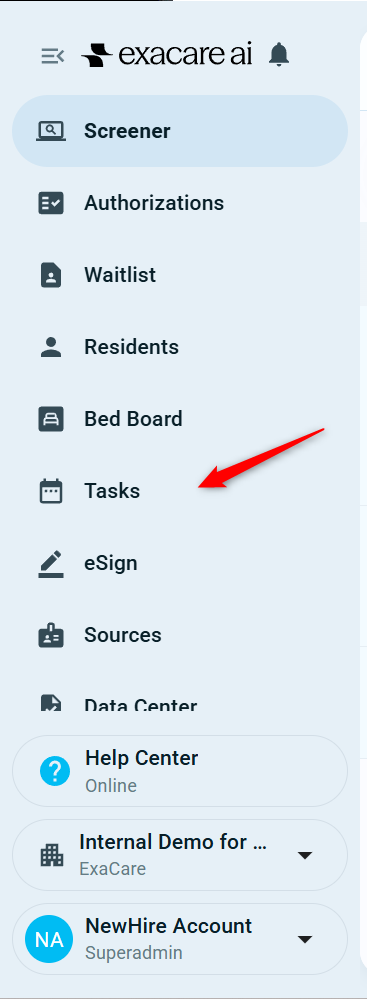
When you navigate to tasks within a referral, it will shows tasks related only to that person. However, you can see everything assigned to you across all active referrals at your facility in the Tasks section:
Click Tasks in the main Navigation Panel on the left.
Use Filters: Use the filter buttons at the top, and select your name, to see only your tasks or tasks assigned to a specific colleague.
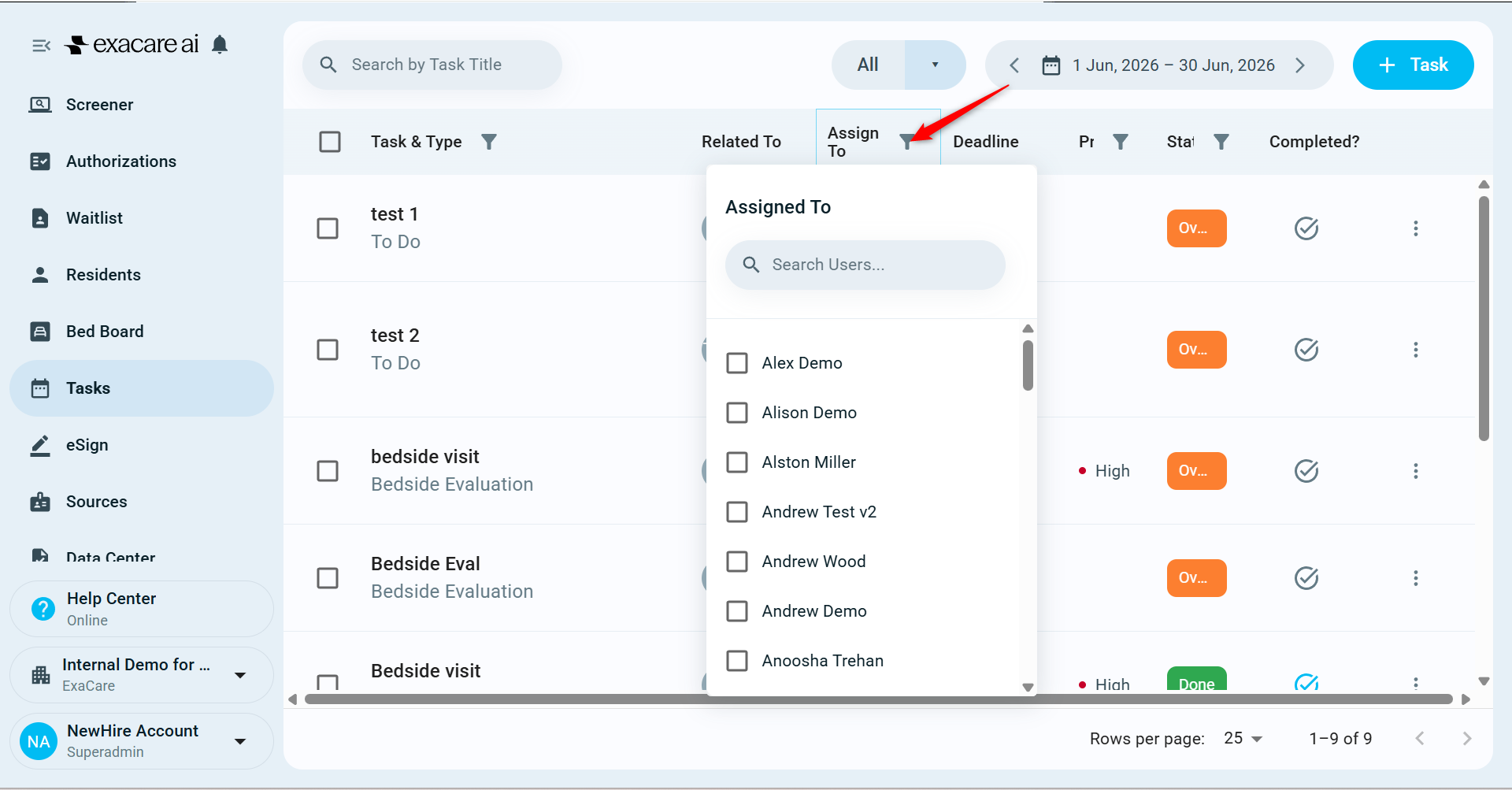
Filter tasks to your name to view tasks assigned to you.
Stay Organized: Set the date window to the week you would like to review to see all upcoming deadlines across every active referral.