Residents Tab
Last updated: June 11, 2026
Please refer to the training video below for a Bed Board Workflow & Overview:
Step 1: Accepting and Booking a Resident in the Screener
In the Screener Tab, accept a referral or find a referral that has already been accepted.
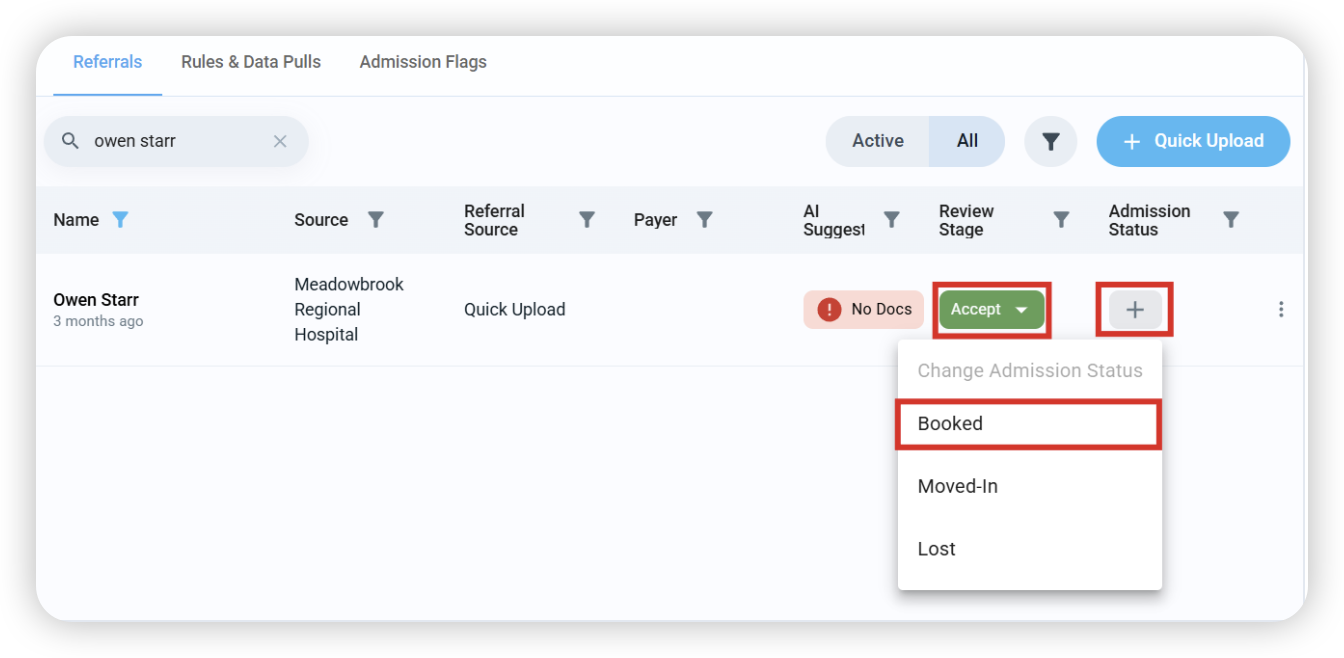
In this example, Owen Starr has been accepted into exacare, and we’ve now received confirmation that he will be arriving at our facility shortly.
We can now select Booked as the Admission Status as Owen Starr:
Note:
Booked: the admission status used for residents who have confirmed they will be staying at your facility but have a move-in date in the future.
Moved-In: the admission status used for residents who have physically moved-in to your facility.
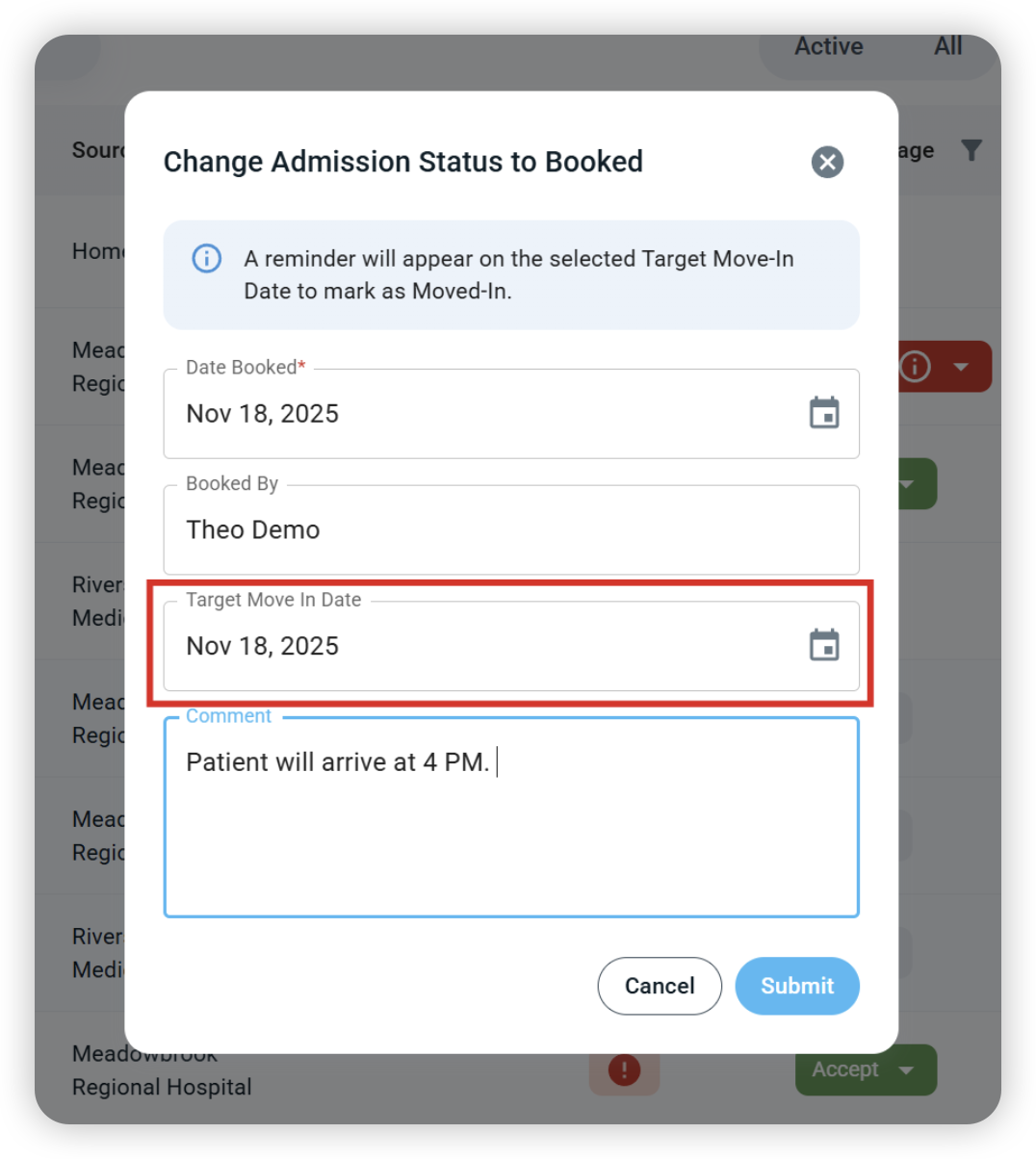
We can now provide a Target Move-In Date, add any comments/details in the comment field, and click submit:
Step 2: Finding the Resident in the Residents Tab, Scheduled Move-Ins
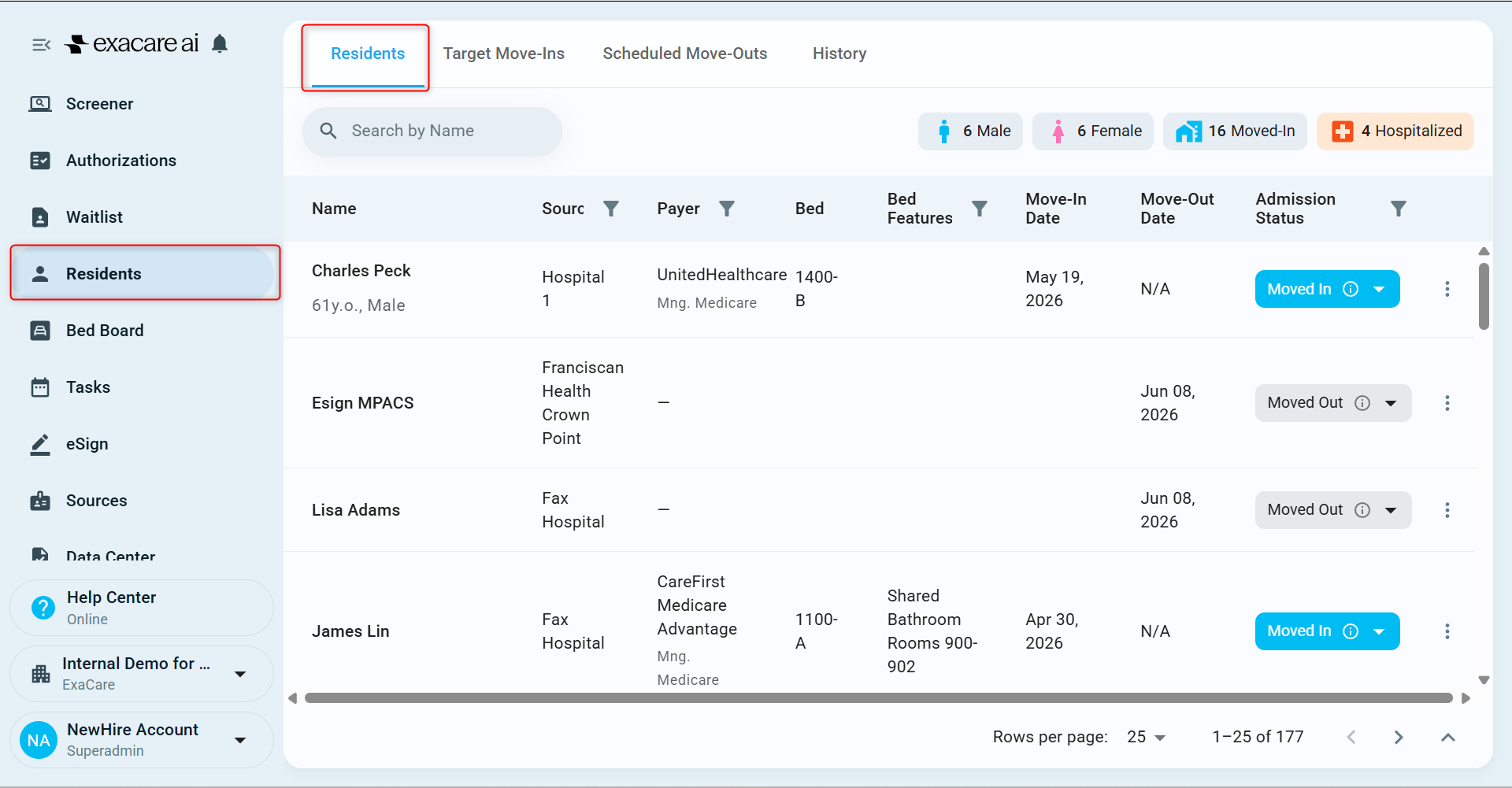
Navigate to the Residents tab to view all current residents, as well as those who have previously stayed at our facility:
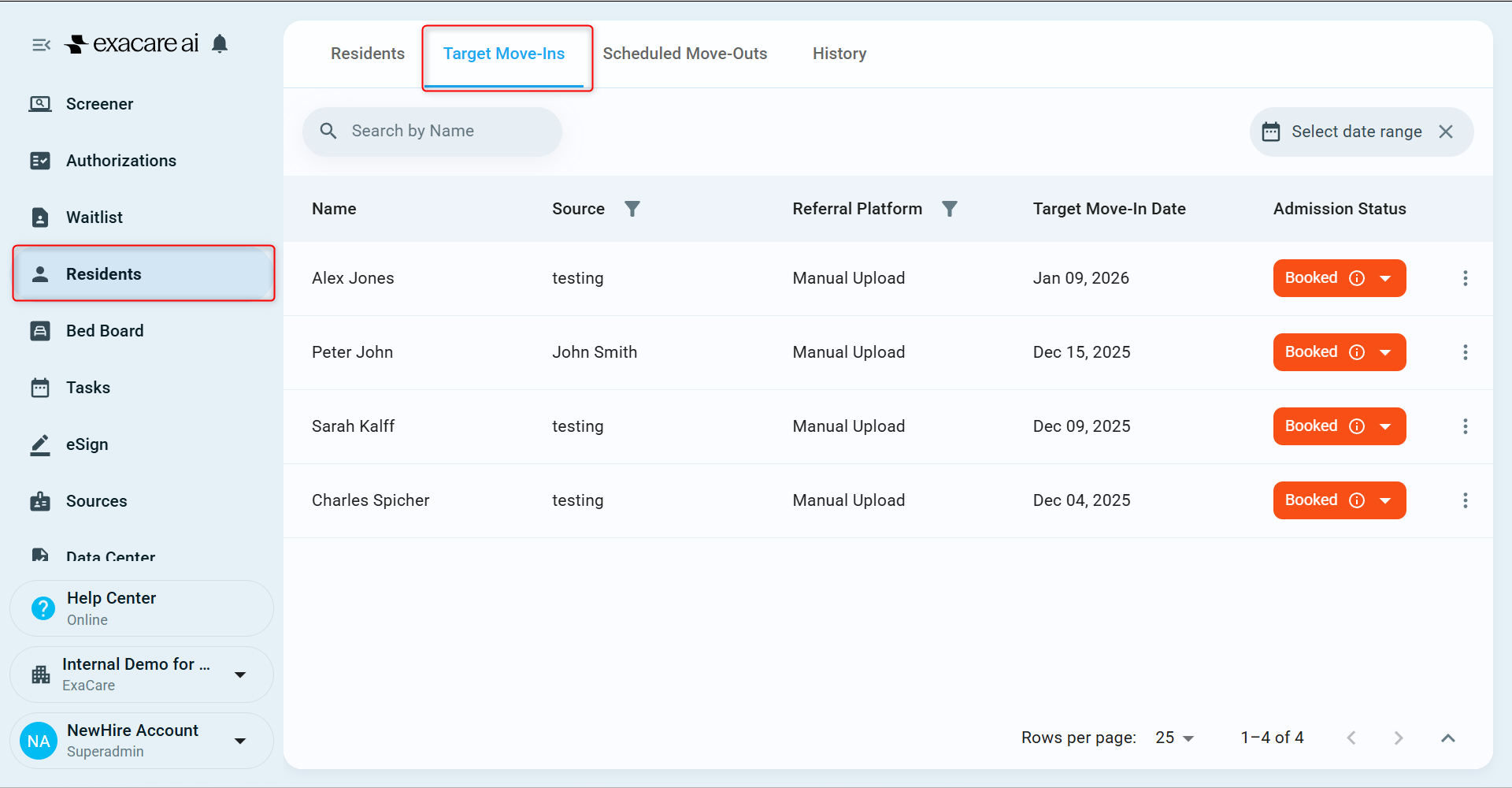
If a resident has not moved in and currently has an admission status of Booked, we can find them by navigating to the Target Move-Ins tab:
Once they arrive at our facility, we can update their admission status to Moved-In:
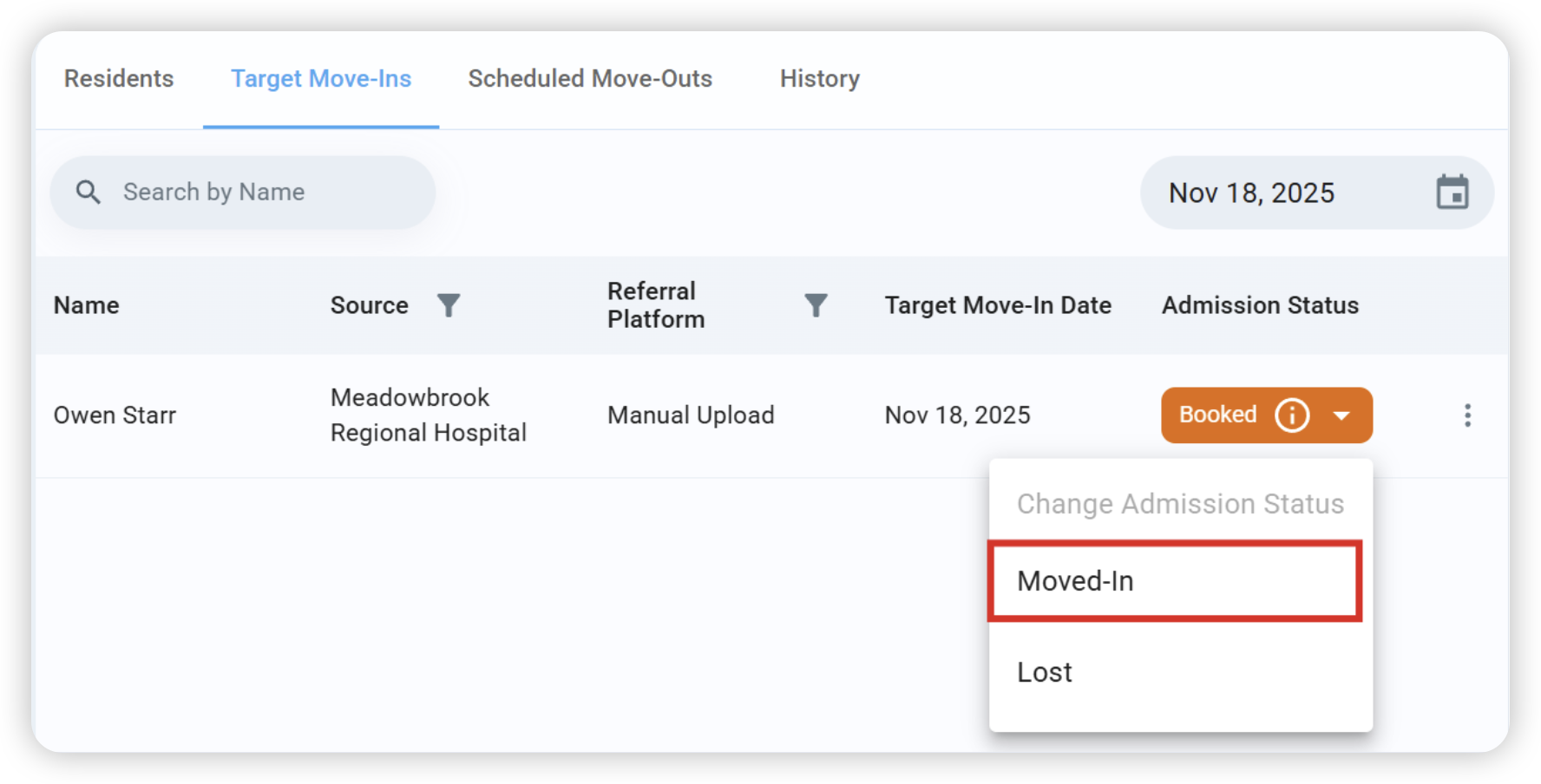
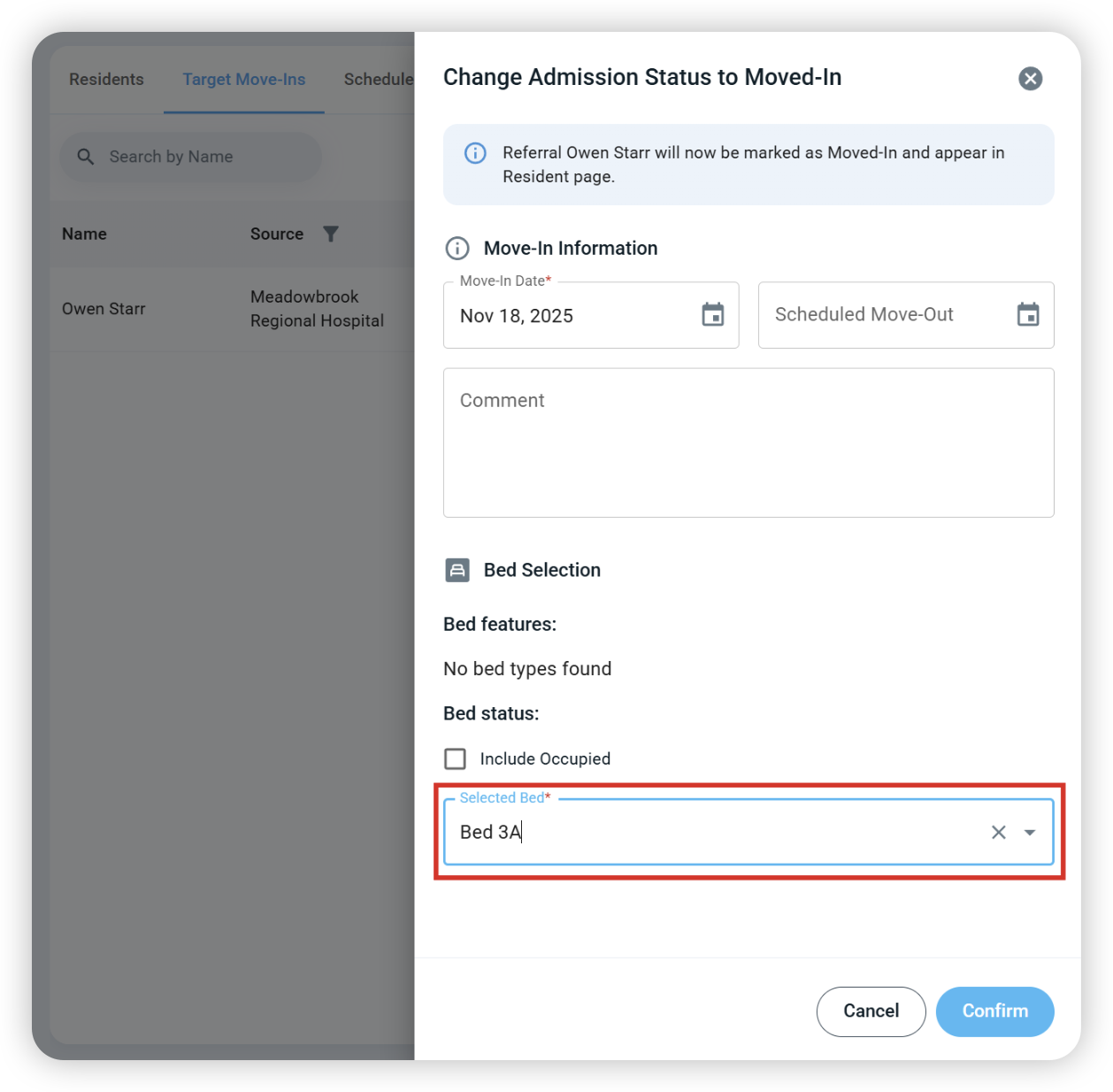
This will allow us to move them onto the Bed Board by selecting one of the unoccupied beds:
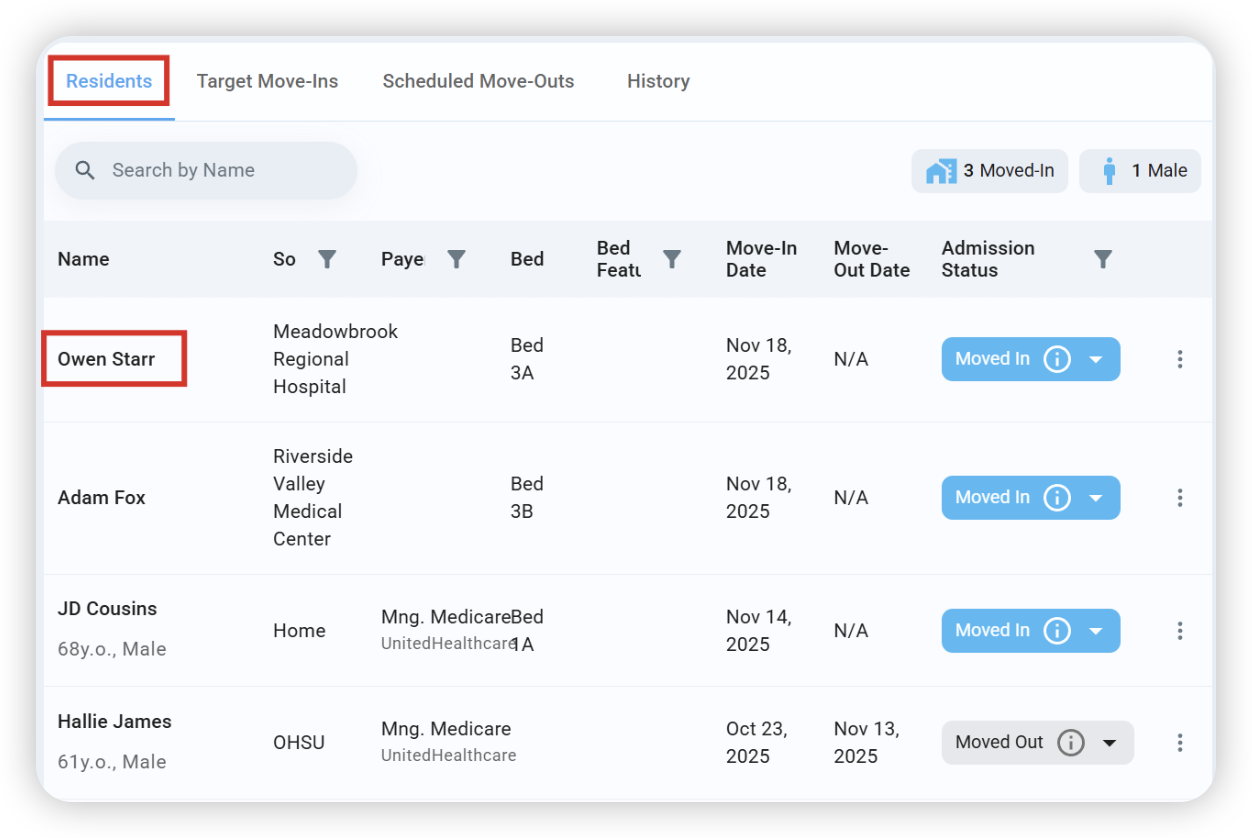
If we now navigate back to the Residents tab, we’ll see Owen Starr at the top of the list, along with his bed assignment and move-In date:
Step 3: Finding the Resident in Bed Board
Finally, if we navigate to the Bed Board, we will see Owen Starr assigned to Bed 3A
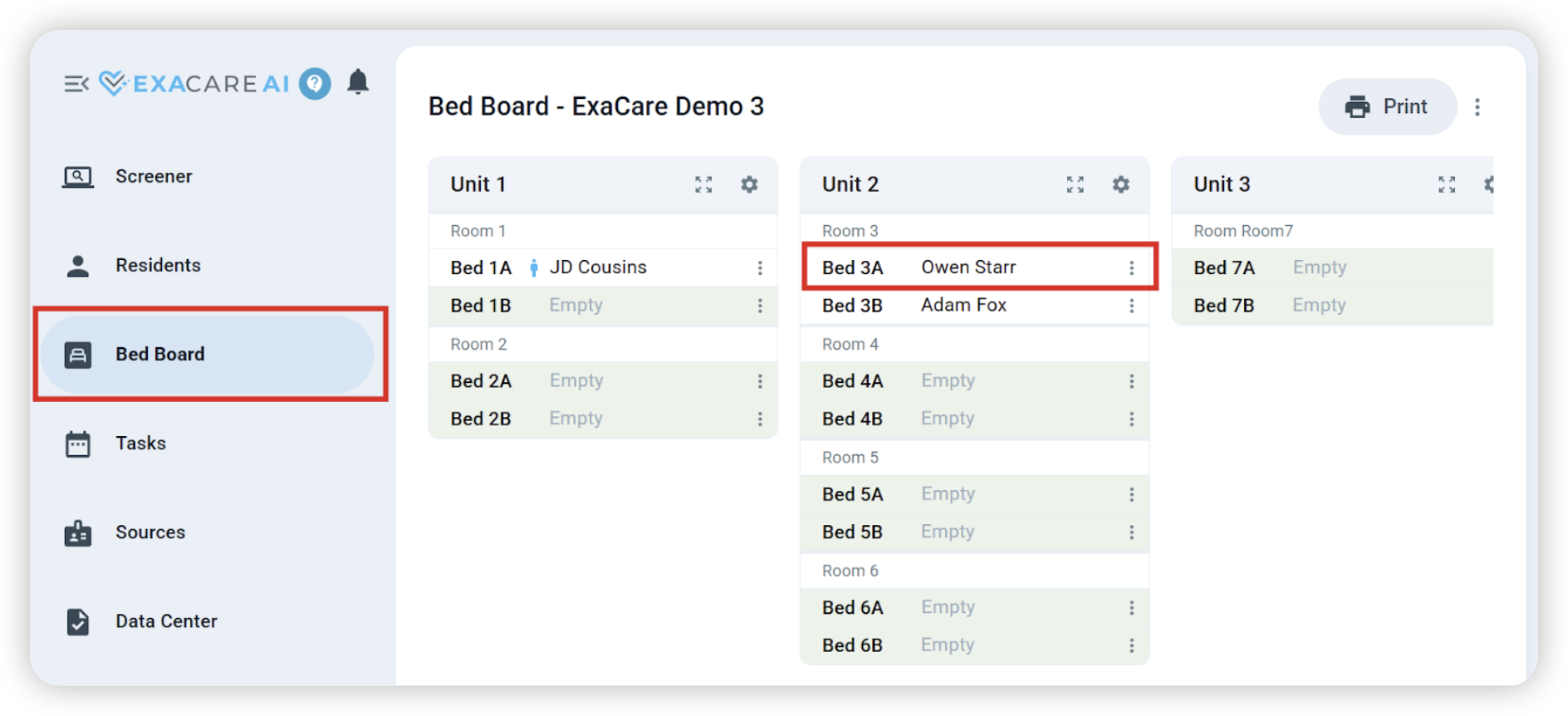
We have now completed the full process: accepting a resident in the Screener tab > booking them > moving them into the Bed Board.
See the 'Bed Board' folder to learn more about exacare's Bed Board feature.