Why Didn't My Notes or Documents Appear in exacare ai?
Last updated: June 9, 2026
Notes and documents usually appear in exacare ai after they are included in a referral, uploaded to the referral, or made available through a supported referral source. If something is missing, it may be due to timing, filters, source-system status, document limits, or a document that was added after exacare ai already processed the referral.
Use this guide to check the most common reasons a note or document may not appear and what information to send support if you still need help.
When to use this
Use this article if:
A referral is visible in exacare ai, but one or more documents are missing
Notes from the hospital or referral source are not showing
A document was added in another system, but you do not see it in exacare ai
You uploaded or expected a file, but it is not available for review
Before you start
A few things can affect whether notes or documents appear:
exacare ai can only show documents it receives from the referral source, upload, or supported integration.
Some referral sources send an initial packet first and may send updates later.
Some documents may not be available if the referral status changed in the source system.
Some source systems limit what can be pulled based on document timing, patient access, or referral status.
If a document was added very recently, it may take time to appear.
Check the referral first
Open the referral in exacare ai.
Confirm you are viewing the correct facility.
Confirm you are viewing the correct patient and referral date.
Check the referral’s documents or attachments section.
If available, check the referral activity or timeline to see when the referral was received or last updated.
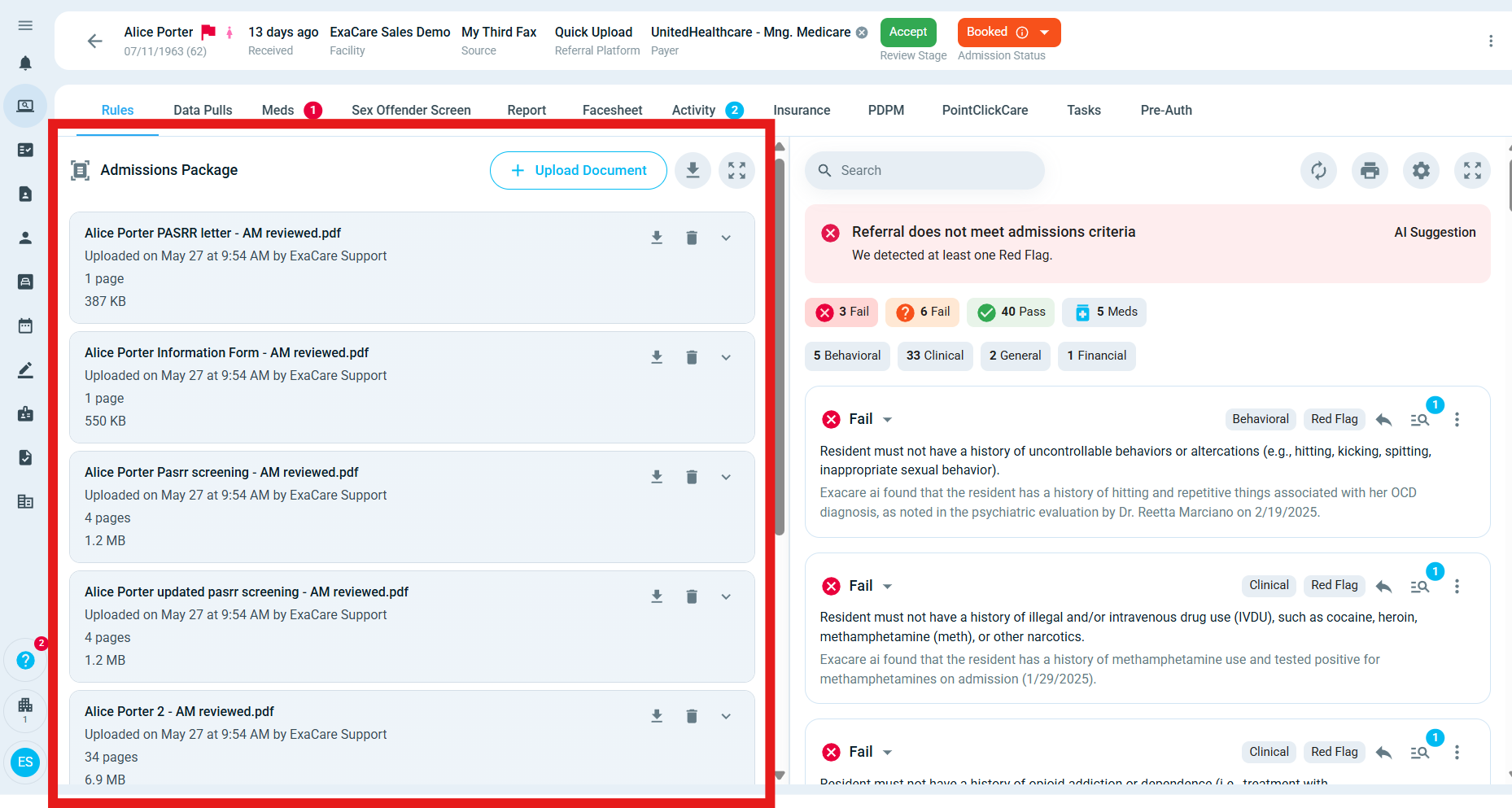
If the patient has more than one referral, make sure you are checking the right encounter. A patient may have separate referrals for different hospital visits or referral dates.
Check your filters and search
If the referral or document is not easy to find:
Clear any filters that may hide older, closed, or inactive referrals.
Search by the patient’s full name.
Try searching by only the last name.
Check whether the referral is assigned to another facility you may not currently be viewing.
Ask an Admin or Superadmin to confirm that you have access to the correct facility.
If the document was added after the original referral
Some referral sources send documents in stages. For example, the original referral packet may arrive first, and additional notes or attachments may be added later.
If a later document is missing:
Confirm when the document was added in the source system.
Wait for the next update cycle if the document was added very recently.
Check whether the referral source sent an update notification or new attachment.
If your team can access the source system directly, confirm the document is visible there.
If the document is visible in the source system but still does not appear in exacare ai, contact support with the details listed below.
If the referral status changed
Some source systems stop sending new documents after the referral reaches certain statuses, such as when the patient has already been placed, accepted elsewhere, declined, canceled, or otherwise removed from active review.
If a document was added after one of these status changes, it may not appear automatically in exacare ai.
When this happens, confirm the current referral status in the source system if your team has access, then contact support if you still need the document reviewed.
If the document is old or outside the review window
Some documents may not be included if they fall outside the supported document review window for that referral source. This can happen when older documents are attached to a referral or when the referral source includes historical files that were not part of the active referral packet.
If you expected an older document to appear, contact support and include the document date, document name, and referral date.
If notes are missing from an EHR or referral platform
Notes may depend on what the hospital or referral source makes available. In some cases:
The source sends only the initial referral packet.
The source sends attachments but not EHR chart notes.
The source limits access to notes until the patient reaches a certain status.
The source provides notes under a different section or document name.
The note exists in the hospital system but was not included in the referral packet sent to exacare ai.
If your team has direct access to the source system, check whether the note is visible there and whether it was attached to the referral.
If a file upload did not appear
If your team manually uploaded a document and it is not visible:
Refresh the referral page.
Confirm the upload completed successfully.
Check whether the file type is supported.
Try uploading the file again if the first upload did not complete.
If the file is very large, try compressing it or splitting it into smaller files.
If the upload still fails, contact support with the file name, file type, and a screenshot of any error message.
Expected result
After the document is received and processed, it should appear in the referral’s documents or attachments section. If the document contains information used by exacare ai review workflows, the referral may also need to be reviewed or re-analyzed with the updated information.
Contact support
If you still do not see the notes or documents, contact exacare ai support and include:
Patient name
Facility name
Referral source, such as WellSky, EpicCare Link, AIDA, CarePort, or another source
Referral date
The name or type of document that is missing
When the document was added or uploaded
Whether the document is visible in the source system
Any relevant screenshots
Any error message you saw
The more detail you include, the faster support can confirm whether the document is delayed, outside the supported window, missing from the source packet, or affected by a source-system status or access issue.