Insurance Check Errors: What They Mean and What to Try First
Last updated: June 9, 2026
Insurance checks in exacare ai help you confirm a resident’s coverage using the information on the referral and insurance record. If a check returns an error, it usually means one of the submitted details does not match what the payer has on file, the payer cannot find the member, or the facility is not registered with that payer for eligibility checks.
Use this guide to understand common insurance check errors and what to try before contacting support.
When to use this guide
Use this article when an insurance check does not return a successful result, including errors such as:
Name is incorrect
Date of birth does not match
Invalid or missing subscriber ID
Provider not on file
Payer not found or unavailable
Eligibility Check Failed
Before you retry the insurance check
Before running the check again, compare the information in exacare ai against the referral documents, insurance card, hospital information, or other source documents available to your team.
Check these fields first:
Resident first name, middle initial, last name, and any suffix
Date of birth
Payer name
Insurance type, such as Medicare, Managed Medicare, Medicaid, Managed Medicaid, or Commercial
Member ID, Subscriber ID, or Medicare Beneficiary Identifier (MBI)
Group number, if required by the payer
Facility selected for the check
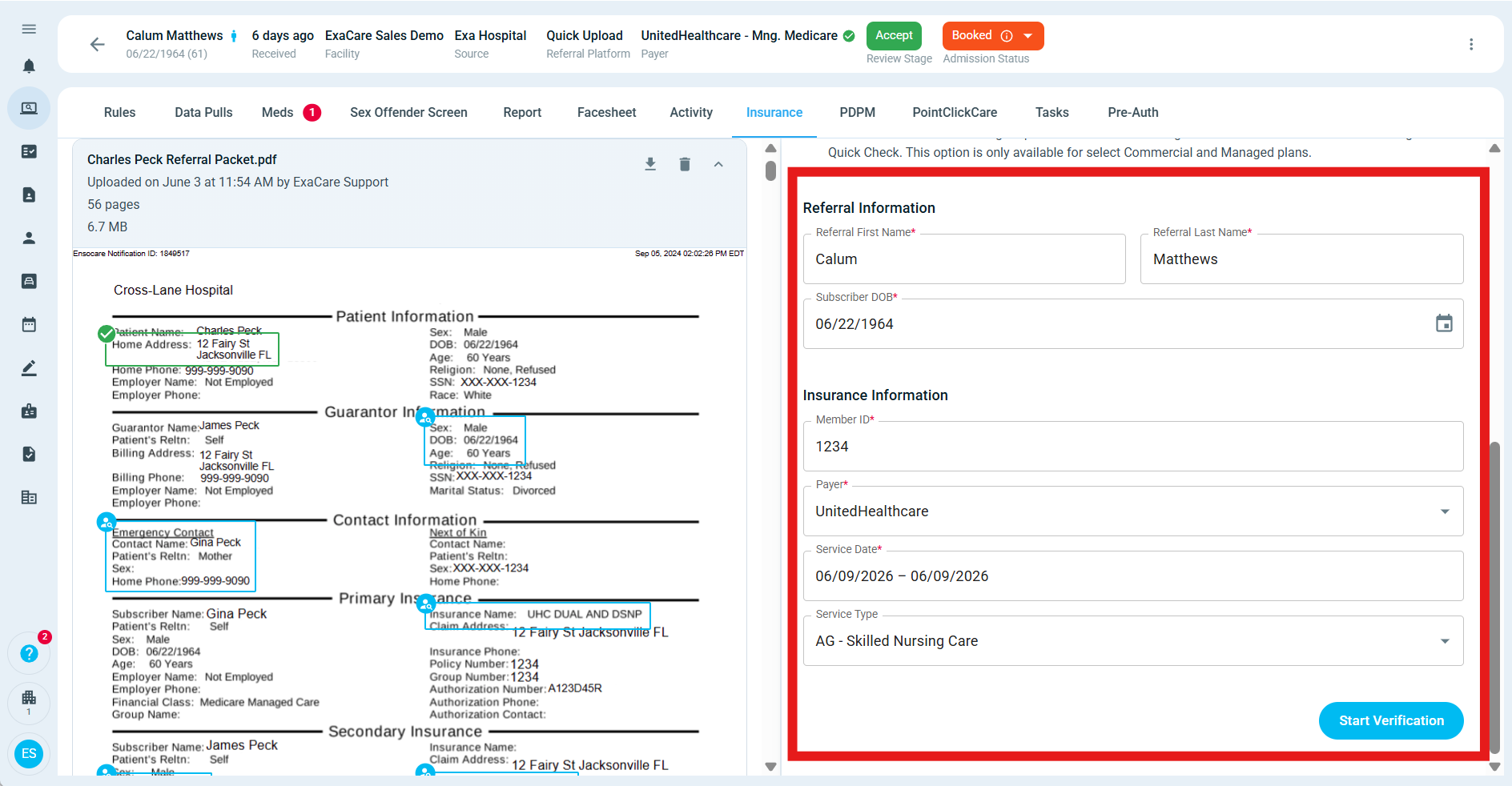
What to try first
Open the resident or referral in exacare ai.
Go to the insurance section.
Review the insurance record used for the check.
Compare the resident name, date of birth, payer, and member ID against the source document.
Correct any fields that are missing, misspelled, or using the wrong identifier.
Run the insurance check again.
If the check still fails, review the error message below to decide what to try next.
Common error messages and what they mean
Error message | What it usually means | What to try first |
|---|---|---|
Name is incorrect | The resident or subscriber name submitted to the payer does not match the payer’s records. | Try the name exactly as it appears on the insurance card or payer record. Check for middle initials, suffixes, hyphenated names, maiden names, nicknames, or extra first names. |
Date of birth does not match | The date of birth in exacare ai does not match what the payer has on file. | Confirm the DOB in the referral, hospital documents, insurance card, or payer portal. Update the DOB if needed, then retry. |
01/01/0001 DOB | The payer returned a date-of-birth mismatch or placeholder-style DOB response. | Treat this as a DOB mismatch. Confirm the resident’s correct DOB outside exacare ai, then retry the check. |
Invalid or missing subscriber ID | The member ID, subscriber ID, or MBI is missing, incorrect, or not formatted the way the payer expects. | Recheck the ID on the insurance card or source document. For Medicare, make sure the MBI is entered instead of another ID when available. |
Patient or subscriber not found | The payer could not find a matching person using the submitted details. | Confirm the payer, member ID, name, and DOB. If the resident is covered under another subscriber, confirm whether subscriber details are required. |
Provider not on file / Invalid provider identification | The payer does not recognize the facility or provider information used for the eligibility check. | Confirm the correct facility is selected. If the issue happens for many residents with the same payer and facility, contact exacare ai support. |
No coverage | The payer found the member, but did not return active coverage for the requested check. | Confirm the payer and service date. If the resident recently changed plans, check for updated insurance information. |
Out of network | The payer indicates the provider or facility is not in network for the plan. | Confirm the selected facility and payer. Follow your organization’s normal process for out-of-network coverage review. |
Payer name or identifier missing | The payer selected in exacare ai may not match the payer needed for the resident’s plan. | Search for the payer under alternate names, parent company names, or plan-specific names. If you cannot find the payer, contact support. |
Unable to respond / No response received | The payer or verification network may not be available at the time of the check. | Wait a few minutes and retry. If the same payer continues to fail for multiple residents, contact support. |
Eligibility Check Failed | exacare ai could not process the check with the submitted details. | Review the resident name, DOB, payer, and member ID. Correct anything that looks incomplete or inconsistent, then retry. |
Tips for member IDs and MBIs
Insurance checks are sensitive to small differences in member IDs. A single incorrect character can cause the payer to reject the check.
Pay close attention to characters that are easy to confuse, such as:
The number
0and the letterOThe number
1and the letterIThe number
5and the letterSExtra hyphens, spaces, or copied labels from the insurance card
Group numbers or plan IDs entered as the member ID
For Medicare checks, use the Medicare Beneficiary Identifier when it is available. If you only have a Social Security number or an older identifier, confirm the correct Medicare information before relying on the insurance check.
If the payer is hard to find
Some payers appear under a parent company, plan administrator, or slightly different payer name. If the payer you expect is not listed, try searching for:
The parent insurance company
The plan administrator
A shortened payer name
A state-specific version of the payer
The plan name shown on the insurance card
If you still cannot find the payer, contact exacare ai support and include the payer name, plan name, state, and a screenshot or copy of the insurance card if available.
When to contact exacare ai support
Contact support if:
The same error continues after you confirm the name, DOB, payer, and member ID
The same payer fails across multiple residents
The same facility receives “provider not on file” or similar provider errors
A payer is missing from the payer list
The insurance information looks correct but the check still fails
You are unsure which payer or member ID should be used
Include as much of the following as possible:
Resident or referral name
Facility
Payer name selected in exacare ai
Error message shown
Screenshot of the failed check
Screenshot or copy of the relevant insurance card or referral document, if available
Whether the issue happens for one resident or many residents
Expected result
After you correct the details and rerun the check, exacare ai should either return eligibility information or show a more specific payer response. If the payer still rejects the check, the issue may require updated insurance information, payer/provider enrollment review, or support investigation.