Admin Quarterly Access Review Checklist
Last updated: June 9, 2026
A regular access review helps your organization keep exacare ai access limited to the people who still need it. Use this checklist each quarter to confirm active users, roles, facility access, and users who should be removed.
When to use this checklist
Use this checklist if you are a Superadmin or an organization administrator responsible for reviewing user access in exacare ai.
This is especially useful when:
Staff members have joined, left, or changed roles
Users have moved between facilities
Your organization needs to confirm access for compliance
You received a quarterly reminder to review users
Important notes before you start
Superadmins have access across all facilities and the highest default permissions.
Admins have high-level permissions only for the facilities they are assigned to.
Coordinators have more limited permissions for the facilities they are assigned to.
Only select user roles can add or delete users.
A user’s role sets their starting permissions, but some permissions may be customized after the user is created.
If your organization uses SSO, also confirm that the user’s access is correct in your organization’s identity provider.
Quarterly access review checklist
1. Open Staff Overview
Log in to exacare ai.
Click Admin Hub in the left-hand navigation menu.
Click Staff Overview.
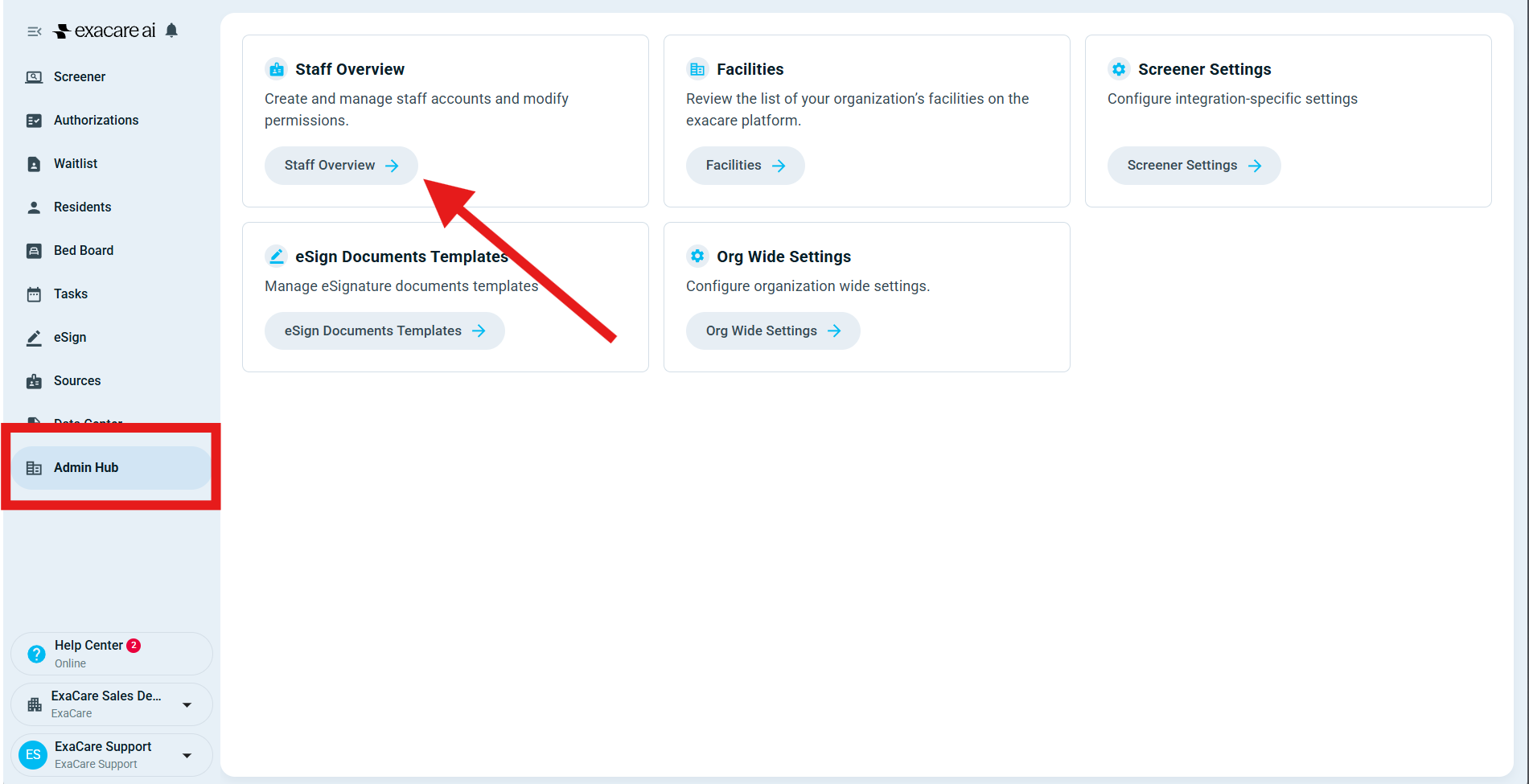
2. Review the active user list
For each user, confirm:
The person is still employed by or working with your organization
The email address belongs to the correct person
The user still needs access to exacare ai
The user’s role matches their current responsibilities
The user has access only to the facilities they need
3. Check each user’s role
Review whether each user should be a Superadmin, Admin, or Coordinator.
Use the lowest access level that still lets the user complete their work.
Role | Typical access level |
|---|---|
Superadmin | Maximum permissions across all facilities |
Admin | High-level permissions for assigned facilities |
Coordinator | Basic permissions for assigned facilities |
4. Confirm facility access
For users who should only work with certain facilities, confirm that their facility access is correct.
A user should only have access to facilities where they need to view or manage referrals, notifications, reports, or other facility-specific work.
5. Remove users who no longer need access
If a user no longer needs access to exacare ai:
In Staff Overview, find the user.
Click the actions button on the far right of the user’s row.
Select Delete.
Confirm the change.
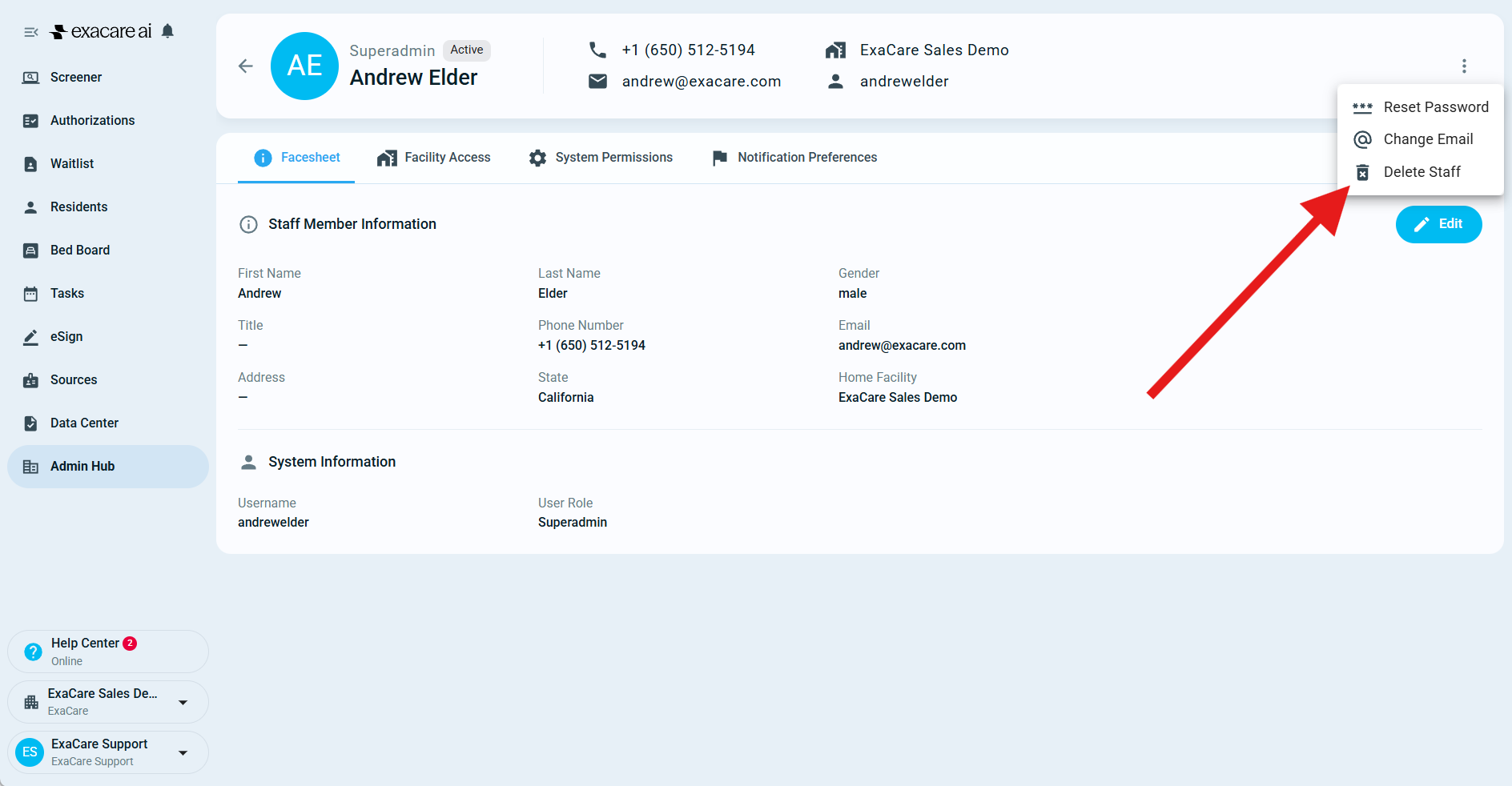
If you do not see the option to delete a user, your role may not have permission to complete this action. Contact a Superadmin at your organization or exacare ai support for help.
6. Update users whose access has changed
If a user still needs access but their responsibilities have changed, update their role, facility access, or permissions as needed.
Common examples include:
A user moved to a different facility
A Coordinator now needs Admin-level access
A user no longer needs access to reports or settings
A user should only receive notifications for certain facilities
7. Confirm SSO access if applicable
If your organization uses single sign-on, confirm that removed users are also disabled or updated in your organization’s SSO system.
Removing or changing a user in exacare ai may not update your organization’s internal identity provider.
Expected result
After completing the review, your exacare ai user list should only include people who currently need access. Each user should have the correct role, facility access, and permissions for their current responsibilities.
Troubleshooting
I do not see Admin Hub
Your role may not include admin access. Contact your organization’s Superadmin if you need help reviewing users.
I cannot delete a user
Only select roles can delete users. Ask a Superadmin to remove the user or contact exacare ai support.
A user cannot see a facility or referral they need
Check the user’s facility access first. Users only see information for facilities they have access to.
A user can still sign in after leaving the organization
Confirm that the user has been removed from exacare ai. If your organization uses SSO, also confirm they have been removed or disabled in your organization’s identity provider.