Why Aren’t My Notifications Working?
Last updated: June 9, 2026
Notifications in exacare ai help you stay updated on referral activity, chat messages, tasks, documents, and other important events. If you are not receiving notifications, the most common causes are notification preferences, missing contact details, role or facility access, or a notification type that is not available for the delivery channel you selected.
When to use this article
Use this guide if:
You are not seeing notifications in exacare ai
You are not receiving email notifications
You are not receiving SMS or text notifications
You expected a notification for a referral, chat message, task, document, or status change
Important notes
exacare ai supports three notification channels:
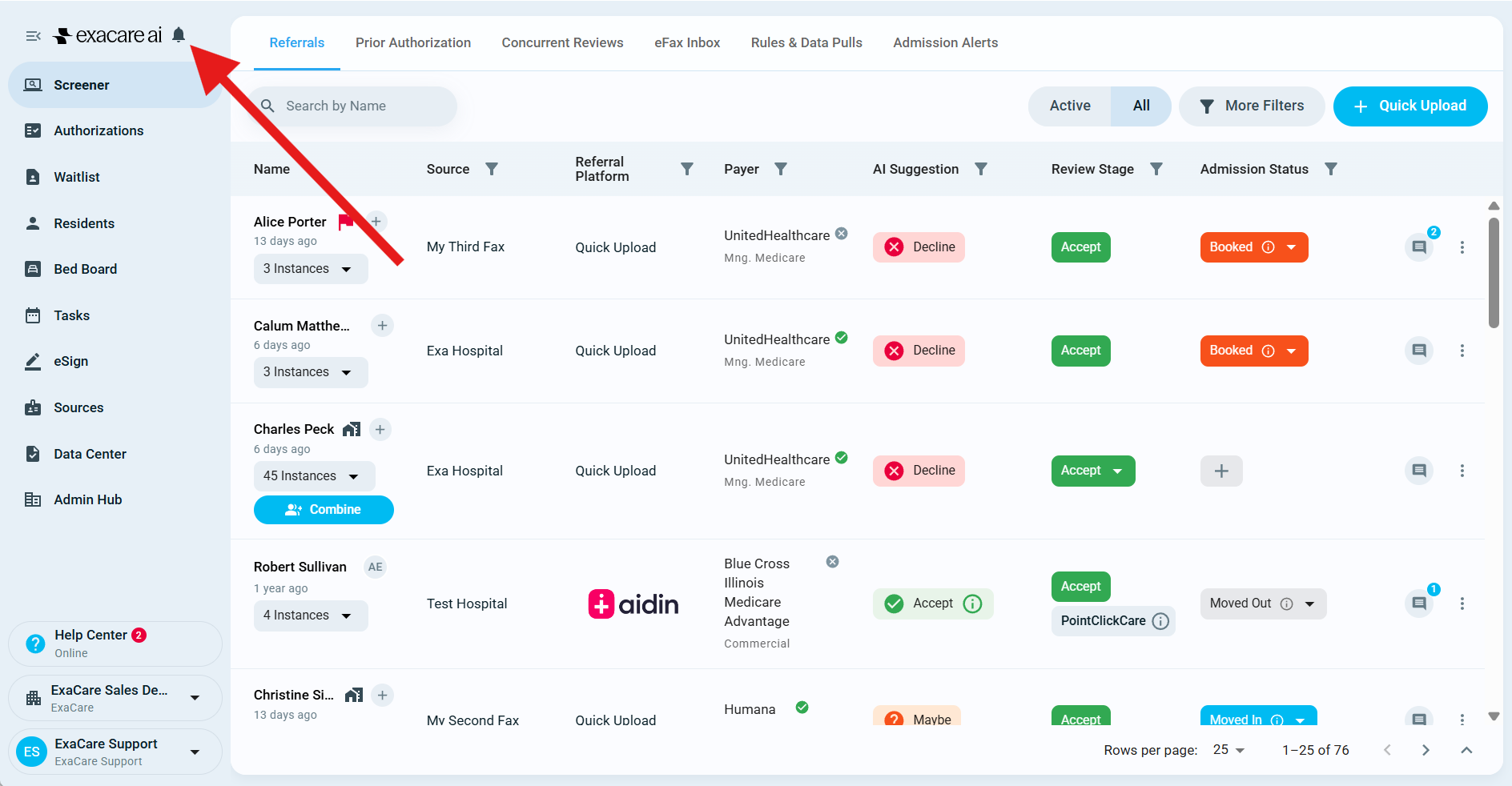
App/Bell: In-app notifications shown from the Notifications icon in exacare ai
Email: Notifications sent to the email address on your user profile
SMS: Text notifications sent to the phone number on your user profile, when SMS is supported for that notification type
Not every notification type supports every delivery channel. Your role, facility access, referral assignment, and notification preferences can also affect what you receive.
Check your notification preferences
Sign in to exacare ai.
Click your profile icon or name at the bottom of the left navigation menu.
Select Profile settings.
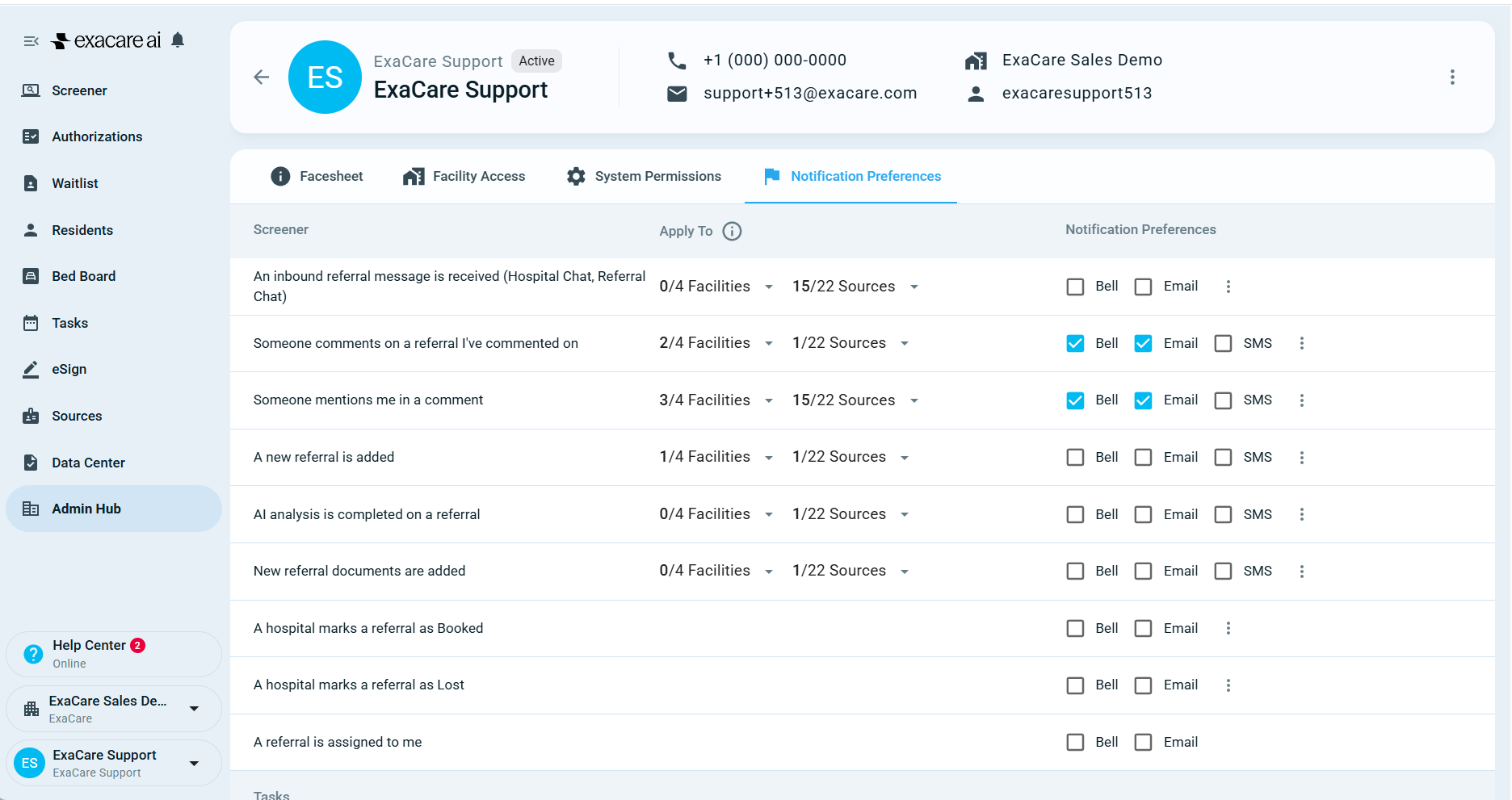
Click Notification Preferences in the top right corner.
Find the notification type you want to receive.
Make sure the correct channel is turned on:
App/Bell for in-app notifications
Email for email notifications
SMS for text notifications, if available
Click Save Preferences.
Check your contact information
If email or SMS notifications are not working, confirm that your contact details are correct.
Open Profile settings.
Confirm your email address is correct.
If you want SMS notifications, add or confirm your cell phone number.
Save any changes.
If you added a phone number but still are not receiving texts, make sure you have not blocked exacare ai text messages or opted out of texts in the past. If you previously opted out, contact support for help re-enabling SMS.
Confirm the notification type is supported
Some notification types may be available in the app but not by email or SMS. For example, certain referral updates may appear as App/Bell notifications, while email defaults can vary by user role.
If a specific notification is not working, check whether that exact notification type has the channel you want enabled in Notification Preferences.
Confirm the notification applies to you
You may not receive a notification if the event is not connected to your user account.
Check whether:
You have access to the facility connected to the referral
The referral is assigned to you, if the notification depends on assignment
The chat message, comment, task, or update is tied to a referral you can access
You are expecting a notification for an action you performed yourself, such as tagging yourself in a comment
If you do not have the right facility or referral access, ask your organization’s Admin or Superadmin to review your user permissions.
If App/Bell notifications are missing
Try these steps:
Refresh exacare ai.
Close duplicate exacare ai browser tabs.
Sign out and sign back in.
Open Notification Preferences and confirm App/Bell is enabled for the notification type.
Check the Notifications icon again.
If the icon is still missing or notifications still do not appear, contact support and include the browser and device you are using.
If email notifications are missing
Try these steps:
Confirm Email is enabled for the notification type in Notification Preferences.
Confirm your email address is correct in Profile settings.
Check your spam, junk, quarantine, or focused inbox folders.
Ask your organization’s IT team whether emails from exacare ai are being filtered.
Confirm the referral, task, or message is tied to a facility and workflow you can access.
If SMS notifications are missing or delayed
SMS notifications require a phone number in your profile and must be supported for the notification type.
If SMS is inconsistent, delayed, or not available for the event you want, turn on App/Bell and Email notifications as backup channels while support investigates.
SMS delivery can be less immediate than in-app or email notifications, so App/Bell notifications are the best place to check for time-sensitive updates.
Expected result
After your preferences and contact details are set correctly, you should receive notifications through the channels enabled for each supported notification type.
If the notification still does not arrive, support may need to review the specific notification event.
Contact support
Contact exacare ai support if you still are not receiving notifications after following these steps.
Include:
The notification you expected to receive
Whether you expected App/Bell, Email, SMS, or all three
The referral, task, document, or chat message connected to the notification
The approximate date and time the event happened
The facility name
Your browser and device, if App/Bell notifications are affected