Notification Preferences: Best Practices for Your Team
Last updated: June 9, 2026
Notification Preferences help each team member control which exacare ai alerts they receive and where they receive them. A thoughtful setup keeps important referral, task, and message updates visible without overwhelming users with alerts they do not need.
When to use this
Use this guide when you are:
Setting up notification preferences for a new team member
Reviewing notification settings across an admissions, marketing, or leadership team
Trying to reduce missed referral activity or notification overload
Troubleshooting why a user is not receiving expected alerts
Before you start
Notification Preferences are set by each user from their own profile.
exacare ai supports three notification channels:
App/Bell: In-app notifications shown from the Notifications icon
Email: Notifications sent to the email address on the user’s account
SMS: Text message notifications sent to the phone number in the user’s Profile settings
A user must have a phone number saved in Profile settings before SMS notifications can be used.
Some notification types may not support every delivery channel. If a channel is not available for a specific notification, choose another supported channel.
Recommended team setup
1. Match notifications to each person’s role
Start with the work each person is responsible for.
For admissions coordinators, marketers, and other daily referral users, we recommend keeping App/Bell and Email notifications on for high-priority referral activity, including assigned referrals, comment mentions, hospital or referral messages, and AI analysis completion.
For administrators and Superadmins, use a more selective setup. Leadership users may want fewer email alerts, while still keeping App/Bell notifications on so they can review activity inside exacare ai when needed.
2. Keep urgent workflow alerts in more than one channel
For time-sensitive work, do not rely on only one delivery method.
A good setup for active referral users is:
Notification type | Recommended channel |
|---|---|
Someone mentions me in a comment | App/Bell and Email |
Someone comments on a referral I have commented on | App/Bell and Email |
A referral is assigned to me | App/Bell and Email |
AI analysis is completed | App/Bell and Email for daily referral users |
New task assigned to me | App/Bell and Email |
Task reminder or overdue task summary | App/Bell and Email |
SMS can be useful for urgent workflows, but App/Bell and Email are the best backup channels if SMS delivery is delayed or inconsistent.
3. Use delivery scopes for facility or source-specific work
Delivery scopes let a user receive notifications only for selected facilities or referral sources.
Use delivery scopes when a team member is responsible for only certain buildings, regions, or referral sources.
If a user should receive notifications for all facilities or all sources, leave delivery scopes unchecked. Turning on delivery scopes without selecting any facilities or sources may prevent the user from receiving those notifications.
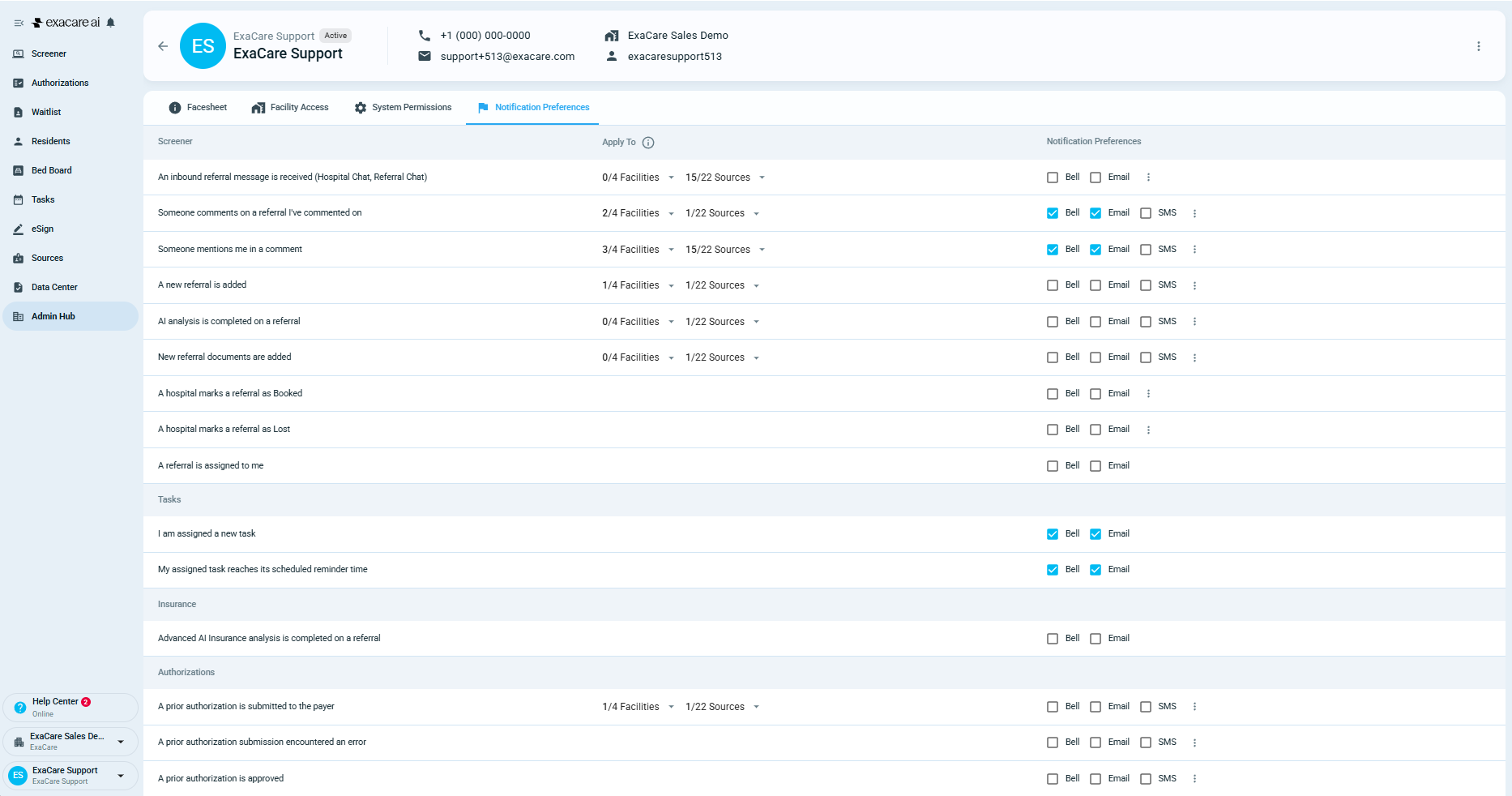
4. Use batch windows to reduce noise
Some notification types support batching. If batching is available, the user can set a batch window so notifications are grouped instead of sent one by one.
Batch windows are helpful for users who need awareness but do not need every alert immediately.
Use batching for lower-urgency updates. Avoid batching notifications that require fast follow-up, such as assigned referral activity or direct mentions.
5. Review settings after role, facility, or source changes
Notification settings should be reviewed whenever a user’s responsibilities change.
Check preferences after:
A user is added to a new facility
A user changes roles
A team member starts covering a different referral source
A user says they are receiving too many notifications
A user says they are missing expected notifications
How to update Notification Preferences
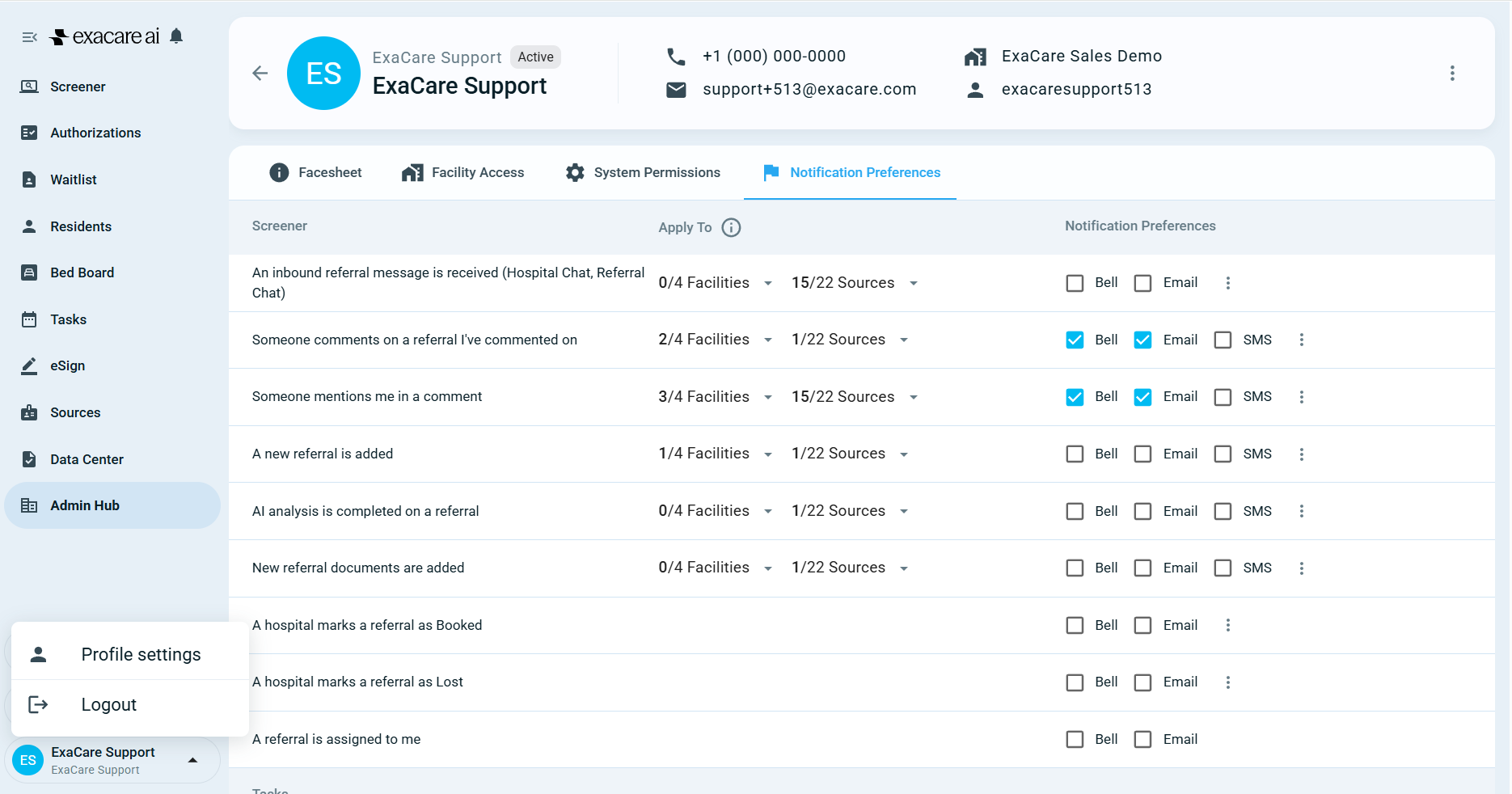
Click your profile icon at the bottom of the left navigation menu.
Select Profile settings.
Click Notification Preferences in the top right corner.
Review each notification type.
Turn App/Bell, Email, or SMS notifications on or off as needed.
If available, use the three-dot menu or settings option next to a notification type to adjust batch windows or delivery scopes.
Click Save Preferences.
Expected result
After preferences are saved, the user will receive supported notifications through the selected channels.
App/Bell notifications appear inside exacare ai from the Notifications icon. Email notifications go to the email address on the user’s account. SMS notifications go to the phone number saved in the user’s Profile settings.
Troubleshooting
A user is not receiving notifications
Ask the user to check:
The notification type is turned on in Notification Preferences.
The expected channel is selected for that notification type.
Their email address and phone number are correct in Profile settings.
They have access to the correct facilities or referral sources.
Delivery scopes are not enabled with no facilities or sources selected.
The notification type supports the selected delivery channel.
A user is receiving too many notifications
Try these adjustments:
Turn off email for lower-priority updates and keep App/Bell on.
Use batch windows where available.
Use delivery scopes so the user only receives alerts for the facilities or sources they manage.
Keep direct mentions and assigned work notifications on so important updates are still visible.
A team needs an alert that is not listed
Some workflow alerts may not be available as standard Notification Preferences. If your team needs a notification for a specific workflow, such as a custom stage change or reporting-based alert, contact exacare support to review the best available option.